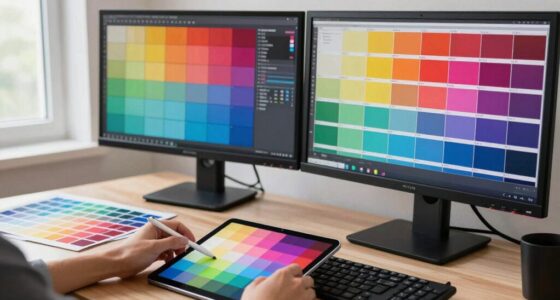
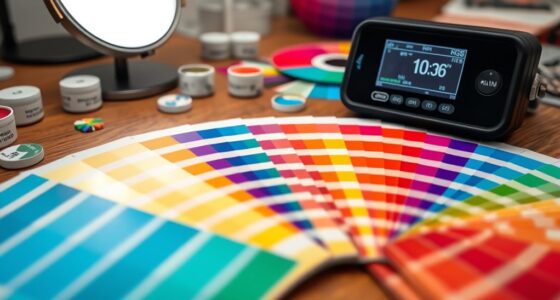
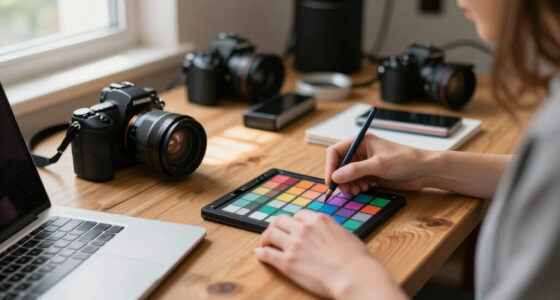
To improve your cross-device color workflow quickly, establish a routine of regular calibration and profiling for all your monitors. Use hardware calibration tools to guarantee each display shows accurate colors, and create custom profiles that match their specific characteristics. Always apply these profiles consistently across your devices, and control your environment’s lighting for better accuracy. Staying disciplined with this setup will help maintain color consistency, and if you keep up with these practices, you’ll see your workflow become more efficient and reliable.

Get art and craft supplies delivered free with Prime
- Fast, free delivery on millions of items
- Prime Video, Amazon Music and more included
- Member-only deals all year
Key Takeaways
- Regularly calibrate all displays to ensure consistent color output across devices.
- Create and apply specific color profiles for each device to maintain uniformity.
- Establish a routine calibration schedule to prevent color discrepancies over time.
- Control ambient lighting and use bias lighting to enhance color perception accuracy.
- Verify profile application before starting work to ensure seamless cross-device color consistency.

Ensuring consistent color across multiple devices can be a challenge, but implementing a simple setup rule can dramatically improve your workflow. The key lies in establishing a routine for color calibration and monitor profiling before starting any project. When you calibrate your monitors regularly, you guarantee that each display shows colors accurately and uniformly, reducing guesswork and rework later on. This process involves using a hardware calibration device that measures your monitor’s output and creates a custom color profile tailored to your specific display. By doing this, you’re effectively telling your computer how to interpret colors, leading to more reliable and consistent results across devices.
Regular monitor calibration ensures accurate, consistent colors across devices, reducing guesswork and improving workflow reliability.
Monitor profiling plays an essential role in maintaining this consistency. Once you calibrate a monitor, you generate a profile that describes its color characteristics. Applying this profile system-wide ensures that every application and image you view or edit aligns with your calibrated standards. To streamline your workflow, you should profile each monitor you use—whether it’s a primary editing screen, a secondary display, or a portable device. Keep your profiles updated regularly, especially if your environment or lighting conditions change, or if your monitor’s settings are adjusted. This proactive approach prevents discrepancies from creeping into your work, saving you time and effort in the long run.
Making calibration and profiling part of your routine doesn’t have to be complicated or time-consuming. Set reminders to calibrate your monitors at regular intervals—weekly or monthly depending on your usage—and consider creating a standard setup checklist. When you power on your workspace, start by calibrating each device, then verify that the respective profiles are correctly applied. This consistency helps maintain a unified color workflow, making it easier to move files between devices without worrying about unexpected shifts in color accuracy. It also enhances collaboration, as colleagues working on the same files will see similar colors, minimizing confusion and revisions. Incorporating monitor calibration techniques into your process ensures that your workflow remains accurate and dependable over time. Additionally, understanding color management workflows can further optimize your setup for different projects and devices. Regular calibration also helps account for monitor aging, which can impact color accuracy over time.
In addition to hardware calibration, be mindful of your working environment. Ambient lighting impacts how you perceive colors, so controlling light levels or using bias lighting can reinforce the accuracy achieved through calibration. Combining proper monitor profiling with a disciplined setup routine ensures that you’re always working within a reliable color framework. Over time, this simple rule will become second nature, saving you hours of frustration, improving your final output, and making cross-device color management a seamless part of your creative process.
Popular right now

KitchenAid Classic Series 4.5 Quart Tilt-Head Stand Mixer (K45SS), Onyx Black
LG C2 Series 65-Inch OLED evo 4K Smart TV (OLED65C2PUA, 2022)

KitchenAid Artisan Series 5-Quart Tilt-Head Stand Mixer, Dried Rose (KSM150PS)
As an affiliate, we earn on qualifying purchases.
Frequently Asked Questions
How Does the Setup Rule Impact Color Accuracy Across Devices?
The setup rule enhances color accuracy by guaranteeing consistent color calibration across all your devices. When you calibrate each device properly, you maintain color consistency, which reduces discrepancies in how colors appear on different screens. This process helps you achieve reliable, predictable results, making your workflow smoother and more professional. By prioritizing device calibration, you make sure that your colors stay true, regardless of the device you’re working on.
What Specific Tools Are Recommended for Implementing This Setup?
You should use color calibration tools like X-Rite i1Profiler or Datacolor SpyderX to guarantee consistent color accuracy. These tools perform display profiling, creating precise color profiles for each device. Regularly calibrate your monitors with these tools to maintain consistency across devices. Proper calibration and profiling ensure your colors stay accurate, making your workflow more efficient and reducing the need for adjustments later.
Can This Setup Rule Be Used With Mobile Devices?
Yes, this setup rule can be used with mobile devices, but you need to take into account mobile compatibility first. It’s designed for flexibility, so you might need specific apps or tools to guarantee consistent color profiles across all devices. With some adjustments, you’ll find the setup offers excellent flexibility, allowing you to maintain accurate color workflows whether you’re working on a desktop or on the go. The key is choosing the right tools.
How Often Should the Color Calibration Be Updated?
You should update your calibration frequency regularly, ideally every few weeks or monthly, to maintain color consistency across devices. Frequent calibration guarantees your display accurately reflects color, reducing discrepancies between screens. If you notice color shifts or your environment’s lighting changes often, consider calibrating more frequently. Consistent calibration helps you achieve reliable, predictable colors, especially when working across multiple devices, ensuring your workflow remains precise and cohesive.
Does This Rule Work With Both Mac and Windows Systems?
Did you know that 78% of professionals struggle with consistent color across devices? Yes, this rule works with both Mac and Windows systems, ensuring better color consistency. By maintaining proper calibration frequency and following the setup rule, you can achieve uniform color workflows regardless of your operating system. It’s an effective way to streamline your process, giving you predictable, accurate results on any device you use.
Conclusion
By embracing this setup rule, you streamline your cross-device color workflow, making consistency effortless. It’s like having a trusted guide in a chaotic world, aligning your colors seamlessly across screens. Without it, you risk frustration and mismatched hues—a frustrating disconnect. But with this simple rule, you gain clarity and speed, turning what once felt complex into a smooth, confident process. In a world of endless screens, your workflow now stands resilient, precise, and ready.