
To choose pen display ergonomics, guarantee your screen is positioned at or just below eye level to avoid neck strain, and adjust the tilt so it feels natural during your art. Use adjustable stands or monitor arms for customization and add wrist rests to prevent discomfort during long sessions. Incorporate good lighting to reduce eye fatigue and take regular breaks for stretching. Following these tips will help you create a comfortable, healthy workspace—if you keep exploring, you’ll discover even more ways to optimize your setup.

Get art and craft supplies delivered free — and shop member deals
- Fast, free delivery on millions of items
- Access to Prime Big Deal Days deals on October 6–7
- Prime Video, Amazon Music and more included
Key Takeaways
- Ensure the display height aligns with eye level to reduce neck strain and promote natural viewing angles.
- Choose adjustable stands or monitor arms for customized positioning and optimal workspace ergonomics.
- Prioritize proper lighting with ambient and diffused sources to minimize glare and eye fatigue during extended use.
- Incorporate ergonomic accessories like wrist rests and supportive mouse pads to enhance comfort and prevent strain.
- Regularly adjust your setup and take breaks to maintain correct posture and prevent repetitive strain injuries.
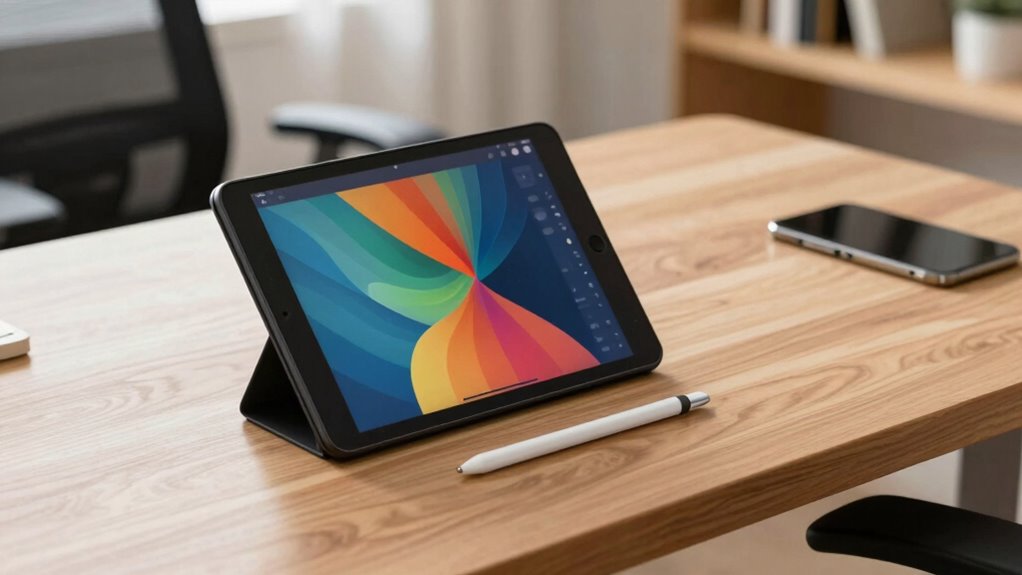
Selecting the right pen display ergonomics is crucial to guarantee comfort and productivity during your creative sessions. When you’re immersed in digital drawing, spending hours sketching, shading, or refining your artwork, the last thing you want is discomfort or strain slowing you down. Choosing an ergonomically sound setup helps you maintain focus and reduces fatigue. Start by considering the height and tilt of your pen display. Ideally, the top of the screen should be at or just below eye level, allowing you to look straight ahead without craning your neck. Adjusting the tilt can also prevent wrist strain, so aim for a position that feels natural when you’re drawing.
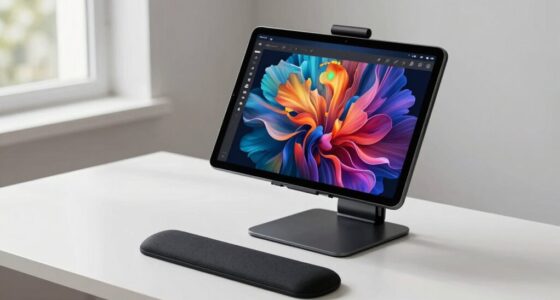
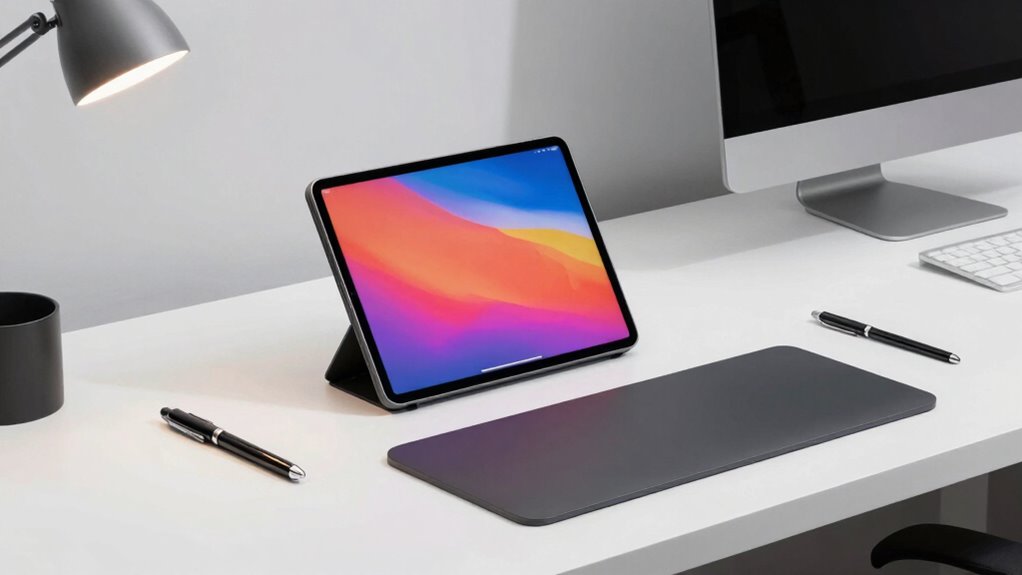
In addition to the display itself, ergonomic accessories can dramatically improve your workflow. An adjustable stand or a monitor arm allows you to customize your setup easily, keeping your workspace flexible and aligned with your posture needs. A good stand ensures your tablet remains stable and at the right height, reducing the risk of awkward wrist angles or hunching over. You might also consider a wrist rest or ergonomic mouse pad, which can alleviate pressure on your wrists during prolonged digital drawing sessions. These accessories create a more comfortable environment, helping you focus on your art rather than discomfort. Incorporating ergonomic design principles into your workspace setup can further enhance comfort and efficiency. Additionally, paying attention to ergonomic principles can help prevent long-term discomfort and injuries. Ensuring your workspace promotes proper posture is also essential for maintaining overall health during extended creative periods.
Lighting plays a significant role in maintaining ergonomic standards. Proper ambient lighting minimizes glare on your display and reduces eye strain, especially during long drawing sessions. Position your workspace to avoid reflections on the screen, and consider using adjustable desk lamps with diffused light for excellent visibility. An ergonomic workspace isn’t just about the display; it’s about creating a balanced environment that supports your entire body. Take breaks regularly to stretch and adjust your posture, reinforcing healthy habits that prevent repetitive strain injuries over time. Additionally, paying attention to the ergonomic design of your setup can make a notable difference in long-term comfort.
adjustable monitor stand for pen display
As an affiliate, we earn on qualifying purchases.
As an affiliate, we earn on qualifying purchases.
Frequently Asked Questions
How Do I Adjust Pen Display Tilt for Comfort?
To adjust your pen display tilt for comfort, start by positioning the device so the screen angle feels natural with your wrist and arm. Keep your pen grip relaxed and your wrist in a neutral position to reduce strain. Slightly tilt the display to match your natural drawing angle, avoiding excessive angles that cause discomfort. Regularly adjust until you find a setup that supports smooth movement and maintains good wrist positioning.
What Is the Ideal Screen Size for Ergonomic Use?
The ideal screen size balances your workspace and comfort, typically between 21 and 27 inches for ergonomic use. A larger display enhances detail with higher screen resolution, making color calibration easier for accurate visuals. Smaller screens are portable but may cause strain over long hours. Prioritize a size that fits your desk, allows comfortable viewing angles, and supports your workflow, ensuring you can work efficiently without sacrificing ergonomic health.
How Does Pen Sensitivity Affect Workflow Ergonomics?
Pen sensitivity directly impacts your workflow ergonomics by influencing how naturally you can draw or write. Higher pressure sensitivity allows you to create varied lines with less effort, reducing hand fatigue. When your pen responds accurately to pressure, you won’t need to press harder, which minimizes strain during long sessions. This ease of use helps maintain comfort, enabling you to work longer without discomfort or fatigue.
Can I Customize Button Placement for Better Ergonomics?
You can definitely customize button placement for better ergonomics. Studies show that ergonomic customization improves comfort and productivity by up to 30%. Most pen displays offer adjustable button placement, allowing you to position shortcuts where your fingers naturally rest. By tailoring button placement, you reduce strain and make your workflow more efficient. Take advantage of these features to create a setup that fits your needs, boosting both comfort and performance.
What Accessories Improve Pen Display Ergonomic Setup?
You can improve your pen display ergonomic setup with accessories like a comfortable stylus grip, which reduces strain during extended use, and a monitor stand or adjustable desk height to align your screen properly. These accessories help maintain a natural wrist position and eye level, preventing discomfort. Prioritizing these additions guarantees a more comfortable, efficient workflow, and minimizes fatigue during long creative sessions.
ergonomic wrist rest for drawing tablet
As an affiliate, we earn on qualifying purchases.
As an affiliate, we earn on qualifying purchases.
Conclusion
Now that you’ve got the basics down, choosing the right pen display ergonomics comes down to listening to your body and setting up your workspace thoughtfully. Remember, it’s not just about the tools but how you use them—your comfort is the foundation of creativity. When you find that sweet spot, you’ll work smarter, not harder, turning your setup into a seamless extension of your ideas. After all, a good setup keeps you ahead of the game and pain-free in the long run.
desk lamp with diffused light for workspace
As an affiliate, we earn on qualifying purchases.
As an affiliate, we earn on qualifying purchases.
As an affiliate, we earn on qualifying purchases.
Halloween Picks
halloween
As an affiliate, we earn on qualifying purchases.