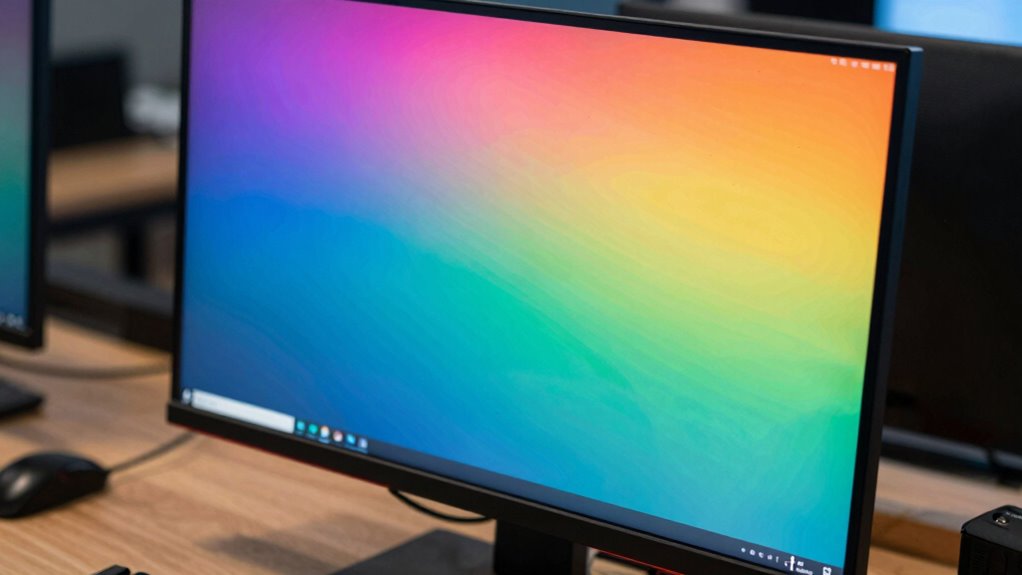

To compare monitor color accuracy effectively, you should calibrate and profile each display using hardware tools like colorimeters. This process guarantees you measure true color output, not just factory settings. Focus on how each monitor reproduces color spaces like sRGB or Adobe RGB, and check for consistency across shades. By understanding these factors, you’ll make smarter, more informed choices. Keep exploring to discover how these steps can give you even better insight into color performance.

Get art and craft supplies delivered free — and shop member deals
- Fast, free delivery on millions of items
- Access to Prime Big Deal Days deals on October 6–7
- Prime Video, Amazon Music and more included
Key Takeaways
- Use hardware calibration tools like colorimeters or spectrophotometers for precise, repeatable measurements.
- Create and compare detailed color profiles to assess how each monitor reproduces a consistent color space.
- Evaluate display performance with visualization tools that highlight differences in gamma, grayscale, and color uniformity.
- Calibrate monitors to standard color spaces (sRGB, Adobe RGB) for accurate, predictable color reproduction.
- Focus on real-world performance and consistency over factory defaults to make informed, accurate comparisons.
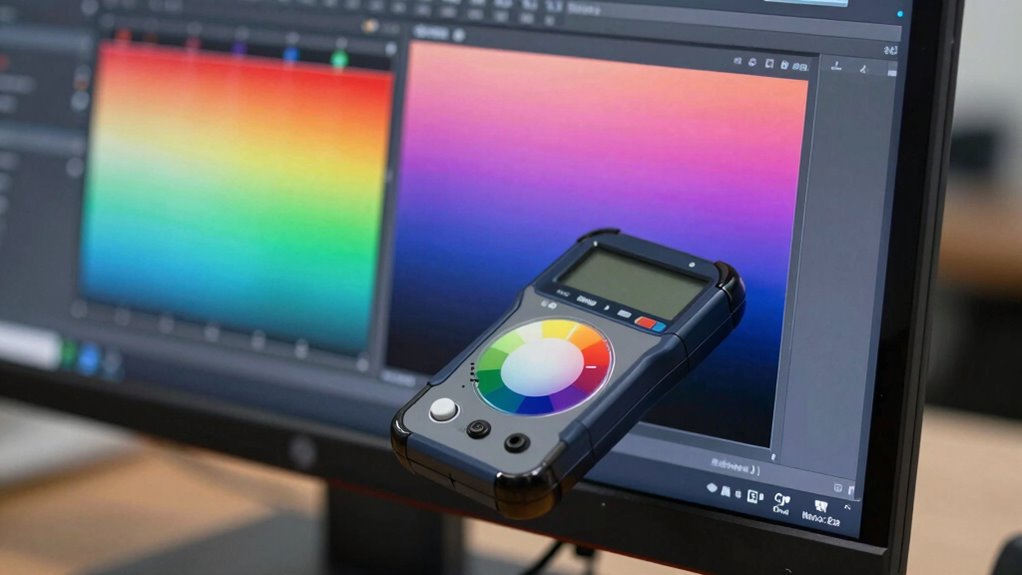
When choosing a monitor, understanding its color accuracy is essential, especially if you work in photography, design, or any field that demands precise color reproduction. To accurately compare monitor color accuracy, you need to consider how well each display has been calibrated and profiled. Color calibration is the process of adjusting your monitor’s settings to match a standard color space, ensuring that what you see on screen aligns with industry standards or print outputs. Display profiling, on the other hand, involves creating a color profile that characterizes how a monitor reproduces colors, allowing software to interpret and correct color output more effectively. Together, these processes help you assess a monitor’s true color performance.
Proper calibration and profiling are essential for accurate, consistent monitor color performance in professional work.
A smarter way to compare monitors starts with using hardware calibration tools. These devices, like colorimeters or spectrophotometers, measure a monitor’s color output with high precision. Once you calibrate a display, it’s crucial to generate a display profile—this file acts as a reference for your operating system and editing software to interpret the monitor’s color data accurately. When comparing multiple monitors, make sure each is calibrated using the same device and process to maintain consistency. This way, you’re not just comparing factory settings or default configurations but evaluating each monitor’s potential after proper calibration.
Another key aspect is to look beyond factory defaults. Many monitors come pre-calibrated, but factory settings rarely match professional standards. Performing your own calibration, especially with a high-quality tool, reveals each display’s true color accuracy. If you’re comparing monitors, do this for each one, then examine the resulting profiles and calibration reports. Software tools like display calibration suites can help visualize differences by showing color uniformity, gamma consistency, and grayscale accuracy. Paying attention to color space handling ensures your display reproduces your chosen color gamuts accurately after calibration. Moreover, understanding how each monitor handles color management helps you achieve more predictable and consistent color output across different devices and workflows. A thorough understanding of monitor calibration techniques enhances your ability to make informed comparisons and select the best display for your needs. Additionally, recognizing how well a monitor maintains color consistency across various shades can significantly impact your workflow, especially in professional environments.
Furthermore, take into account how each monitor handles color spaces relevant to your work, such as sRGB, Adobe RGB, or DCI-P3. A monitor’s ability to reproduce these color gamuts accurately after calibration makes a significant difference. When comparing, look at how well each display maintains color consistency across different shades and tones. A monitor with better display profiling will deliver more accurate, predictable colors, reducing surprises in your final output.
In essence, comparing monitor color accuracy effectively involves a combination of proper calibration, detailed profiling, and understanding each display’s color reproduction capabilities. By doing so, you guarantee that your choice isn’t based on superficial specs but on real-world performance, giving you confidence in your color-critical work.
monitor colorimeter for calibration
As an affiliate, we earn on qualifying purchases.
As an affiliate, we earn on qualifying purchases.
Frequently Asked Questions
How Often Should I Recalibrate My Monitor for Optimal Color Accuracy?
You should recalibrate your monitor every 2 to 4 weeks to maintain ideal color accuracy and guarantee consistent color consistency. Regular calibration helps you catch any drift in display performance, especially if you work with color-sensitive projects like photography or design. Keep an eye on your monitor’s performance, and if you notice color discrepancies or shifts, recalibrate sooner. Consistent calibration guarantees your colors stay true over time.
What Are the Best Tools for Measuring Monitor Color Accuracy?
Ever wondered what tools give you the most precise color calibration? You should consider hardware calibration devices like the X-Rite i1Display Pro or Datacolor SpyderX. These tools measure your monitor’s color output accurately, ensuring consistent results. They’re essential for professional work, as they allow you to perform detailed hardware calibration, which adjusts your display’s color settings directly. Investing in these tools guarantees your monitor’s color accuracy remains spot-on over time.
Does Monitor Size Affect Color Accuracy Comparisons?
Monitor size can influence color accuracy comparisons because larger screens may alter color perception due to viewing angles and brightness uniformity. With bigger monitors, you might notice differences more clearly, but slight inaccuracies can be magnified. Smaller screens often provide more consistent color perception. When comparing monitors, consider size, as it impacts how you perceive color, and make sure you view them under consistent lighting conditions for the most accurate assessment.
How Does Ambient Lighting Influence Color Calibration Results?
Ambient lighting considerably affects your color calibration results because it influences your color perception. Bright or uneven lighting can wash out colors or create glare, making calibration less accurate. To get the best results, you should calibrate your monitor in consistent, controlled lighting conditions, ideally with dim or neutral ambient light. This way, your monitor’s colors will appear true to life, ensuring precise color accuracy for your work or entertainment.
Can Software Adjustments Improve Hardware Color Accuracy?
Yes, software adjustments can improve hardware color accuracy through color profiles and calibration tools. You can fine-tune your monitor’s display settings by creating custom color profiles that align with your hardware calibration data. While software tweaks help, they’re most effective when combined with proper hardware calibration, ensuring your monitor displays colors as accurately as possible. This combined approach enhances color consistency across different devices and applications.
professional monitor calibration tool
As an affiliate, we earn on qualifying purchases.
As an affiliate, we earn on qualifying purchases.
Conclusion
Now that you know how to effectively compare monitor color accuracy, you’re better equipped to choose the right display for your needs. Remember, a monitor with precise color reproduction can transform your work or creative projects, making every detail stand out. So, next time you’re shopping for a new monitor, ask yourself: wouldn’t you want a display that truly brings your images and designs to life? After all, isn’t accurate color the key to revealing your full creative potential?
spectrophotometer for display profiling
As an affiliate, we earn on qualifying purchases.
As an affiliate, we earn on qualifying purchases.
monitor color calibration software
As an affiliate, we earn on qualifying purchases.
As an affiliate, we earn on qualifying purchases.
Fall Picks
fall essentials
As an affiliate, we earn on qualifying purchases.