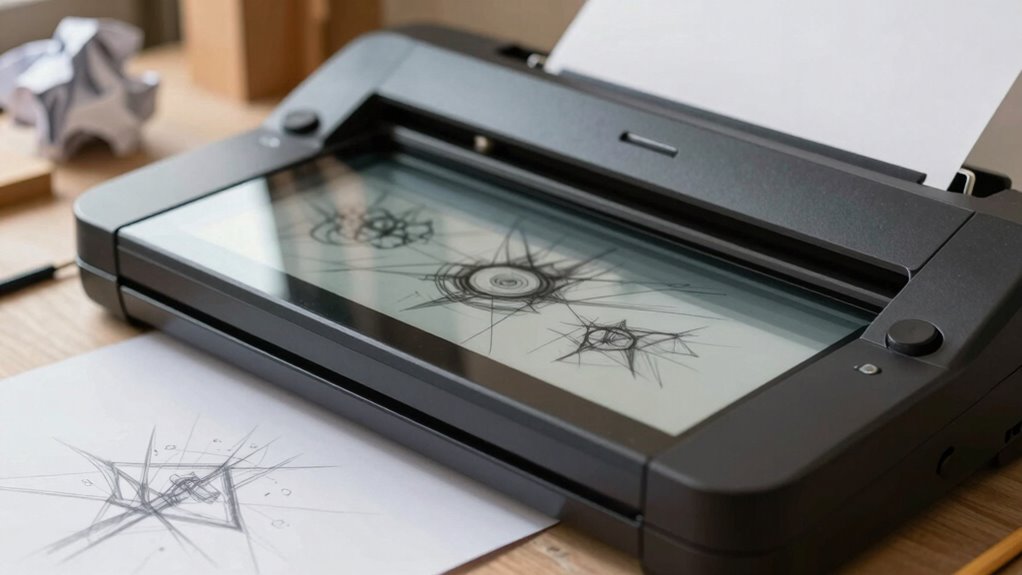

Many people make the mistake of focusing only on a scanner’s physical features or price, without considering how resolution, connectivity, or long-term value affect their workflow. A low-priced scanner might seem appealing, but it may not deliver the detail you need for your sketches. Ignoring these aspects can lead to poor results or the need for upgrades later. Stick around to uncover how to choose a scanner that truly fits your artistic and digital needs.

Get art and craft supplies delivered free with Prime
- Fast, free delivery on millions of items
- Prime Video, Amazon Music and more included
- Member-only deals all year
Key Takeaways
- Focusing solely on physical features and price rather than resolution and compatibility.
- Choosing a scanner with lower optical resolution that can’t capture fine sketch details.
- Prioritizing brand names or flashy features over matching scanner specs to specific workflow needs.
- Ignoring connectivity options, leading to workflow disruptions or limited device integration.
- Overlooking long-term value, such as upgradeability and suitability for professional use.
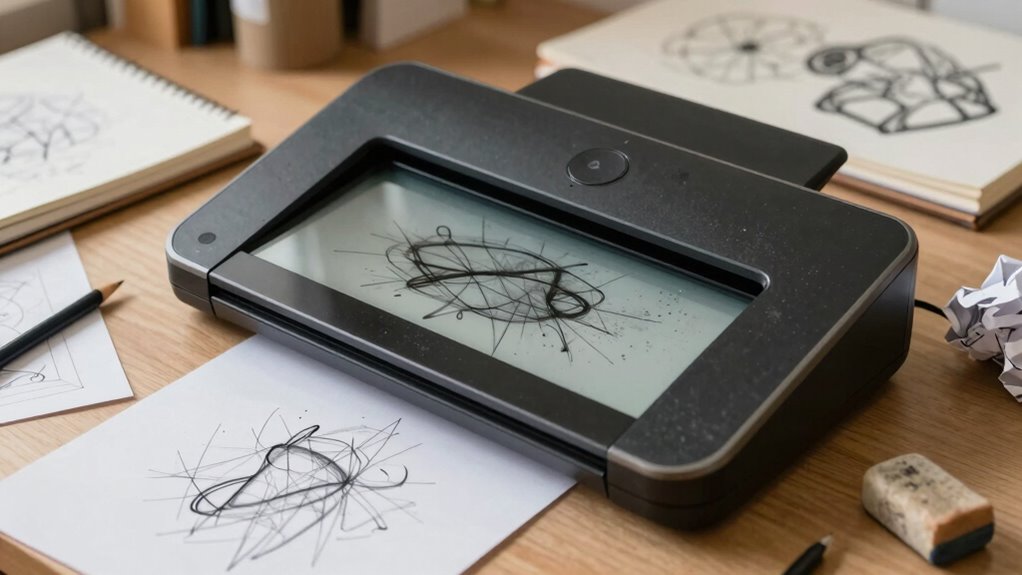
Choosing the right scanner for your sketches can be more complicated than it seems, especially if you’re new to digital art or design. One common mistake people make is focusing solely on the scanner’s physical features or price, overlooking how well it suits their specific needs. A key factor to consider is digital resolution. If your sketches will be used for detailed work, such as printing or professional presentations, a scanner with a higher optical resolution—at least 600 dpi—is essential. Lower resolutions may save you money upfront, but they can compromise the quality of your digital files, leading to pixelation or loss of detail when enlarged or printed. On the other hand, if you only need quick digital copies for sharing or casual use, a lower resolution might suffice, but it’s important to match your choice to your intended output. Additionally, understanding scanner resolution can help you make more informed decisions that align with your creative needs.
Prioritize digital resolution and connectivity to ensure your scanner fits your creative needs and workflow seamlessly.
Connectivity options are another critical aspect many overlook. The most basic scanners connect via USB, which is sufficient for most tasks, but newer models often include Wi-Fi or Bluetooth connectivity. These options provide greater flexibility, allowing you to scan directly to your computer, tablet, or cloud storage without swapping cables. If you work in a busy studio or share a workspace, wireless connectivity can streamline your workflow and reduce clutter. Conversely, if you prefer a more straightforward setup or work in an environment with limited wireless signals, a wired connection might be more reliable. Also, check if the scanner supports your operating system and whether it offers compatibility with your preferred software. Incompatibility can lead to frustration and delays, especially if you’re trying to integrate scans into your digital art workflow efficiently.
Many buyers also fall into the trap of choosing a scanner based solely on brand reputation or flashy features that won’t be useful to them. Instead, you should identify your primary needs—whether it’s high resolution, fast scanning speeds, or easy connectivity—and prioritize those. For example, if you frequently scan large sketches, ensure the scanner bed size is adequate. If you work with multiple devices, look for models that support multi-platform connectivity. Failing to do so can result in buying a scanner that doesn’t match your workflow, forcing you to upgrade sooner than you’d like. Being aware of scanner compatibility and how it integrates with your existing setup can make all the difference in achieving a smooth digital art experience.
Ultimately, avoiding these common mistakes requires carefully evaluating your requirements before making a purchase. By paying close attention to digital resolution and connectivity options, you ensure your scanner will enhance your creative process rather than hinder it. Remember, the right scanner should fit seamlessly into your workflow, giving you crisp, clear digital copies of your sketches whenever you need them.
Popular right now
Vitamix 5200 Professional-Grade Blender, 64 oz. Container, Black

Bose QuietComfort True Wireless Earbuds with Active Noise Cancellation, Black

De'Longhi Rivelia Automatic Espresso Machine with Milk Frother – White
As an affiliate, we earn on qualifying purchases.
Frequently Asked Questions
What Is the Ideal Resolution for Scanning Sketches?
You should scan sketches at a resolution of 300 DPI for the best balance of detail and file size. This guarantees good color accuracy, capturing your sketches’ shades and tones accurately. Also, consider paper compatibility; thicker or textured paper might require adjustments or a higher resolution to prevent loss of detail. Avoid scanning too low, which can result in blurry images, or too high, which creates unnecessarily large files.
How Does Scanner Size Affect Sketch Scanning Quality?
Imagine a giant canvas versus a pocket-sized notebook—size impacts your scan’s clarity. Larger scanners often offer better compatibility with various sketch sizes, ensuring your sketches retain color accuracy and detail. Smaller scanners may struggle with compatibility, leading to pixelation or color mismatch. So, choosing the right size helps you preserve your artwork’s integrity, providing consistent quality and making sure your sketches look sharp and true to life in digital form.
Are Budget Scanners Suitable for Professional Sketch Work?
Budget scanners often aren’t suitable for professional sketch work because they may lack color accuracy and handle paper compatibility poorly. You might notice dull or inaccurate colors, which can misrepresent your artwork. Additionally, cheaper scanners might struggle with thicker or textured paper, leading to distorted scans. For professional results, investing in a higher-quality scanner guarantees vibrant, true-to-life colors and smooth handling of various paper types, saving you time and frustration.
Which Scanner Features Are Essential for Detailed Sketches?
Think of your scanner as a magic wand for your sketches—precision is key. You need features like high resolution and excellent color accuracy to capture every detail and hue. Additionally, reliable paper handling prevents smudges or jams, ensuring smooth scans. Focusing on these essential features guarantees your sketches are faithfully reproduced, saving you time and frustration, and turning your raw ideas into polished digital masterpieces.
How Do I Clean and Maintain My Sketch Scanner?
To keep your sketch scanner in top shape, regularly clean the glass surface with a soft, lint-free cloth and gentle cleaning solution. Use compressed air to remove dust from vents. Maintain artificial intelligence features by updating software and firmware. For accurate color calibration, periodically run calibration tools to guarantee your scans are true to original artwork. Proper maintenance enhances scan quality and prolongs your device’s lifespan.
Conclusion
So, next time you rush into buying a scanner for your sketches, remember—you might just be signing up for a digital nightmare. Don’t let flashy features or low prices fool you; sometimes the best choice is to stick with your instincts—and a good old-fashioned camera. After all, who needs clarity when you can settle for pixelated chaos? Happy sketching, and may your scanner never betray you at the worst possible moment!