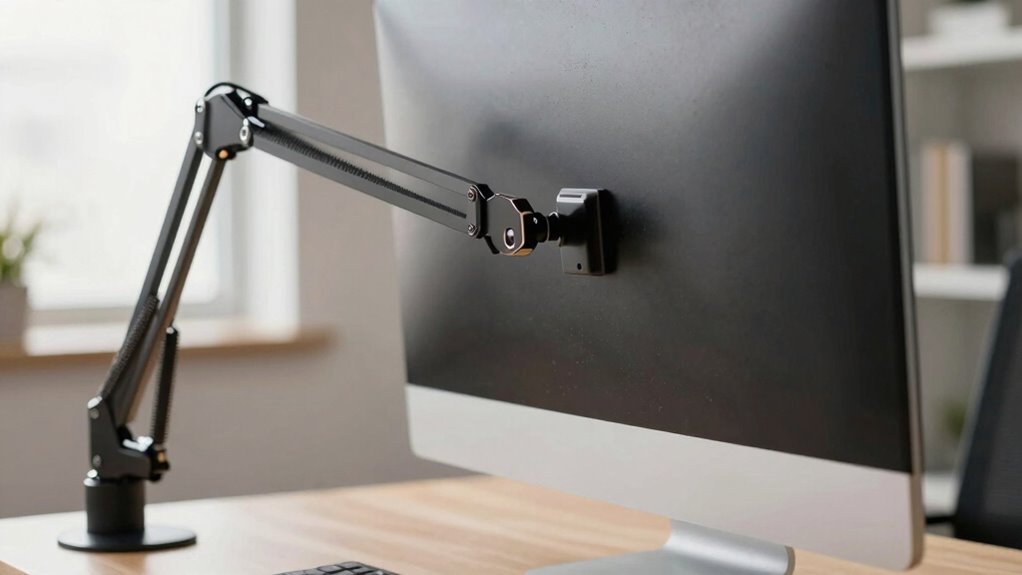

Before upgrading your monitor arm, make certain it offers enough range of motion to adjust height, tilt, and distance for an ergonomic position. Focus on placing the top of your screen at eye level and directly in front to avoid neck strain. Consider your workspace layout, lighting, and glare, and verify the arm suits your desk setup. Proper chair and desk height are also key to maintaining a healthy posture. Keep exploring to get all the tips for a comfortable, ergonomic upgrade.

Get art and craft supplies delivered free — and shop member deals
- Fast, free delivery on millions of items
- Access to Prime Big Deal Days deals on October 6–7
- Prime Video, Amazon Music and more included
Key Takeaways
- Ensure the monitor arm has sufficient range of motion for height, tilt, and distance adjustments.
- Check compatibility with your monitor size and weight to avoid stability issues.
- Verify the arm’s compatibility with your workspace setup and desk mounting options.
- Consider ergonomic features like easy adjustability to maintain proper posture.
- Assess if the new arm supports optimal monitor positioning at eye level to reduce strain.
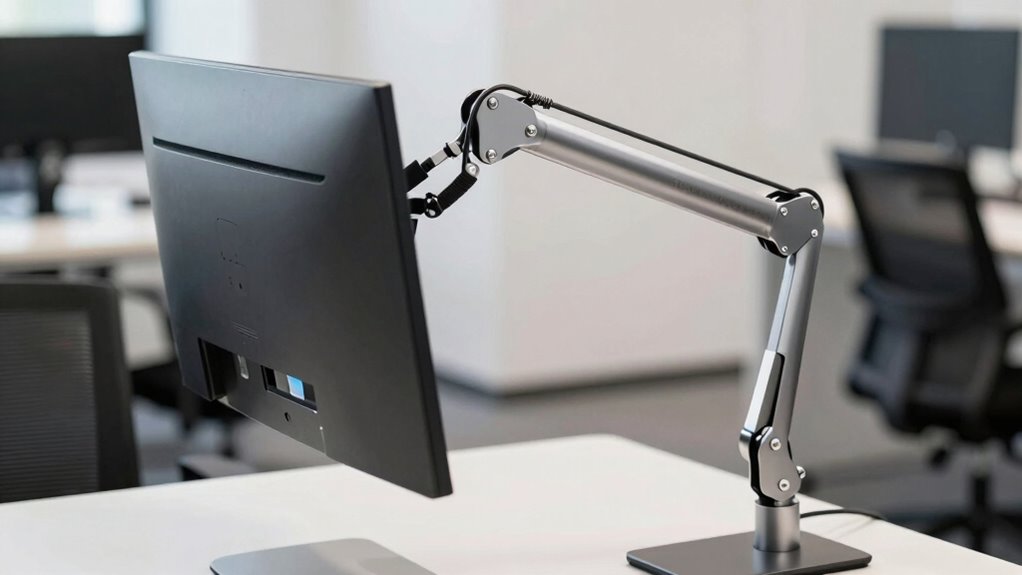
Upgrading your monitor arm posture can considerably improve comfort and reduce strain, but it’s essential to understand what changes are necessary before making a switch. The foundation of a healthy setup often lies in proper ergonomic adjustments and strategic monitor placement. Before adjusting your monitor arm, take a moment to evaluate your current posture and workspace. Are your eyes level with the top of the screen? Is your back straight, and are your feet flat on the floor? These questions help identify what needs to change. Proper ergonomic adjustments aren’t just about comfort; they also prevent long-term musculoskeletal issues. When upgrading your monitor arm, focus on ensuring the monitor is positioned at eye level and about an arm’s length away. This position minimizes neck and eye strain and encourages good posture.
Monitor placement plays a key role in this process. You want to position the screen so that you’re not tilting your head up or down excessively. The monitor should be directly in front of you, with the top of the screen roughly at eye level. If your current setup causes you to crane your neck or lean forward, your monitor arm needs to be adjusted accordingly. An adjustable monitor arm allows you to fine-tune height, tilt, and distance easily, making it simpler to find that ideal position. Remember, the goal is to keep your head and neck in a neutral position, avoiding unnecessary strain. When upgrading, check whether your monitor arm has enough range of motion to accommodate these ergonomic adjustments comfortably. Additionally, ensuring your workspace setup is ergonomically optimized can make a significant difference in comfort and productivity. Being aware of your monitor placement can also help you identify whether your current setup is contributing to discomfort or inefficiency. Furthermore, incorporating proper lighting into your workspace can help reduce glare and reflections, improving visual comfort during long periods of screen time. It’s also helpful to consider the workspace layout to ensure your monitor is positioned to support proper posture and reduce unnecessary movement throughout the day.
Furthermore, think about your workspace layout. The monitor should be centered in front of your seated position, with minimal glare and reflections. If you find yourself constantly repositioning the monitor or experiencing discomfort, it’s a sign that your monitor placement isn’t ideal. An effective upgrade involves not just the arm itself but also your awareness of how the monitor fits into your overall ergonomic setup. It’s important to maintain proper posture and support your body with a suitable chair and desk height, ensuring your entire workspace is aligned to reduce strain. The monitor arm should complement these adjustments, creating a seamless ergonomic environment.
ergonomic monitor arm with adjustable height
As an affiliate, we earn on qualifying purchases.
As an affiliate, we earn on qualifying purchases.
Frequently Asked Questions
Can I Upgrade My Monitor Arm Without Tools?
Yes, you can upgrade your monitor arm without tools if it features a tool-free adjustment mechanism. This makes installation easier and reduces difficulty, allowing you to quickly improve your ergonomic benefits. Look for monitor arms with quick-release or thumb screw adjustments, which are designed for tool-free upgrades. These options make it simple to change your posture and setup without hassle, enhancing comfort and productivity effortlessly.
How Do I Choose the Right Monitor Arm for My Desk?
To choose the right monitor arm for your desk, consider ergonomic benefits like adjustable height, tilt, and swivel to improve comfort and reduce strain. Make sure it fits your desk size and monitor weight capacity. Look for a sleek design that matches your aesthetic appeal for a cohesive workspace. Reading reviews and checking compatibility helps you select a durable, functional option that enhances your posture and workspace style.
Are There Compatibility Issues With Different Monitor Sizes?
While exploring monitor arm options, you might find subtle differences in monitor size compatibility and arm weight capacity. Some arms are best suited for smaller screens, while larger monitors need sturdier support. To guarantee a smooth experience, double-check that your monitor’s size and weight fall within the arm’s specifications. This way, you enjoy seamless adjustability and stability, avoiding any unwelcome surprises along the way.
What Is the Average Lifespan of a Monitor Arm?
The average lifespan of a monitor arm is typically 3 to 5 years, depending on its material durability and usage. If you choose a model made from sturdy materials like steel or high-quality aluminum, you’ll enjoy better ergonomic benefits and longer durability. Regular maintenance, like tightening joints and inspecting for wear, can extend its life, ensuring your workspace stays ergonomic and your investment remains worthwhile.
Can I Adjust the Monitor Arm While Working?
You can definitely adjust your monitor arm while working—most models are designed for easy, quick tweaks. Did you know that proper monitor height adjustment can reduce neck strain by 20%? Adjusting your monitor arm offers ergonomic benefits, helping you maintain good posture and avoid discomfort. So, feel free to make those small tweaks anytime; it’s a simple way to stay comfortable and boost productivity throughout your workday.
As an affiliate, we earn on qualifying purchases.
Conclusion
Upgrading your monitor arm is like tending a garden—you need to adjust, nurture, and find the right balance. When you fine-tune your posture, you create a space where comfort blooms and strain withers away. Remember, small changes can lead to big growth in your workspace harmony. So, take this moment to anchor your setup, and watch your productivity flourish like a well-tended garden—vibrant, steady, and full of promise.
desk mount monitor arm with tilt and swivel
As an affiliate, we earn on qualifying purchases.
As an affiliate, we earn on qualifying purchases.
gas spring monitor arm for ergonomic setup
As an affiliate, we earn on qualifying purchases.
As an affiliate, we earn on qualifying purchases.
Fall Picks
fall essentials
As an affiliate, we earn on qualifying purchases.