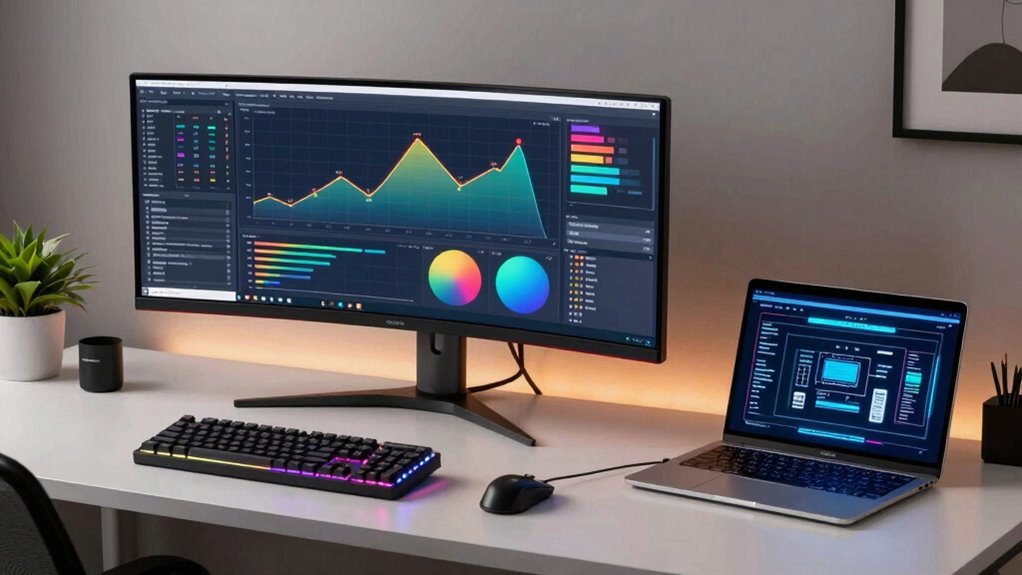
Before upgrading your desktop or laptop workflow, consider your work style, needs, and environment. If you require power, customization, and larger screens, a desktop might be best, especially for intensive tasks. For mobility and flexibility, a laptop suits those who work across different locations. Think about cloud integration, ergonomic comfort, and how each device fits into your ecosystem. Understanding these factors guarantees a smarter upgrade; keep exploring to make informed choices tailored to your workflow.
Key Takeaways
- Assess your primary work needs: prioritize power and expandability for desktops or portability for laptops.
- Ensure seamless cloud integration to support collaboration and remote access across devices.
- Consider ergonomic setup options to reduce strain during long working hours, tailored to each device type.
- Evaluate ecosystem compatibility for software, peripherals, and workflow integration across devices.
- Factor in regional preferences and standards to optimize device choice and workspace comfort.
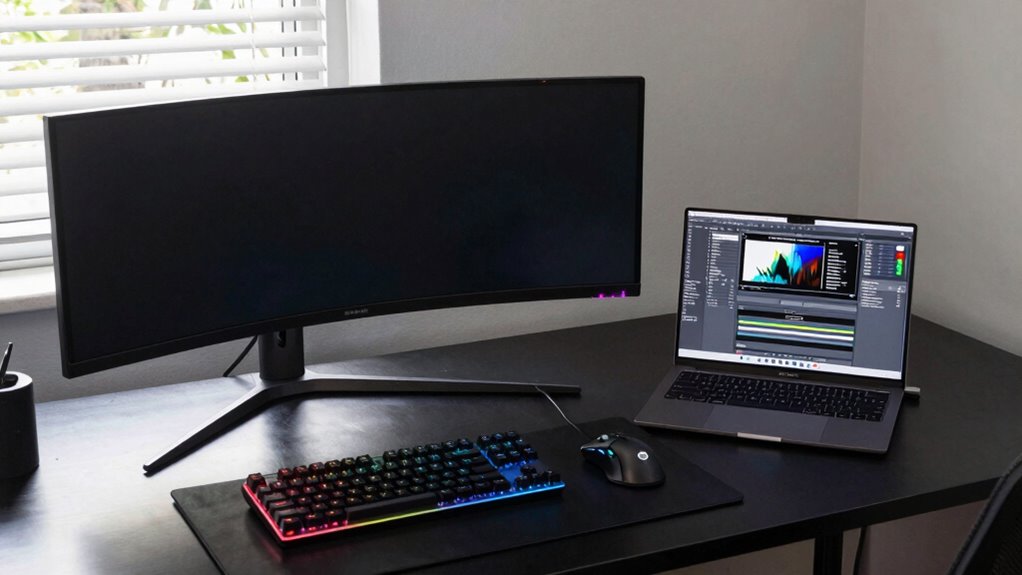
Deciding whether to upgrade your desktop or laptop workflow depends on your specific needs and usage habits. If you’re weighing options, consider how each device fits into your daily routine and what features matter most. For desktops, upgrades often mean more power, better hardware, and tailored setups. Laptops, on the other hand, offer portability and flexibility, making them ideal if you work from multiple locations. Your choice hinges on your work style, but also on how each device integrates with your overall digital environment.
Choose between desktop power and laptop portability based on your work habits and digital environment integration.
Cloud integration plays a vital role in modern workflows, especially when upgrading either device. With a desktop, you might need to enhance local storage and guarantee seamless cloud syncing, so your files are accessible anywhere. Upgrading to a system with robust cloud capabilities encourages collaboration and minimizes downtime. Laptops naturally support cloud integration well, since you can access your data on the go, but make sure your device’s hardware and internet connection are reliable enough to handle the demands of cloud-based work. Both options should prioritize cloud compatibility to maintain a smooth, efficient process.
Ergonomic design is another key factor in your upgrade decision. If you spend hours at your desk, a desktop with ergonomic accessories—adjustable monitors, ergonomic keyboards, supportive chairs—can boost comfort and prevent strain. Upgrading your desktop setup allows you to customize your workspace for maximum comfort, which can improve productivity and reduce fatigue. Laptops, ergonomic considerations focus on portability and adaptable accessories, like external keyboards, stands, and mice, to create a comfortable working position, especially if you frequently switch locations. Choosing devices that support ergonomic accessories can make a significant difference in your overall well-being during extended work sessions. Additionally, considering regional ergonomic standards can help tailor your setup to regional health practices and preferences.
When upgrading, think about how each device aligns with your workflow demands. Desktops often provide more power and expandability, making them suitable for intensive tasks like video editing or software development. Laptops excel in mobility, ideal for professionals who need to work anywhere or travel often. Also, consider how each device’s ecosystem supports your preferred cloud services and ergonomic needs. For instance, a desktop with a large screen and ergonomic setup can serve as a primary workstation, while a laptop can serve as a portable extension, allowing you to work seamlessly from different locations. Additionally, understanding how regional culture influences technology preferences can help tailor your setup to optimize comfort and efficiency. An awareness of regional trends can guide your choices toward devices and accessories that best suit your environment.
Ultimately, your upgrade should enhance your productivity, comfort, and flexibility. Evaluate whether your work benefits from the customization and power of a desktop or the portability and convenience of a laptop. Incorporating features like cloud integration and ergonomic design into your decision will guarantee your workflow remains efficient and comfortable, no matter which device you choose to upgrade. Considering regional technology adoption can also provide insights into how certain devices and solutions are preferred or adapted in your area, further optimizing your setup.

Wireless Keyboard and Mouse Combo, 2.4G Full Size Wave Keys Ergonomic Keyboard with Wrist Rest and 3-Level DPI Adjustable Wireless Ergonomic Mouse for Windows, Mac OS Desktop/Laptop/PC(Black)
【Wave Ergonomic Wireless Keyboard and Mouse Combo】The wireless keyboard features a wave key and wrist rest design that…
As an affiliate, we earn on qualifying purchases.
As an affiliate, we earn on qualifying purchases.
Frequently Asked Questions
How Does Upgrade Cost Compare Between Desktops and Laptops?
Upgrading a desktop usually costs less than upgrading a laptop, offering better performance gains for the price. Desktops have more accessible components, making upgrades more cost-efficient and easier to implement. Laptops, on the other hand, often require specialized parts and labor, increasing costs. If you want better performance gains without breaking the bank, upgrading your desktop is generally the smarter and more cost-efficient choice.
What Are the Environmental Impacts of Upgrading Each Device?
Upgrading your device impacts the environment considerably, with electronics contributing about 50 million tons of e-waste annually. Desktops generally consume more energy than laptops, increasing their environmental footprint. Proper e-waste management is vital to reduce harmful pollution from discarded devices. When upgrading, consider energy-efficient models and recycling programs to minimize your carbon footprint. Your choices can help reduce energy consumption and guarantee responsible disposal, benefiting the planet long-term.
Which Upgrades Offer the Longest Lifespan?
Upgrades focused on RAM, storage, and graphics card tend to offer the longest lifespan, especially when aligned with your future proofing strategies. In your upgrade planning, prioritize components that can handle upcoming software and workload demands. Desktops generally allow for easier, more extensive upgrades, extending their usability. Laptops may have limited upgrade options, so choose models with upgrade-friendly features to maximize longevity.
How Do Warranty Policies Influence Upgrade Decisions?
Warranty policies substantially influence your upgrade decisions by providing security and peace of mind. When considering an upgrade, check if your warranty covers repairs or replacements, which can save money and extend your device’s lifespan. If your warranty is limited or expiring soon, you might opt for an upgrade sooner rather than later. Strong warranty policies often make upgrading less risky, helping you make confident decisions about whether to upgrade now or wait.
Are There Compatibility Issues When Upgrading Components?
Yes, compatibility issues can arise when upgrading components. You need to guarantee hardware compatibility by checking if new parts fit your system and work with existing hardware. Additionally, driver updates are vital; outdated drivers may cause system instability or hardware malfunction. Before upgrading, verify that the motherboard supports the new components, and always download the latest drivers to assure smooth operation and avoid potential conflicts.

Lamicall Adjustable Laptop Stand, Portable Laptop Riser, Aluminum Laptop Stand for Desk Foldable, Ergonomic Computer Notebook Holder for MacBook Air Pro HP, Office Desk Accessories (10-17.3'')- Silver
Wide Compatibility: The laptop stand for desk is compatible with all laptops from 10" up to 17.3", including…
As an affiliate, we earn on qualifying purchases.
As an affiliate, we earn on qualifying purchases.
Conclusion
Whether you choose to upgrade your desktop or laptop, think of it as tending to a garden—you’re nurturing your tools to blossom into their fullest potential. Each upgrade is like adding a splash of vibrant color or a sturdy stake to support growth. Embrace the journey, knowing that your decision shapes the canvas of your creativity and productivity. With each enhancement, you’re crafting a masterpiece, turning ordinary work into something truly extraordinary.
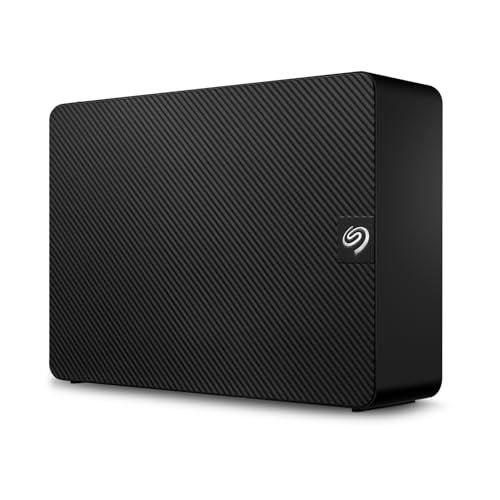
Seagate Expansion 22TB External Hard Drive HDD – USB 3.0, with Rescue Data Recovery Services (STKP22000400)
Easy-to-use desktop hard drive—simply plug in the power adapter and USB cable
As an affiliate, we earn on qualifying purchases.
As an affiliate, we earn on qualifying purchases.

WALI Single Monitor Mount for 13-34 inch Screens, Adjustable Single Monitors Arm, Regular Screen up to 32 inch, 26.4lbs, Computer Monitor Stand for Desk, VESA 75/100mm (GSMP001N), Black
Compatibility: WALI single monitor arm is designed to fit most flat or curved LCD/LED screens ranging from 13"…
As an affiliate, we earn on qualifying purchases.
As an affiliate, we earn on qualifying purchases.