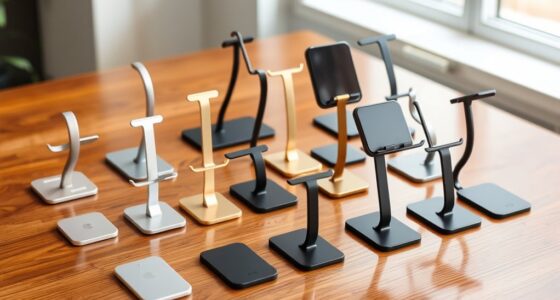
Choosing between creative drawing tablets comes down to one big fork in the road: screenless pen tablets that need a computer, standalone tablets that work anywhere, and display tablets that let you draw directly on the surface. The XPPen Magic Drawing Pad 12.2 earns my best overall pick for blending standalone portability with a paper-like drawing surface and 16K pressure levels. If you’d rather spend less, the Huion Inspiroy H640P is the standout budget pen tablet, while the HUION Kamvas 13 (Gen 3) is the pick for artists who want a true on-screen drawing experience. The main tradeoff you’ll face is price versus mobility: standalone tablets cost more but free you from a desk, and screenless tablets are cheap but demand practice drawing while looking at a separate monitor. Read on for the full breakdown of all 13 options and which one fits your creative workflow.

Get art and craft supplies delivered free with Prime
- Fast, free delivery on millions of items
- Prime Video, Amazon Music and more included
- Member-only deals all year
Key Takeaways
- Standalone tablets dominated the top of my ranking — the XPPen Magic Drawing Pad and PicassoTab X11 free you from a computer entirely, which is why they beat cheaper screenless models despite the higher price.
- Screenless tablets under $50, like the XPPen StarG640 and Huion Inspiroy H640P, deliver nearly identical pen performance to pricier pen tablets — you’re mostly paying for hotkeys and a larger active area, not better lines.
- The Kamvas 13 (Gen 3) appears twice in this lineup with different pen specs; the 16K pressure version only makes sense if you already produce finished client work, since casual sketchers won’t feel the difference.
- Wacom‘s Intuos Small survives on software bundle and build polish alone — its specs are outclassed by Huion and XPPen rivals at the same price, so it’s a brand-loyalty pick rather than a value pick.
- The PicassoTab family trades screen quality and app ecosystem for convenience; the X11 is the only one of the three PicassoTab models I’d recommend, because the smaller 10-inch and 12-inch versions feel sluggish by comparison.
| XPPen StarG640 Digital Graphic Drawing Tablet 6×4 Inch |  | Best Ultra-Cheap Starter | Active Area: 6 x 4 inches | Stylus: Battery-free PN01 | Thickness: 2 mm | VIEW LATEST PRICE | See Our Full Breakdown |
| PicassoTab 12″ Standalone Drawing Tablet |  | Best Standalone for Beginners | Display: 12 inches, laminated | Processor: Octa-core CPU | RAM: 6GB | VIEW LATEST PRICE | See Our Full Breakdown |
| UGEE M708 Drawing Tablet, 10×6 inch |  | Best Value for a Large Surface | Active Area: 10 x 6 inches | Pressure Sensitivity: 16,384 levels | Shortcut Keys: 8 customizable express keys | VIEW LATEST PRICE | See Our Full Breakdown |
| Huion Inspiroy H640P Drawing Tablet |  | Best Portable Pick | Active Area: 6 x 4 inches | Pressure Sensitivity: 8192 levels | Report Rate: 233 PPS | VIEW LATEST PRICE | See Our Full Breakdown |
| HUION Inspiroy H1060P Graphics Drawing Tablet |  | Best for Serious Hobbyists | Working Area: 10 x 6.25 inches | Pressure Levels: 8192 | Stylus: Battery-free, tilt support ±60° | VIEW LATEST PRICE | See Our Full Breakdown |
| PicassoTab 10″ Standalone Drawing Tablet, No Computer Needed, Portable, A10 |  | Best Portable Standalone Pick | Display: 10-inch laminated screen | Processor: Octa-core | RAM: 6GB | VIEW LATEST PRICE | See Our Full Breakdown |
| 11″ Standalone Drawing Tablet, Portable PicassoTab X11 |  | Best Standalone Value | Display: 11-inch 2K laminated screen | Stylus: 4096-level pressure-sensitive stylus | Processor: Octa-core | VIEW LATEST PRICE | See Our Full Breakdown |
| HUION Kamvas 13 (Gen 3) Drawing Tablet with Screen, Dual Dial, 13.3″ |  | Best Pen Display Overall | Screen Size: 13.3 inches | Color Coverage: 99% sRGB (Rec.709) | Color Accuracy: Avg. ΔE < 1.5 | VIEW LATEST PRICE | See Our Full Breakdown |
| XPPen Deco 01 V3 10×6 Drawing Tablet with Battery-Free Stylus and 8 Keys |  | Best Budget Beginner Tablet | Active Area: 10 x 6.25 inches | Pressure Levels: 16,384 | Stylus: Battery-free with tilt support | VIEW LATEST PRICE | See Our Full Breakdown |
| HUION Kamvas 13 (Gen 3) Drawing Tablet with Screen and 16K Pressure Pen |  | Best Premium Pen Display | Display Size: 13.3 inches | Color Coverage: 99% sRGB, 90% Adobe RGB | Pressure Sensitivity: 16,384 levels | VIEW LATEST PRICE | See Our Full Breakdown |
| Wacom Intuos Small Wired Graphics Drawing Tablet with Pen and Software |  | Best for First-Time Wacom Buyers | Technology: EMR (Electro-Magnetic Resonance) | Connectivity: Wired | Pen Type: Battery-free EMR stylus | VIEW LATEST PRICE | See Our Full Breakdown |
| XPPen Magic Drawing Pad 12.2 Inch Standalone Drawing Tablet with 16K Pressure Levels and Paper-Like Screen |  | Best Premium Standalone Pick | Screen Size: 12.2 inches | Resolution: 2160 x 1440 | Color Support: 97% sRGB, 16.77 million colors | VIEW LATEST PRICE | See Our Full Breakdown |
| XP-PEN Artist12 11.6 Inch FHD Drawing Monitor with Battery-Free Pen and Accessories |  | Best Value Drawing Monitor | Display Size: 11.6 inches | Resolution: 1920 x 1080 (FHD) | Color Gamut: 72% NTSC (100% sRGB) | VIEW LATEST PRICE | See Our Full Breakdown |
| creative drawing tablet | Compatibility | Connectivity | Stylus |
|---|---|---|---|
| XPPen StarG640 Digital Graphic | Mac, Windows, Chromebook | — | Battery-free PN01 |
| PicassoTab 12" Standalone Draw | — | — | — |
| UGEE M708 Drawing Tablet | Windows 7+, macOS 10.10+, Android 10+, Chrome OS 88+, Linux | USB to USB-C with adapters | — |
| Huion Inspiroy H640P Drawing T | Mac, Windows, Linux, Android | USB | Battery-free PW100 |
| HUION Inspiroy H1060P Graphics | Windows 7+, macOS 10.12+, Android 6.0+, Linux (Ubuntu) | Micro USB, USB-C, OTG support | Battery-free, tilt support ±60° |
| PicassoTab 10" Standalone Draw | — | — | 4096-level pressure-sensitive active pen |
| 11" Standalone Drawing Tablet | — | — | 4096-level pressure-sensitive stylus |
| HUION Kamvas 13 | Windows 10+, macOS 10.12+, Android USB 3.1 GEN1 / DP1.2, Linux Ubuntu 20.04 LTS | USB-C single cable | — |
| XPPen Deco 01 V3 10×6 Drawing | Windows 7+, macOS 10.13+, Android 10.0+, Chrome OS 88+, Linux | USB-C, USB, Android adapters included | Battery-free with tilt support |
| HUION Kamvas 13 | Windows 10+, macOS 10.12+, Android USB 3.1 GEN1 / DP1.2, Linux Ubuntu 20.04 LTS | USB-C to USB-C, dual-interface | — |
| Wacom Intuos Small Wired Graph | All major creative software | Wired | — |
| XPPen Magic Drawing Pad 12.2 I | — | — | — |
| XP-PEN Artist12 11.6 Inch FHD | Windows 7/8/10/11, Mac 10.10+, Linux | HDMI and USB-A (adapters may be required) | Battery-free with eraser, 8192 pressure levels |
More Details on Our Top Picks
XPPen StarG640 Digital Graphic Drawing Tablet 6×4 Inch
At this price, the StarG640 is less a commitment and more a low-risk experiment — which is exactly the point. The battery-free stylus and 2mm-thin body make it genuinely usable rather than toy-like, and Chromebook support sets it apart from budget rivals that ignore classroom ecosystems. Compared with the Huion Inspiroy H640P, you lose shortcut keys and half the pressure sensitivity, so this is strictly a bare-bones entry point. It also doubles as a document annotator or online-teaching pointer, which explains its popularity with students. The 6×4 inch surface does feel cramped once you try longer strokes, and serious illustrators will outgrow it within months. That is acceptable for a tablet whose job is answering the question “do I even like drawing digitally?” without spending much to find out.
Pros:- Extremely affordable entry into digital art
- Battery-free stylus with no charging interruptions
- Works with Chromebook alongside Mac and Windows
- 2mm slim profile slips into any laptop bag
Cons:- 6×4 inch active area is cramped for detailed illustration
- No shortcut keys or advanced stylus features
- Non-display tablet — you must draw while looking at a separate screen
Best for: Students and curious first-timers who want to test digital art or annotate notes for under twenty dollars
Not ideal for: Hobbyists past the beginner stage — the small surface and lack of shortcut keys will bottleneck real artwork fast
- Active Area:6 x 4 inches
- Stylus:Battery-free PN01
- Thickness:2 mm
- Compatibility:Mac, Windows, Chromebook
Our verdict“A cheap, honest trial run for digital art that you should plan to outgrow.”
PicassoTab 12″ Standalone Drawing Tablet
This is the pick for artists who do not want a computer in the equation at all. The 12-inch laminated display means you draw directly on the screen — a hand-eye coordination advantage that non-display tablets like the UGEE M708 simply cannot offer — and the Android-based octa-core system with 6GB of RAM runs sketching and painting apps on its own. The bundled case, glove, and screen protector mean you are drawing within minutes of unboxing. Compared with the Huion Kamvas 13, it trades display quality and pro-grade pressure levels for total independence and a lower price, plus storage that expands to 1TB for animation files. The tradeoffs are real: 4096 pressure levels is modest by current standards, and Android apps cap how far your workflow can grow. Think of it as a sketchbook that happens to be a computer.
Pros:- Fully standalone — no computer needed, ever
- 12-inch laminated screen for accurate on-glass drawing
- Storage expandable to 1TB for large project files
- Generous accessory bundle included out of the box
Cons:- 4096 pressure levels lags far behind 16K-class competitors
- Android app ecosystem limits advanced workflows
- Battery life is not clearly specified for long sessions
Best for: Beginners and students who want a draw-on-screen experience without owning or tethering to a laptop
Not ideal for: Professionals who rely on desktop software like Photoshop or Clip Studio Paint on a full computer
- Display:12 inches, laminated
- Processor:Octa-core CPU
- RAM:6GB
- Storage:128GB, expandable to 1TB
- Pen Pressure:4096 levels
- Warranty:1 year
Our verdict“The most pain-free way to start drawing on a screen instead of beside one.”
UGEE M708 Drawing Tablet, 10×6 inch
Most budget tablets force you into a small drawing area; the M708 refuses that compromise. Its 10×6 inch textured surface gives your arm room to move, which matters more for line quality than almost any spec on the box, and the 16,384 pressure levels put it ahead of the Huion Inspiroy H640P on paper by a wide margin. Against the similarly sized HUION Inspiroy H1060P, it counters Huion’s big shortcut-key array with a broader compatibility list — including Android, Chrome OS, and Linux — and a textured finish that feels closer to paper. The eight express keys cover the basics, but the ambidextrous layout means lefties give up the comfortable position. It is also a desk-bound device; if you commute with your gear, the smaller Huion makes more sense. For a home setup on a tight budget, though, this delivers the most drawing real estate per dollar here.
Pros:- Large 10×6 inch active area rarely found at this price
- 16,384 pressure levels for fine gradation control
- Textured surface mimics the feel of paper
- Broad OS support including Android, Chrome OS, and Linux
Cons:- Requires third-party software to reach full potential
- Ambidextrous design compromises comfort for left-handed users
- Too large and desk-bound for portable use
Best for: Budget-minded hobbyists who want a full-size drawing surface at a desktop workstation
Not ideal for: Artists who work from cafés or commutes — the 10×6 footprint is not travel-friendly
- Active Area:10 x 6 inches
- Pressure Sensitivity:16,384 levels
- Shortcut Keys:8 customizable express keys
- Connectivity:USB to USB-C with adapters
- Compatibility:Windows 7+, macOS 10.10+, Android 10+, Chrome OS 88+, Linux
Our verdict“The most square inches of drawing space you can buy without paying premium prices.”
Huion Inspiroy H640P Drawing Tablet
At 0.61 lbs and 0.3 inches thick, the H640P is the tablet that actually goes places — it sits unobtrusively next to a laptop in a café bag, which is not something the UGEE M708 can claim. Its 8192 pressure levels and four customizable shortcut keys give it a genuine edge over the cheaper XPPen StarG640, which offers neither, making it the smarter buy if you already know you will stick with digital art. Android support widens its usefulness to phone-based sketching, though iPhone and iPad owners are out of luck entirely. The small active area remains the honest limitation: fine for notes, linework, and small compositions, restrictive for sweeping illustrations. Setup also involves Huion’s driver software before the shortcut profiles become useful. For a portable second tablet or a compact first one, the balance here is hard to beat.
Pros:- Featherweight 0.61 lb design built for travel
- 8192 pressure levels for expressive line variation
- Four customizable shortcut keys speed up common actions
- Works with Android phones as well as desktop OSes
Cons:- 6×4 inch area constrains larger illustration styles
- No iPhone or iPad support at all
- Driver installation required to customize the tablet
Best for: Commuting students and artists who need a lightweight tablet that travels alongside a laptop
Not ideal for: Apple mobile users — iPhone and iPad are unsupported, and the small surface limits large compositions
- Active Area:6 x 4 inches
- Pressure Sensitivity:8192 levels
- Report Rate:233 PPS
- Connectivity:USB
- Stylus:Battery-free PW100
- Weight:0.61 lbs
- Thickness:0.3 inches
- Compatibility:Mac, Windows, Linux, Android
Our verdict“The best-behaved small tablet for artists whose studio is wherever their backpack lands.”
HUION Inspiroy H1060P Graphics Drawing Tablet
Where the Inspiroy H640P prioritizes portability, the H1060P goes all-in on workflow: 12 programmable keys plus 16 soft keys means zoom, brush swap, and undo live under your fingers instead of buried in menus — the closest thing to a studio console in this non-display price tier. The battery-free stylus with ±60° tilt support adds natural shading angles that the flat-response pens on cheaper tablets cannot replicate, and the 10 x 6.25 inch working area supports full-arm strokes. Against the UGEE M708, it wins on control customization and pen tech while conceding slightly on raw pressure numbers — a trade most working hobbyists should take. Connectivity quirks pile up, though: Mac users need an adapter, and Samsung Galaxy S-series phones may not display the cursor over OTG. If your tablet lives on a desk and your projects run long, this is the grown-up choice of the screenless bunch.
Pros:- 28 total customizable shortcut controls for fast workflows
- Tilt-supporting battery-free stylus enables natural shading
- Large 10 x 6.25 inch area for detailed, arm-driven work
- Cross-platform support including Android and Linux
Cons:- Requires a USB adapter for Mac connectivity
- OTG mode fails on iPhone/iPad and some Samsung phones
- No display — still a look-at-screen, draw-on-tablet experience
Best for: Dedicated hobbyists and aspiring professionals who want shortcut-heavy control at a desktop setup
Not ideal for: Mobile-focused artists — OTG quirks, no iPhone/iPad support, and a desk-bound footprint limit on-the-go use
- Working Area:10 x 6.25 inches
- Pressure Levels:8192
- Stylus:Battery-free, tilt support ±60°
- Shortcut Keys:12 programmable + 16 soft keys
- Connectivity:Micro USB, USB-C, OTG support
- Thickness:10 mm
- Compatibility:Windows 7+, macOS 10.12+, Android 6.0+, Linux (Ubuntu)
Our verdict“A workflow-first screenless tablet for artists ready to graduate from basics to long sessions.”
PicassoTab 10″ Standalone Drawing Tablet, No Computer Needed, Portable, A10
Most tablets in this roundup assume you already own a computer — this one doesn’t. The PicassoTab A10 runs entirely on its own hardware, which puts it in a different category than screen-requiring options like the HUION Kamvas 13 (Gen 3). For sketching on a train or drawing at a coffee shop, that self-sufficiency is the whole point, and the 4096-level pressure stylus plus laminated 10-inch screen gives beginners a paper-like feel without any cable management. The tradeoff is power: compared with the larger PicassoTab X11, its 64GB of onboard storage fills up quickly, and its octa-core chip is fine for sketch apps but not heavy illustration work. The bundled case, glove, and preloaded tutorials make it feel like a complete starter kit rather than a bare device. Just know that professional color work belongs on a calibrated display like the Kamvas line instead.
Pros:- Fully standalone — no computer required to draw
- Genuinely travel-friendly 10-inch size with included case
- 4096 pressure levels deliver responsive line variation
- Preloaded apps and tutorials flatten the learning curve
Cons:- 64GB base storage is tight without adding a microSD card
- Performance depends on Android app compatibility, not full desktop software
- Pressure sensitivity is a fraction of what pen displays like the Kamvas 13 offer
Best for: Students and hobbyist artists who want to draw anywhere without carrying a laptop
Not ideal for: Professional illustrators who need wide color gamut and desktop-class software
- Display:10-inch laminated screen
- Processor:Octa-core
- RAM:6GB
- Storage:64GB, expandable up to 1TB
- Stylus:4096-level pressure-sensitive active pen
- Included Accessories:Premium case, drawing glove, power adapter, screen protector
Our verdict“Buy this if portability matters more than raw power; skip it if you need professional color accuracy.”
11″ Standalone Drawing Tablet, Portable PicassoTab X11
Think of the X11 as the A10 grown up: same computer-free concept, but with a 2K laminated 11-inch display and double the base storage at 128GB. That resolution bump is not cosmetic — extra pixels make fine linework and small text in tutorials noticeably crisper, which matters for anyone learning to draw digitally. Compared with pen displays like the XPPen Artist12, you sacrifice color calibration and desktop software but gain the freedom to work untethered anywhere. The bundled accessory package (case, glove, screen protector, adapters) matches what Simbans ships with the smaller A10, so the step-up money goes into the screen and storage rather than extras. The honest catch: standalone Android hardware has a performance ceiling, and HUION doesn’t publish battery-life details here, so heavy multitaskers may hit limits that a USB-tethered tablet never faces.
Pros:- 2K laminated display is a clear step above the 10-inch A10
- 128GB storage doubles the base capacity of the smaller model
- Everything included: pen, case, glove, adapter, and screen protector
- Preloaded tutorials make it genuinely beginner-friendly
Cons:- No published battery-life figures for long unplugged sessions
- Software compatibility details are thin compared with established brands
- Octa-core mobile chip lags behind a computer-driven setup for demanding files
Best for: Beginners and students who want a bigger, sharper standalone screen without a laptop
Not ideal for: Artists whose workflow depends on Photoshop or other desktop-only software
- Display:11-inch 2K laminated screen
- Stylus:4096-level pressure-sensitive stylus
- Processor:Octa-core
- RAM:6GB
- Storage:128GB, expandable up to 1TB
- Warranty:1 year
- Included Accessories:Digital pen, glove, AC adapter, USB cable, premium case, screen protector
Our verdict“The strongest standalone value in this lineup for new artists who refuse to be tied to a desk.”
HUION Kamvas 13 (Gen 3) Drawing Tablet with Screen, Dual Dial, 13.3″
This is where the roundup shifts from convenience to craft. The Kamvas 13 (Gen 3) pairs a fully laminated 13.3-inch anti-glare screen with 99% sRGB coverage and an average ΔE under 1.5, meaning the colors you paint are the colors you’ll see in print or on the web. Against a blank-slate tablet like the XPPen Deco 01 V3, the difference is fundamental: drawing directly on the image shortens the hand-eye learning curve dramatically. The dual dial controls and 16,384 pressure levels put professional-grade input within reach, and the included ST300 adjustable stand is a genuine ergonomic plus that many competitors sell separately. The obvious tradeoff is dependency — unlike the PicassoTab X11, this is a peripheral, not a computer, so you’ll need a capable PC, Mac, or Android device to make it work, and initial driver setup takes patience.
Pros:- 99% sRGB with ΔE<1.5 accuracy suitable for client color work
- Fully laminated anti-glare glass reduces parallax and glare
- Dual dial plus shortcut buttons speed up serious workflows
- Single USB-C cable connection keeps the desk clean
Cons:- Requires a tethered computer or supported Android device
- Driver and color-profile setup can frustrate first-time pen display users
Best for: Developing digital artists who already own a computer and want to draw directly on screen
Not ideal for: Anyone without a computer or phone to tether to — this tablet cannot run on its own
- Screen Size:13.3 inches
- Color Coverage:99% sRGB (Rec.709)
- Color Accuracy:Avg. ΔE < 1.5
- Pressure Sensitivity:16,384 levels
- Connectivity:USB-C single cable
- Compatibility:Windows 10+, macOS 10.12+, Android USB 3.1 GEN1 / DP1.2, Linux Ubuntu 20.04 LTS
- Warranty:1 year
Our verdict“The best balance of color quality, control, and price for artists ready to graduate from screenless tablets.”
XPPen Deco 01 V3 10×6 Drawing Tablet with Battery-Free Stylus and 8 Keys
Not everyone needs a screen — and paying for one you don’t use is wasted money. The Deco 01 V3 delivers a generous 10 x 6.25-inch active area and a 16,384-level battery-free stylus with tilt support at a price point far below screen-equipped rivals like the Kamvas 13 (Gen 3). That pressure spec matches HUION’s flagship pen, which is remarkable at this tier: line weight responds to a light touch, and the stylus never needs charging. Compared with smaller beginners’ options like the XPPen StarG640, the larger surface allows full-arm drawing strokes rather than cramped wrist movement. The compromise is the hand-eye gap — you draw on the tablet while watching the monitor — and the eight shortcut keys, while useful, won’t replace the dial controls and on-screen feedback of pricier pen displays. Driver installation is mandatory, so budget twenty minutes of setup.
Pros:- 16,384 pressure levels with tilt — flagship-grade input at a budget price
- Large 10 x 6.25-inch area rivals tablets costing far more
- Battery-free stylus eliminates charging forever
- Works across Windows, macOS, Android, Chrome OS, and Linux
Cons:- No screen — requires adaptation and a separate display
- Only 8 shortcut keys, limiting for complex professional workflows
- Driver setup is required before it works properly
Best for: First-time digital artists and students who want maximum drawing area per dollar
Not ideal for: Artists who struggle with the disconnect of drawing on one surface while watching the screen
- Active Area:10 x 6.25 inches
- Pressure Levels:16,384
- Stylus:Battery-free with tilt support
- Shortcut Keys:8 customizable keys
- Connectivity:USB-C, USB, Android adapters included
- Compatibility:Windows 7+, macOS 10.13+, Android 10.0+, Chrome OS 88+, Linux
- Thickness:Approx. 8 mm
Our verdict“The smartest entry point in the roundup for anyone testing whether digital art sticks.”
HUION Kamvas 13 (Gen 3) Drawing Tablet with Screen and 16K Pressure Pen
So how does this differ from the other Kamvas 13 (Gen 3) earlier in the lineup? The answer is 90% Adobe RGB coverage on top of 99% sRGB, plus factory calibration and HUION’s PenTech 4.0 pro-grade pen. That wider gamut is the difference between approximate color and color you can hand to a print client, which is why this variant earns the premium slot. Like its sibling, it draws directly on a fully laminated anti-glare 13.3-inch surface, and the 865g / 11.7mm body stays portable enough for a laptop bag — lighter commitment than a standalone slab like the XPPen Magic Drawing Pad if you already carry a computer anyway. The 16,384-level pen with tilt handles feather-light hatching and heavy fills with equal fidelity. Tradeoffs remain: it’s still a tethered peripheral, 13.3 inches may feel tight for wide-format illustration, and the price is serious money for a casual weekend doodler.
Pros:- 90% Adobe RGB coverage with factory calibration for professional color
- PenTech 4.0 stylus offers refined 16,384-level pressure and tilt
- Slim 11.7mm, 865g build travels easily with a laptop
- Fully laminated anti-glare glass gives a natural pen-on-paper feel
Cons:- Still requires a connected computer or Android device to function
- 13.3 inches feels small for large-format or multi-canvas workflows
- Premium price is hard to justify for non-professional use
Best for: Serious illustrators and designers who need Adobe RGB color for print or client work
Not ideal for: Casual hobbyists and beginners — the color capabilities will go unused for the premium price
- Display Size:13.3 inches
- Color Coverage:99% sRGB, 90% Adobe RGB
- Pressure Sensitivity:16,384 levels
- Pen Technology:Pro-Graded PenTech 4.0 with tilt
- Weight:865g
- Thickness:11.7mm
- Connectivity:USB-C to USB-C, dual-interface
- Compatibility:Windows 10+, macOS 10.12+, Android USB 3.1 GEN1 / DP1.2, Linux Ubuntu 20.04 LTS
Our verdict“The pick for working artists whose clients care about exact color; everyone else can save money on the sRGB-only variant.”
Wacom Intuos Small Wired Graphics Drawing Tablet with Pen and Software
Wacom’s pen technology is the benchmark everyone else chases, and the Intuos Small is the most affordable way into that ecosystem. The EMR pen delivers the most consistent line control in this roundup, and the bundled software plus training content makes it friendlier for newcomers than the XPPen StarG640, which ships with nothing comparable.
The tradeoffs are real, though. This is a screenless tablet with a small active area, so artists who want to draw directly on a display will prefer the XP-PEN Artist12. Compared with the Huion Inspiroy H640P, you give up some pressure headroom on paper, but the pen feel and driver reliability are where Wacom earns its reputation.
Pros:- Industry-leading EMR pen with precise, reliable control
- Works with all creative software on Mac, Windows, and Chromebook
- Includes creative software and online training for beginners
- Compact footprint fits any desk setup
Cons:- Wired-only connection limits how you position it
- Small surface area constrains long strokes and detailed work
Best for: Beginners and hobbyists who want proven, fuss-free pen performance and bundled learning resources without a big spend
Not ideal for: Artists doing detailed illustrations — the small active area and screenless design feel cramped next to display tablets
- Technology:EMR (Electro-Magnetic Resonance)
- Connectivity:Wired
- Pen Type:Battery-free EMR stylus
- Included Software:Yes, plus training resources
- Compatibility:All major creative software
- Suitable For:Drawing, photo editing, design, markup
Our verdict“Buy this if you want the safest, most polished entry point into pen tablets and don’t need a screen.”
XPPen Magic Drawing Pad 12.2 Inch Standalone Drawing Tablet with 16K Pressure Levels and Paper-Like Screen
Most drawing tablets in this roundup are peripherals — this one is a computer. The Magic Drawing Pad runs Android 14 on its own hardware, so it works untethered from a laptop in a way the XP-PEN Artist12 (a monitor that needs HDMI) simply can’t. Its 16,384 pressure levels and paper-like texture make sketching feel closer to pencil on paper than any screenless option here, and 13 hours of battery life supports genuinely mobile workflows.
The catch is price and ecosystem. Compared with the PicassoTab X11, you get a sharper screen and far better pen sensitivity, but full desktop applications like Photoshop or Clip Studio’s desktop version are off the table — you’re living in Android apps. If your workflow depends on a computer anyway, a drawing monitor delivers more for less.
Pros:- Standalone Android 14 design with no computer required
- 16K pressure levels for nuanced line variation
- Paper-like screen with eye comfort features
- 13-hour battery life and expandable storage up to 1TB
Cons:- Premium price well above most tablets in this roundup
- Limited to Android apps rather than desktop software
- 12.2-inch screen feels tight for large compositions
Best for: Digital artists who want a true portable studio for sketching on the couch, commuting, or traveling without a laptop
Not ideal for: Budget-conscious buyers or artists whose workflow depends on full desktop creative suites
- Screen Size:12.2 inches
- Resolution:2160 x 1440
- Color Support:97% sRGB, 16.77 million colors
- Stylus Pressure Levels:16,384
- Operating System:Android 14
- RAM / Storage:8 GB / 256 GB (expandable to 1TB)
- Battery:8000 mAh, up to 13 hours
- Weight / Thickness:599 g / 6.9 mm
Our verdict“This is the pick for artists who want independence from a computer and are willing to pay for pen performance that rivals desktop setups.”
XP-PEN Artist12 11.6 Inch FHD Drawing Monitor with Battery-Free Pen and Accessories
The Artist12 is the cheapest way in this lineup to draw directly on a screen, which is a meaningful upgrade in hand-eye coordination over screenless options like the Wacom Intuos Small. Its 100% sRGB IPS display renders color accurately enough for illustration and classwork, and the battery-free pen with an eraser plus six shortcut keys keeps the workflow moving without reaching for the keyboard.
Compared with the HUION Kamvas 13 (Gen 3), you sacrifice screen real estate, pressure headroom, and modern conveniences like shortcut dials — but you save a substantial amount of money. Note the connectivity fine print: it needs both HDMI and USB-A ports, so newer laptops may require adapters, which adds hidden cost and cable clutter.
Pros:- Most affordable screen-based drawing option in this roundup
- Accurate 100% sRGB IPS display with anti-reflective coating
- Battery-free stylus with eraser and 8192 pressure levels
- Six customizable shortcut keys and touch bar speed up workflow
Cons:- Requires HDMI and USB-A ports; adapters often needed on modern laptops
- 11.6-inch screen feels small next to the Kamvas 13
- Performance depends heavily on the host computer
Best for: Students, educators, and intermediate artists who want an on-screen drawing experience at the lowest possible price
Not ideal for: Owners of port-limited modern laptops — the dual-cable HDMI setup gets awkward fast
- Display Size:11.6 inches
- Resolution:1920 x 1080 (FHD)
- Color Gamut:72% NTSC (100% sRGB)
- Stylus:Battery-free with eraser, 8192 pressure levels
- Compatibility:Windows 7/8/10/11, Mac 10.10+, Linux
- Shortcut Features:6 customizable keys, touch bar, 8 replacement nibs
- Connectivity:HDMI and USB-A (adapters may be required)
Our verdict“The smartest entry point if you’ve outgrown screenless tablets and want direct pen-on-screen drawing without the Kamvas 13’s price tag.”
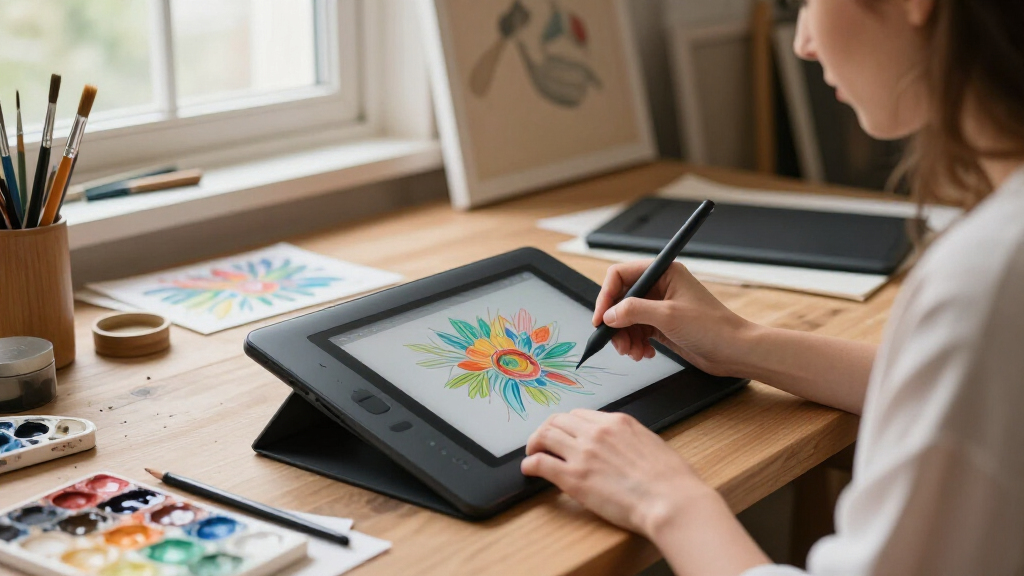
How We Picked
My ranking starts with one question: what does a creative actually need to make good art? That means pen pressure levels matter less than real-world factors like tracking accuracy, parallax on display models, whether the stylus needs charging, and how the drawing surface feels under the nib. I grouped all 13 products into three archetypes — screenless pen tablets, standalone tablets, and display tablets — and ranked within each before comparing across groups, because a $40 screenless tablet and a $400 standalone model aren’t competing on the same axis.
From there, the ordering reflects value per dollar and workflow fit. A cheap tablet with a scratchy drawing surface or laggy pen loses spots to rivals costing the same. Standalone models were judged on screen quality, pre-installed app support, and battery life, since those determine whether you’ll actually sketch away from your desk. Finally, I penalized products whose headline specs (huge pressure counts, bundled accessories) didn’t translate into a better drawing experience, which is why a few on-paper flagships rank below humbler picks.
Factors to Consider When Choosing Creative Drawing Tablets
Before you pick a specific model, it helps to understand the three tablet categories and where your money actually goes. Most buying mistakes in this space come from paying for specs you won’t notice or saving money on the wrong things.Screenless, Standalone, or Display: Match the Tablet to Your Setup
This is the single biggest decision, and it shapes everything else. Screenless pen tablets are cheap, durable, and industry-standard in studios, but they require hand-eye coordination — you draw on the tablet while watching your monitor, which takes a week or two to adapt to. Standalone tablets bundle a computer, screen, and pen into one device; they’re ideal for sketching on the couch or at life-drawing sessions, but they can’t run full desktop apps like Photoshop or Clip Studio at their best. Display tablets like the Kamvas 13 or Artist 12 give you direct on-screen drawing with desktop software power, but they tether you to a computer and cost considerably more. A common mistake is buying a standalone tablet expecting a laptop replacement — check whether your must-have apps are even available on its app store before committing.
Pen Technology: Pressure Levels Are the Least Important Number
Manufacturers love advertising 8,192 or 16,384 pressure levels, but most artists can’t perceive the difference beyond a few thousand levels. What you should care about is whether the pen is battery-free (passive EMR), how the initial activation force feels, and whether the nib glides or drags on the surface. A pen that needs charging will die mid-session, and cheap charged pens often have wobbly nibs that ruin line control. Tilt support matters if you shade with the side of your nib or use textured brushes. Replaceable nibs and included extras sound trivial until you realize nibs wear out in a few months of daily use and proprietary replacements can be hard to find for off-brand tablets.
Size and Active Area: Bigger Isn’t Always Better
Small tablets (roughly 6×4 inches) force large arm movements into tiny strokes, which can make detailed work feel cramped — but they’re perfect for tight desks, travel, and beginners who map the active area to just part of their screen. Mid-size 10×6 class tablets are the sweet spot for most people because they match a typical monitor’s proportions comfortably. Huge active areas only pay off if you work with long, sweeping strokes or dual monitors; otherwise you’re paying for surface you’ll never reach. For standalone and display tablets, remember that a 13-inch drawing screen feels smaller than a 13-inch laptop screen because you’re holding your hand over it — plan for around 12 inches minimum if you want room for a full illustration.
Software and Ecosystem Lock-In
A tablet is only as good as the software driving it, and this is where the categories diverge sharply. Screenless and display tablets work with whatever desktop app you already own, so your skills and licenses carry over. Standalone tablets run mobile or Linux-based ecosystems — check specifically for your preferred app, because a great tablet with no Clip Studio or Procreate equivalent is a fancy sketchpad. Driver quality is the hidden variable here too: Huion and XPPen drivers have improved but occasionally conflict with Windows updates or specific apps, while Wacom’s drivers remain the most stable, which is part of why the Intuos still earns a spot despite weaker specs. Budget ten minutes for driver setup and always download the latest version from the manufacturer’s site rather than the bundled disc.
Common Money Mistakes and When to Pay More
The biggest waste in this category is buying a display or standalone tablet before you know you’ll stick with digital art — plenty of expensive drawing screens are used twice and shelved. Start cheap, confirm the habit, then upgrade with intent. The second mistake is under-buying cables and accessories: display tablets need HDMI and often full-size USB-A ports, which modern laptops don’t always have, so factor in a hub. Pay more when you need color accuracy for client work (display models with better panels), portability for travel sketching (standalone models), or express keys and dials for workflow speed. Don’t pay more for pressure level counts, bundled trial software, or included gloves you can buy for a few dollars.
Frequently Asked Questions
Do I need a computer to use a creative drawing tablet?
It depends entirely on the type. Screenless tablets like the Huion Inspiroy H640P and XPPen Deco 01 V3 are input devices — they send pen data to a computer, so they’re nonfunctional on their own. Display tablets such as the Kamvas 13 also need a computer, since the screen mirrors your desktop while the pen does the input. Only standalone tablets like the PicassoTab lineup and XPPen Magic Drawing Pad run a full operating system with drawing apps installed, letting you sketch with nothing attached. If you travel or sketch outside a studio, standalone is the clear choice; if you already have a capable computer, screenless models give you far better pen performance per dollar.
Is a drawing tablet with a screen easier to learn than one without?
Yes, and by a wide margin — drawing directly where you look is far more intuitive than the disconnected feeling of a screenless tablet. Most people need one to two weeks of practice to get comfortable coordinating hand and eye on a screenless model, and some never adjust. That said, screenless tablets remain the standard in professional studios precisely because they’re ergonomic, cheap, and reliable once mastered. A reasonable middle path is buying a budget screenless model first to test your commitment to digital art, then upgrading to a display tablet like the Artist 12 or Kamvas 13 if you stick with it. Beginners who quit digital art usually do so because of frustration, so if a screen removes that frustration, it’s money well spent.
How much pressure sensitivity do I actually need?
Fewer levels than the marketing suggests. Anything at or above 4,096 levels of pressure is beyond what most human hands can distinguish, so the difference between 8,192 and 16,384 levels is largely theoretical. The specs that genuinely affect line quality are pen tracking accuracy, report rate, initial activation force, and how stable the nib is in the pen barrel. In this lineup, the 16K-pressure Kamvas 13 variant earns its place for professionals doing polished client work with subtle tonal gradations, not because hobbyists will see a difference. Choose based on surface feel and driver stability first, and treat pressure counts as a tiebreaker at most.
Are Wacom tablets still worth the extra cost over Huion and XPPen?
For most buyers in 2026, no — but for some, yes. Huion and XPPen have closed the hardware gap almost completely, offering comparable or better specs at significantly lower prices, which is why they dominate this ranking. Wacom still holds real advantages in driver stability, long-term driver support, nib feel, and resale value, which matter if you work professionally and can’t afford a driver conflict the day before a deadline. The Wacom Intuos Small in this lineup is best understood as an ecosystem purchase rather than a specs purchase. If budget is your priority, buy Huion or XPPen; if reliability under professional pressure is your priority, Wacom justifies itself.
Can a cheap drawing tablet under $50 actually produce professional-quality art?
Emphatically yes — the tablet records your strokes, but the art comes from you. Entry-level models like the XPPen StarG640 and Inspiroy H640P deliver the same core pen technology as tablets costing three times more, and countless professional artists produce finished, sellable work on hardware this cheap. What you give up at this price is convenience, not capability: smaller active areas, fewer or no express keys, and slightly less refined drawing surfaces mean more manual effort and slower workflows. Upgrading makes you faster and more comfortable, not innately better. My advice is to spend the savings on software and practice time, which improve your art far more than a bigger tablet will.
Conclusion
After comparing all 13 tablets, my recommendations split cleanly by buyer type. For best overall, the XPPen Magic Drawing Pad 12.2 offers the rare combination of standalone freedom, a paper-like drawing surface, and 16K pressure sensitivity in one polished package. The best value pick is the Huion Inspiroy H640P, which delivers professional pen performance at a price that leaves room in your budget for software. If money is no object, the HUION Kamvas 13 (Gen 3) with the 16K pen is the premium choice for display drawing at a desk, pairing desktop-class software with direct on-screen control. Beginners get two smart paths: the XPPen StarG640 if you want the cheapest possible way to test the waters, or the PicassoTab X11 if you’d rather skip the computer requirement entirely from day one. For specific needs, the UGEE M708 covers artists wanting a large active area on a budget, the Wacom Intuos Small suits buyers who prize driver stability and bundled software, and the XP-PEN Artist 12 is the entry point into display tablets without the premium price. Whatever you choose, match the tablet type to your actual workflow — that decision matters more than any spec sheet.