To improve your desktop vs. laptop workflow quickly, focus on optimizing your workspace ergonomically and calibrating your screens properly. For desktops, keep your monitor at eye level and use adjustable chairs and stands for comfort. For laptops, elevate your screen and add external accessories like a keyboard and mouse. Proper setup reduces strain and boosts efficiency. Keep fine-tuning your setup, and you’ll see faster, more comfortable workflows. There’s more to discover to maximize your productivity even further.
Key Takeaways
- Match your workspace setup to device type, optimizing ergonomic accessories for desktops and laptops accordingly.
- Elevate laptop screens with stands and use external peripherals to improve ergonomics and workflow.
- Calibrate screens regularly to ensure visual clarity and reduce eye strain for both setups.
- Use adjustable monitor arms and ergonomic chairs to maintain proper posture and enhance efficiency.
- Regularly review and adjust workspace ergonomics to sustain comfort and productivity across device types.
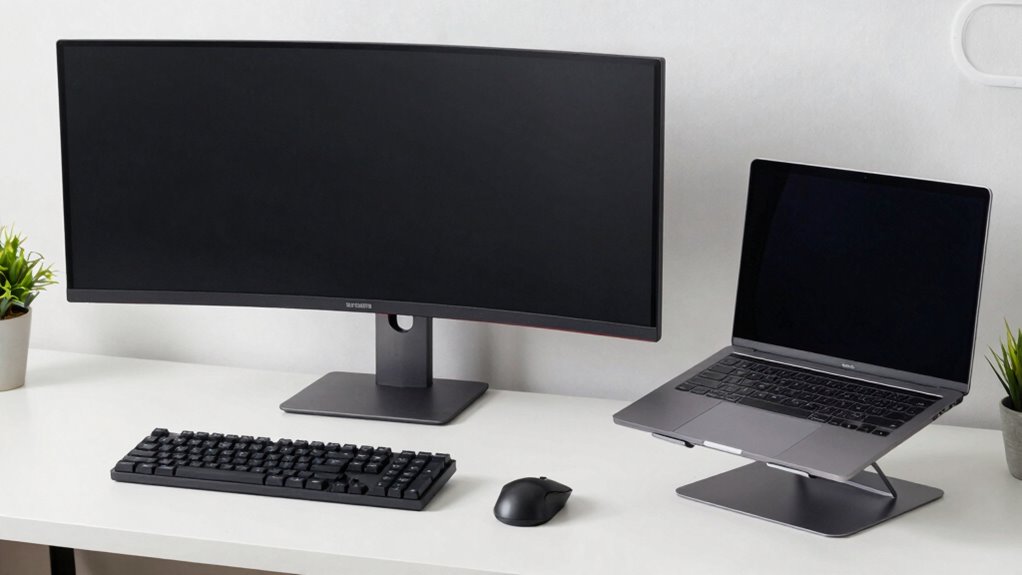
Choosing between a desktop and a laptop for your workflow depends on your specific needs and working environment. Your decision impacts not just portability but also how efficiently you can work and how comfortable you’ll feel during long hours. To optimize your setup, it’s imperative to follow a simple yet effective rule: prioritize ergonomic accessories and proper screen calibration. This rule guarantees you create an environment that minimizes strain and boosts productivity, regardless of your device choice.
Optimize your workspace with ergonomic accessories and screen calibration for greater comfort and productivity.
If you’re working on a desktop, your main focus should be on customizing your workspace with ergonomic accessories. Invest in an adjustable chair that supports good posture, a desk that fits your height, and an ergonomic keyboard and mouse. These accessories help prevent discomfort and fatigue, especially if you spend hours at your desk. When setting up your monitor, guarantee it’s at eye level to reduce neck strain. Proper screen placement is essential, and that’s where screen calibration comes into play. Calibrating your monitor ensures colors are accurate, and the display’s brightness and contrast are set correctly, reducing eye strain and making your work easier on your eyes. A well-calibrated screen also makes color-sensitive tasks, like photo editing, more precise. Ensuring your workspace is ergonomically optimized can significantly enhance your comfort and efficiency. Additionally, understanding the importance of visual ergonomics can help you further tailor your environment to prevent long-term discomfort. Incorporating ergonomic principles into your setup can lead to better posture and reduced risk of repetitive strain injuries. Regularly reviewing and adjusting your setup based on ergonomic guidelines can help maintain optimal comfort over time. Furthermore, using adjustable monitor arms or stands can help you fine-tune your screen position for maximum comfort.
For laptop users, the setup rule still applies but requires a bit more attention to ergonomics. Since laptops are compact and often used on smaller surfaces, you should add ergonomic accessories such as a portable laptop stand, external keyboard, and mouse. These tools help elevate your screen to eye level and create a more comfortable typing position, reducing neck and wrist strain. Screen calibration remains essential here — many laptops allow you to calibrate the display through software or external calibration devices. Proper calibration ensures your screen displays colors accurately and reduces eye fatigue, especially during lengthy editing sessions. Additionally, taking regular breaks and practicing ergonomic stretches can further help prevent strain from prolonged use.
Regardless of whether you choose a desktop or a laptop, the core principle remains the same: set up your workspace to support your body and eyes. Regularly adjusting ergonomic accessories can make a noticeable difference in comfort and productivity, allowing you to work longer without discomfort. Keep your screen calibrated to guarantee color accuracy and eye comfort, which is especially important if your work involves visual precision. This setup rule doesn’t just improve your workflow; it helps safeguard your health, making your work environment sustainable and efficient over time. By focusing on ergonomic accessories and screen calibration, you create a balanced, comfortable workspace that adapts to your needs, whether you’re on a desktop or a laptop.

HUANUO FlowLift™ Pro Monitor Arm for 13–32" Screens, MechaSpring Monitor Mount, Fully-Adjustable Monitor Stand with Tilt/Swivel/Rotation, Tool-Free VESA Mount, C-Clamp/Grommet Base, Max Load 19.8 lbs
- Monitor Compatibility: Supports 13-32 inch, 4.4-19.8 lbs, VESA 75/100mm
- Desk Compatibility: Fits wood desks 0.59-3.54 inches thick
- Durable MechaSpring Arm: Long-lasting support with 2× lifespan
As an affiliate, we earn on qualifying purchases.
As an affiliate, we earn on qualifying purchases.
Frequently Asked Questions
How Do I Determine the Best Setup Rule for My Specific Workflow?
To determine the best setup rule for your workflow, start by evaluating your hardware ergonomics—ensure your keyboard, monitor, and chair support comfort and efficiency. Customize your software to match your tasks, like shortcuts or layouts that speed up your work. Experiment with different arrangements, and listen to how your body and productivity respond. Adjust continuously until your setup feels natural, boosting your workflow without causing strain or frustration.
Can Setup Rules Be Adjusted Over Time as Needs Change?
Think of your setup as a living garden—you can prune and adapt it as your needs grow. Yes, setup rules are flexible. You should regularly employ personalization strategies and develop adaptive configurations that evolve with your workflow. This way, your workspace stays efficient and comfortable, just like a well-tended garden, ensuring your productivity blossoms no matter how your tasks change over time.
Are There Common Mistakes to Avoid When Applying Setup Rules?
Yes, you should avoid common mistakes like neglecting ergonomic positioning and poor cable management. Improper ergonomic setup can cause discomfort, reducing productivity over time. Failing to organize cables leads to clutter and potential damage to equipment. Keep your workspace clean and ergonomic, ensuring your monitor, keyboard, and chair are aligned properly. Regularly review and adjust your setup as needs change to maintain efficiency, comfort, and a tidy environment.
How Do Setup Rules Impact Collaboration With Team Members?
Setup rules act like a well-orchestrated symphony, harmonizing your team’s collaboration. When you prioritize file organization and optimize workspace ergonomics, you create a seamless flow that others can easily follow. Clear, consistent setups help team members locate files quickly and work comfortably, reducing miscommunication and delays. As a result, your team stays in sync, boosting productivity and fostering a collaborative environment where everyone plays their part smoothly.
What Tools Can Help Implement Effective Setup Rules?
You can implement effective setup rules using tools like ergonomic accessories and hardware optimization software. Ergonomic adjustments, such as adjustable stands and keyboard setups, promote comfort and productivity. Hardware optimization tools help streamline your system, reducing lag and improving performance. These tools guarantee your workspace is tailored for efficiency, whether on a desktop or laptop, making your workflow faster and more comfortable.

Nulaxy Ergonomic Adjustable Laptop Stand for Desk, Dual Foldable Computer Riser with Advanced Heat-Vent, Heavy-Duty Portable Notebook Holder for Posture Correction, Compatible with Mac 10-17" Laptops
- Ergonomic Posture Support: Elevates laptop to reduce neck strain
- Stable Dual-Rod Design: Ensures wobble-free support up to 22 lbs
- Enhanced Heat Dissipation: Geometric vents improve airflow and cooling
As an affiliate, we earn on qualifying purchases.
As an affiliate, we earn on qualifying purchases.
Conclusion
Embracing this setup rule gently guides your workspace into a harmonious balance, making shifts between your desktop and laptop feel almost effortless. With a few simple adjustments, you’re creating an environment where productivity flows smoothly, like a well-choreographed dance. It’s not about perfection, but about nurturing a rhythm that feels natural and inviting. In this quiet harmony, you’ll find your workspace becoming a sanctuary where ideas blossom and tasks unfold with graceful ease.

Wireless Keyboard and Mouse Combo, 2.4G Ergonomic Wave Keys(Black)
- Wave Ergonomic Design: Fits fingers and relieves wrist strain
- Adjustable Keyboard Stand: Set to most comfortable height
- Wrist Rest Included: Supports long-term use
As an affiliate, we earn on qualifying purchases.
As an affiliate, we earn on qualifying purchases.

Datacolor SpyderExpress Monitor Calibrator & Screen Color Calibrator
- Quick & Easy Color Calibration: Ideal for photo, design, and content creation
- Supports Latest Displays: Compatible with MacBook M4 mini-LED and more
- Fast Setup in 90 Seconds: Delivers accurate colors quickly for editing
As an affiliate, we earn on qualifying purchases.
As an affiliate, we earn on qualifying purchases.