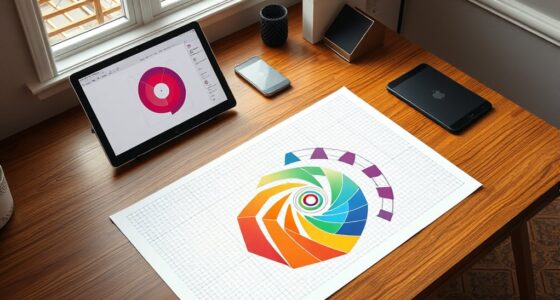
To master digital collage techniques, focus on layering textures and imagery using pixel manipulation to blend elements seamlessly. Experiment with color blending modes, opacity, and gradient tools to create smooth passages and vibrant contrasts. Use layer masks for precise control, hiding or revealing parts of images for refined integration. Adjust hue, saturation, and contrast to unify the composition. Keep exploring these methods to open your creative potential in building complex, visually engaging collages.

Get art and craft supplies delivered free with Prime
- Fast, free delivery on millions of items
- Prime Video, Amazon Music and more included
- Member-only deals all year
Key Takeaways
- Utilize layer masks to selectively blend textures and imagery for seamless integration.
- Experiment with color blending modes, opacity, and gradients to achieve harmonious transitions.
- Manipulate individual pixels for precise control over texture placement and visual cohesion.
- Adjust hue, saturation, and contrast to unify disparate elements and enhance overall composition.
- Combine textured backgrounds with layered imagery to create depth and visual interest in collages.
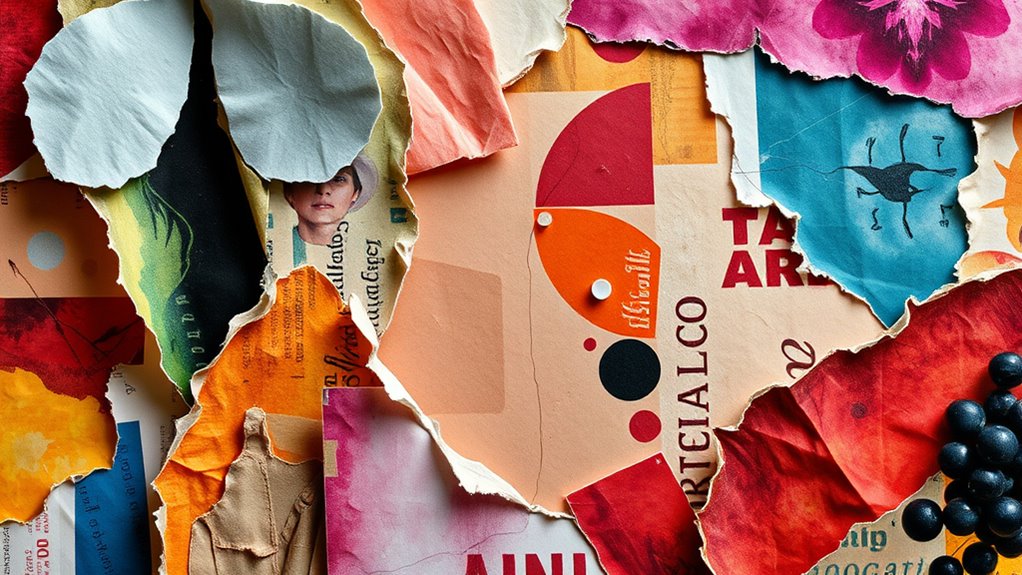
Digital collage techniques empower artists to create complex, layered images by combining various visual elements seamlessly. When you transition into this process, you harness tools that allow you to manipulate individual pixels, giving you precise control over every part of your composition. Pixel manipulation lets you adjust, delete, or enhance specific areas of an image, enabling you to blend disparate images into a cohesive whole. This granular control is essential when you’re aiming to create a seamless integration of textures and imagery, making your collage feel unified rather than a collection of separate parts. Additionally, understanding how color accuracy influences digital visuals helps you select and adjust textures for more realistic and vibrant results.
Pixel manipulation provides precise control to seamlessly blend textures and images into unified digital collages.
Color blending is another crucial technique in digital collaging. It involves merging colors from different images or textures to produce smooth transitions or striking contrasts. You can experiment with blending modes, opacity levels, and gradient tools to achieve the perfect harmony between elements. For example, when you overlay a textured background with a portrait, subtle color blending can soften the edges, making the transition appear natural. This technique helps you evoke mood and atmosphere, adding depth and vibrancy to your artwork. Whether you want a dreamy, ethereal feel or a bold, dynamic contrast, mastering color blending gives you the flexibility to shape your vision.
As you work through layering textures and imagery, you’ll find that using layer masks is invaluable. Layer masks allow you to selectively hide or reveal parts of your images, giving you even more control over how textures and visual elements interact. By combining pixel manipulation with layer masks, you can seamlessly blend textures into backgrounds, erase harsh edges, and create subtle gradations. This process requires patience and attention to detail, but it pays off by resulting in a polished, professional-looking collage.
Additionally, adjusting hue, saturation, and contrast plays a significant role in harmonizing the various components. When textures or imagery don’t quite match in color temperature or intensity, these adjustments help unify the overall composition. You might also employ filters or digital painting techniques to further refine how elements blend together, ensuring your collage feels intentional and cohesive.
In essence, mastering pixel manipulation and color blending unlocks endless possibilities in digital collage creation. These techniques empower you to craft intricate, visually engaging images where textures and imagery flow effortlessly into one another. As you experiment and refine your skills, you’ll discover how to transform seemingly disparate visual elements into compelling, layered works of art that captivate and inspire.
As an affiliate, we earn on qualifying purchases.
Frequently Asked Questions
What Software Is Best for Digital Collage Creation?
You should try Adobe Photoshop or Canva for digital collage creation, as both offer powerful features. Adobe Photoshop is ideal for detailed layering and editing, while Canva provides user-friendly, cloud-based platforms perfect for quick projects. AI-powered tools integrated into these platforms help automate tasks, making your workflow smoother. These options give you flexibility, whether you’re working locally or online, to craft stunning collages with ease.
How Do I Choose Textures That Complement My Imagery?
To choose textures that complement your imagery, focus on creating texture contrast to add visual interest without overwhelming your main elements. Look for textures that have a similar color palette to your images to maintain color harmony, ensuring everything feels cohesive. Experiment with different materials and digital overlays, and step back often to assess how the textures enhance or distract from your overall composition.
Can I Incorporate Hand-Drawn Elements Into Digital Collages?
Sure, you can absolutely incorporate hand-drawn elements into your digital collages—because nothing says “cutting-edge” like blending traditional art with mixed media techniques. Hand-drawn integration adds a personal, organic touch that contrasts beautifully with digital textures. Just scan your sketches, then layer and manipulate them digitally. This clever fusion enhances your artwork’s depth and complexity, proving that even in a digital age, hand-crafted details still hold their charm.
What Are Common Mistakes to Avoid in Digital Layering?
To avoid common mistakes in digital layering, pay attention to color mismatches that can disrupt your composition’s harmony. Always use proper masking techniques to seamlessly blend elements and prevent harsh edges or unwanted backgrounds. Double-check your layer orders to ensure each element interacts correctly. By staying mindful of these issues, you’ll create more cohesive and visually appealing digital collages that look polished and professional.
How Do I Export High-Resolution Digital Collages?
To export high-resolution digital collages, first check your resolution settings—aim for 300 DPI for print quality. Then, choose file formats like TIFF or PNG that support high resolution and lossless quality. Before exporting, verify your canvas size is large enough to maintain detail. Save your work with these settings, and you’ll get a crisp, high-quality collage ready for printing or sharing digitally.
As an affiliate, we earn on qualifying purchases.
Conclusion
By mastering layering textures and imagery, you open endless creative possibilities in digital collage. Did you know that digital collages are among the fastest-growing art forms, with online sharing increasing by over 50% in just two years? So, keep experimenting, blending different elements, and pushing your boundaries. Embrace the chaos and find your unique voice through layering. With each piece, you’ll sharpen your skills and create stunning visuals that captivate and inspire.
As an affiliate, we earn on qualifying purchases.
As an affiliate, we earn on qualifying purchases.
Fall Picks
fall essentials
As an affiliate, we earn on qualifying purchases.