To quickly improve your webcam call quality, focus on optimizing your lighting and microphone placement. Position a soft light source facing you at eye level or slightly above to avoid shadows and glare. Keep your microphone close but slightly to the side or below your face to guarantee clear sound and reduce background noise. Making these simple adjustments can dramatically enhance your video and audio. Stick around, and you’ll discover even more tips to upgrade your setup fast.

Get art and craft supplies delivered free with Prime
- Fast, free delivery on millions of items
- Prime Video, Amazon Music and more included
- Member-only deals all year
Key Takeaways
- Ensure your face is well-lit with soft, natural or diffused light at eye level to improve visibility quickly.
- Position your microphone a few inches from your mouth, slightly to the side, for clear audio without distortion.
- Use a quiet, clutter-free environment to minimize background noise and distractions instantly.
- Keep your background tidy and simple to create a professional appearance effortlessly.
- Adjust your camera to face a natural light source or use soft lighting for balanced, shadow-free video.
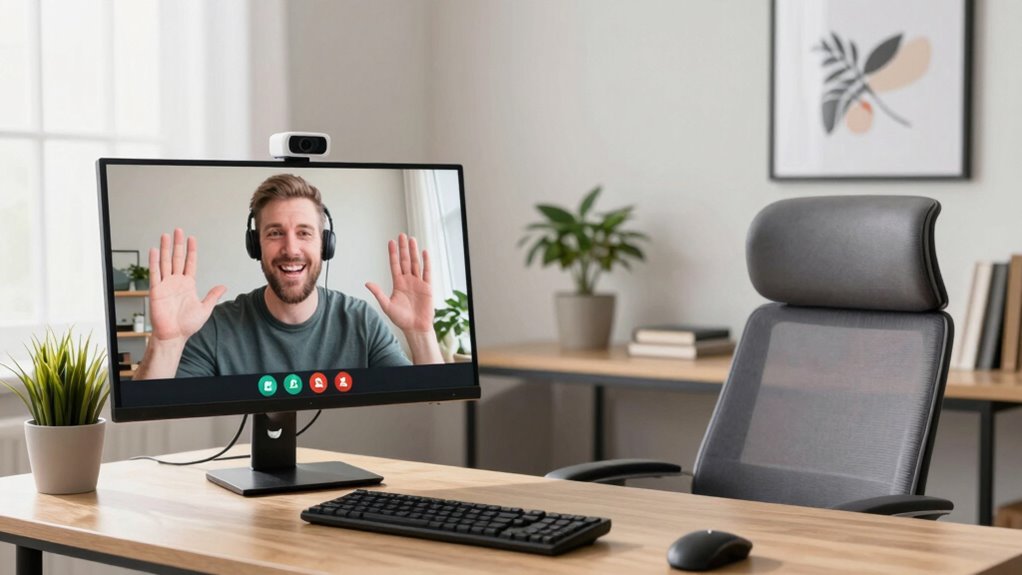
If you want to boost your webcam call quality quickly, the key lies in a simple setup rule: control your lighting. Proper lighting makes a huge difference in how clear and professional your video appears. Position yourself facing a natural light source like a window if possible. If natural light isn’t an option, use soft, diffused lights placed at eye level or slightly above to evenly illuminate your face. Avoid harsh overhead lighting or placing lights directly behind you, as these create shadows or silhouettes that obscure your features. The goal is to achieve soft, balanced lighting that highlights your face without glare or deep shadows.
Along with lighting, microphone placement plays an essential role in your overall call quality. Even if your video looks great, poor microphone placement can undermine your efforts by capturing unwanted noise or muffling your voice. Keep your microphone close enough to pick up your voice clearly, ideally just a few inches away, but avoid placing it directly in front of your mouth to prevent popping sounds. Position it slightly to the side or below your face for maximum clarity. Using a dedicated microphone or a high-quality headset can make a noticeable difference, but even a built-in mic can perform better if placed correctly. Keep the microphone away from sources of ambient noise, like fans or keyboards, to guarantee your voice remains crisp and free of background distractions. Ensuring your lighting setup is consistent and well-placed will help you achieve a more professional appearance during calls. Additionally, optimizing your ambient environment can reduce distracting background noise and improve overall call quality. Creating a quiet space dedicated to your calls can further enhance sound clarity and focus.
Being mindful of your background clutter can also contribute to a cleaner, more professional look on camera. Maintaining a calm and organized space can further enhance your video presentation, making your calls look more polished and intentional.
When you focus on these elements—lighting techniques and microphone placement—you set a solid foundation for high-quality video calls. Good lighting ensures your face is visible and well-defined, making your expressions easier to read and your overall image more professional. Proper microphone placement ensures your voice is heard clearly without background noise or distortion. Combining these simple adjustments can elevate your webcam calls from average to impressive in just minutes. Remember, the key is consistency: keep your lighting steady and your microphone positioned correctly for every call. These small but impactful changes don’t require ongoing effort; once set up, they become second nature. Improving your webcam call quality is all about making sure you’re well-lit and your voice is captured accurately—two straightforward steps that deliver fast, noticeable results.
As an affiliate, we earn on qualifying purchases.
Frequently Asked Questions
Does Lighting Impact Webcam Call Quality Significantly?
Yes, lighting impacts webcam call quality considerably. Good lighting effects brighten your face, making you clearer and more professional. Poor lighting causes shadows, which can distort your appearance and reduce image clarity. By controlling shadows and ensuring even, soft lighting, you improve visibility and overall video quality. Proper lighting enhances your presence on camera, making your calls more engaging and less distracting for viewers.
What Is the Best Camera Angle for Webcam Calls?
Imagine your camera as a window to your world—place it slightly above eye level for a confident, engaging shot. Position it so your face fills the frame comfortably, with your eyes about one-third from the top. Proper camera placement and thoughtful frame composition keep your audience focused on you, creating a natural, professional look. Avoid extreme angles or looking down, which can distort your presence.
How Often Should I Clean My Webcam Lens?
You should clean your webcam lens weekly to maintain clear video quality. Regular lens maintenance prevents dust, fingerprints, and smudges from accumulating, which can blur your image during calls. Use a soft, lint-free cloth and a gentle cleaner to avoid scratches. If you notice your video quality dropping or smudges becoming visible, it’s time for an immediate clean. Consistent cleaning guarantees your webcam stays sharp and professional.
Can Background Noise Affect Video Call Clarity?
Background noise can definitely disrupt your video call clarity. It causes audio interference, making it harder for others to understand you. This, in turn, affects your microphone sensitivity, often resulting in muffled or distorted sound. To improve clarity, minimize environmental noise, use noise-canceling features, and position your microphone properly. Clear communication relies on controlling these audio interferences, so your message remains sharp, steady, and specific throughout every session.
What Settings Optimize Webcam Video for Low Bandwidth?
To optimize your webcam video for low bandwidth, focus on bandwidth optimization by lowering your video resolution and frame rate in your call settings. Enable video compression options if available, which reduces data size without sacrificing too much quality. Adjust your webcam’s quality settings to a lower level, and close background programs that consume bandwidth. These steps help guarantee smoother video calls even with limited internet speed.
As an affiliate, we earn on qualifying purchases.
Conclusion
By following this simple setup rule, you can greatly boost your webcam call quality quickly. Remember, a little preparation goes a long way—like the saying, “A stitch in time saves nine.” Taking a few moments to optimize your environment guarantees clearer communication and fewer frustrations. Don’t wait until issues arise; be proactive. When you invest in your setup now, you set yourself up for smoother, more professional calls in the future.
As an affiliate, we earn on qualifying purchases.
As an affiliate, we earn on qualifying purchases.
Halloween Picks
halloween
As an affiliate, we earn on qualifying purchases.