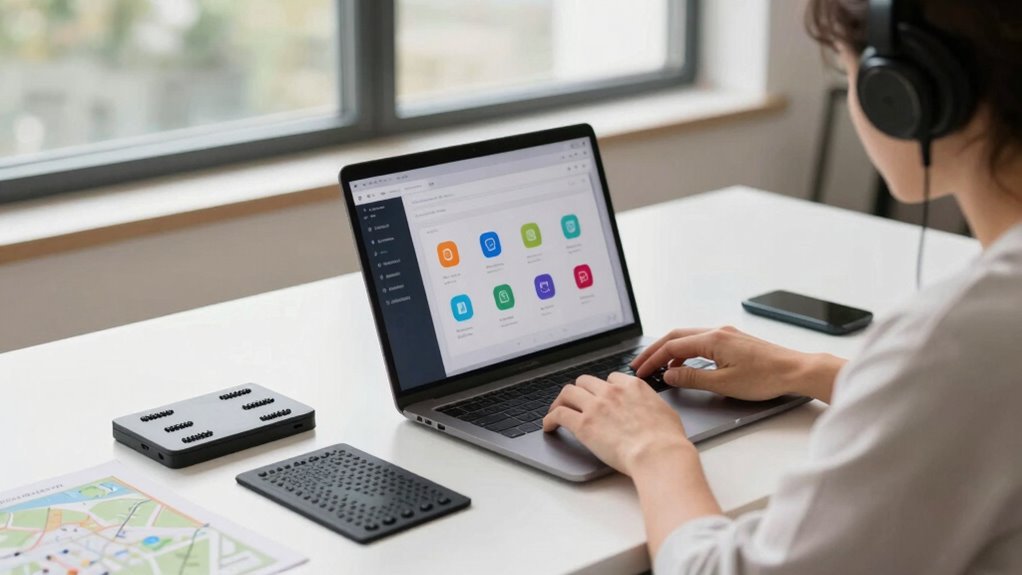

To approach screen readers more intelligently, focus on customizing settings like speech rate, voice, and highlighting to suit your needs. Take advantage of ongoing updates from developers, and don’t hesitate to provide feedback to improve functionality. Experiment with features such as braille support and navigation controls to find what works best for you. Staying proactive and engaged helps you harness the full potential of these tools—keep exploring, and you’ll discover even more ways to enhance your experience.

Get art and craft supplies delivered free with Prime
- Fast, free delivery on millions of items
- Prime Video, Amazon Music and more included
- Member-only deals all year
Key Takeaways
- Emphasize user customization to tailor screen reader settings for individual needs and improve navigation efficiency.
- Incorporate continuous user feedback to enhance features, compatibility, and smarter content interaction.
- Experiment with adjustable speech, highlighting, and contextual controls to optimize accessibility and reduce fatigue.
- Stay updated on evolving content formats and adapt screen reader strategies accordingly for seamless access.
- Foster active collaboration between developers and users for ongoing improvements and innovative accessibility solutions.
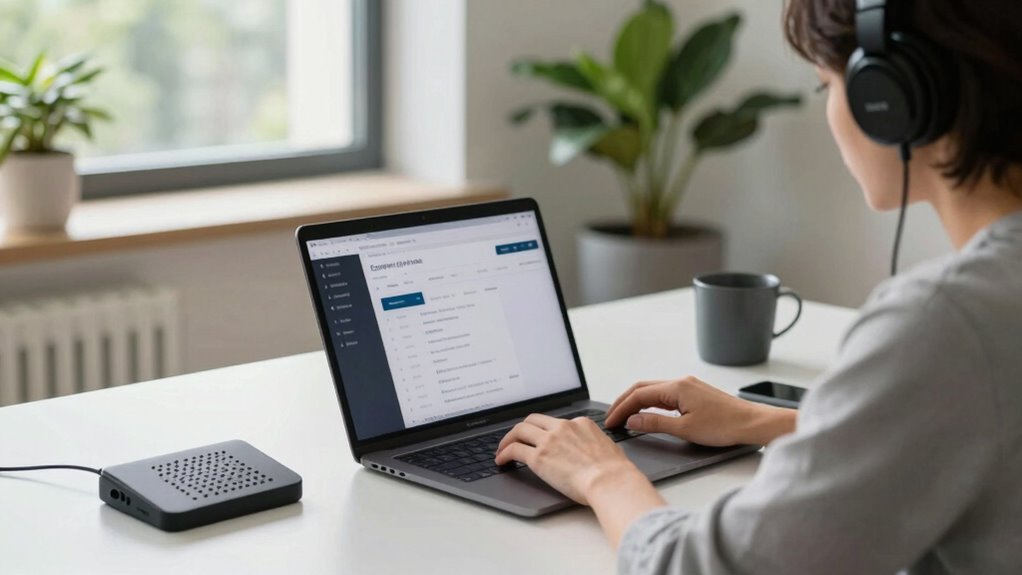
While screen readers have become essential tools for digital accessibility, many users still encounter limitations that hinder their effectiveness. Despite ongoing accessibility advancements, these tools often don’t fully adapt to individual needs, making it harder for you to navigate digital content seamlessly. That’s why approaching screen readers with a smarter mindset can make a real difference. You should recognize that ongoing improvements aim to bridge gaps, but your active participation—especially in user customization—is key to making these tools work better for you. Customizing your screen reader settings lets you tailor the experience, making it more intuitive and aligned with your preferences. Adjusting speech rate, voice type, or highlighting options can drastically improve comprehension and reduce fatigue, helping you stay engaged longer. This kind of user customization isn’t just a luxury; it’s an essential step in harnessing the full potential of accessibility advancements. Many screen readers now support flexible configurations, allowing you to modify how information is presented based on your unique needs. For instance, if you find certain voices distracting or difficult to understand, switching to a different voice or adjusting pitch and speed can make a significant difference. Similarly, enabling or disabling specific features, like braille display support or contextual navigation, helps you craft a more efficient workflow. The key is to actively explore and experiment with these settings rather than settling for default configurations. Doing so empowers you to create a personalized environment where you can access content more comfortably and with greater independence. Keep in mind that technology continues to evolve, and newer accessibility advancements are often designed with user feedback in mind. Developers regularly update screen readers to incorporate features that support more granular control, better compatibility, and smarter navigation options. Your role in this process is imperative—you can advocate for features that matter most to you, participate in beta testing, and provide feedback to improve future iterations. Recognizing that content formats are also evolving can help you better understand how information is presented and navigated. Adapting to traditional practices and embracing innovative solutions can further enhance your experience. Innovations in content presentation models emphasize user-driven customization, making it easier to tailor your experience effectively. This ongoing dialogue helps shape tools that truly serve diverse needs. Ultimately, a smarter approach involves recognizing the importance of user customization in leveraging accessibility advancements. By actively tailoring your screen reader’s settings and staying informed about new features, you turn a basic assistive technology into a powerful, personalized tool. This proactive attitude not only enhances your digital experience but also champions a more inclusive, adaptable future for all users relying on screen readers.
screen reader speech rate adjustment device
As an affiliate, we earn on qualifying purchases.
As an affiliate, we earn on qualifying purchases.
Frequently Asked Questions
How Do Screen Readers Differ Across Various Devices?
You’ll notice that screen readers differ across devices mainly due to device compatibility and voice customization options. Some devices support advanced features, adjusting to specific operating systems, while others have limited capabilities. Voice customization also varies, letting you choose different voices, speeds, and accents. These differences impact how easily you navigate and personalize your experience, so understanding each device’s capabilities helps you optimize your use of screen readers effectively.
What Are Common Challenges Users Face With Screen Readers?
Charting screen readers can feel like navigating a complex maze, where accessible navigation isn’t always intuitive, and user training isn’t enough to clear the path. You might struggle with inconsistent voice commands, confusing shortcuts, or missing cues that hinder your flow. These challenges highlight the need for clearer guidance and adaptable tools, empowering you to move confidently through digital spaces, transforming obstacles into opportunities for seamless, accessible experiences.
Can Screen Readers Be Customized for Individual Preferences?
Yes, screen readers can be customized for your preferences. You can tweak personalization options and accessibility settings to improve your experience. For instance, you might adjust speech rate, pitch, or verbosity to suit your needs. Many screen readers allow you to save these preferences, making your interactions more comfortable and efficient. Exploring these customization features guarantees you get a more tailored and accessible experience every time you use your device.
How Often Are Screen Reader Technologies Updated?
Screen reader technologies are updated regularly, though not as often as you’d hope. These updates improve features like audio cues and voice customization, ensuring better user experiences. While some updates happen annually or biannually, others are less frequent. Think of it as a constant balancing act: advancements are made, but the pace can feel slow. Staying informed helps you leverage the latest improvements, making your interactions smoother and more personalized.
Are There Any Costs Associated With Advanced Screen Reader Features?
Advanced screen reader features might come with cost barriers, depending on the software provider. Some programs include accessibility fees or charge extra for premium features, making it essential to check the pricing details beforehand. While many basic features are free, upgrading to advanced options could require an investment. Always consider whether the additional functionalities justify the costs, especially if they substantially enhance your accessibility experience.
braille display support for screen readers
As an affiliate, we earn on qualifying purchases.
As an affiliate, we earn on qualifying purchases.
Conclusion
Just as Icarus learned, flying too close to the sun can lead to a fall; similarly, rushing to implement screen readers without understanding their nuances can cause more harm than good. Embrace a smarter approach that prioritizes user experience and accessibility. By doing so, you’ll create a digital world where everyone can soar freely, no matter their abilities. Remember, true innovation lies in thoughtful design, not just reaching new heights blindly.
customizable voice for screen readers
As an affiliate, we earn on qualifying purchases.
As an affiliate, we earn on qualifying purchases.
navigation controls for screen readers
As an affiliate, we earn on qualifying purchases.
As an affiliate, we earn on qualifying purchases.
Halloween Picks
halloween
As an affiliate, we earn on qualifying purchases.