To quickly improve pen display ergonomics, set your screen height so the top aligns with your eye level. This encourages a natural line of sight, helping you sit upright and avoid head tilting. Keep your hand relaxed and your stylus light for better control. Remember to take regular breaks and follow ergonomic principles. If you want more tips to make your setup even more comfortable, there’s plenty more to explore.

Get art and craft supplies delivered free with Prime
- Fast, free delivery on millions of items
- Prime Video, Amazon Music and more included
- Member-only deals all year
Key Takeaways
- Align the top of your display with eye level to promote an upright, neutral neck position.
- Position the pen display directly in front of you to encourage natural, relaxed hand and arm movements.
- Keep your stylus grip light and use your wrist and arm for smooth, controlled strokes.
- Maintain a relaxed hand posture and neutral wrist position to prevent tension and fatigue.
- Take regular breaks and follow ergonomic principles to sustain comfort and prevent strain injuries.
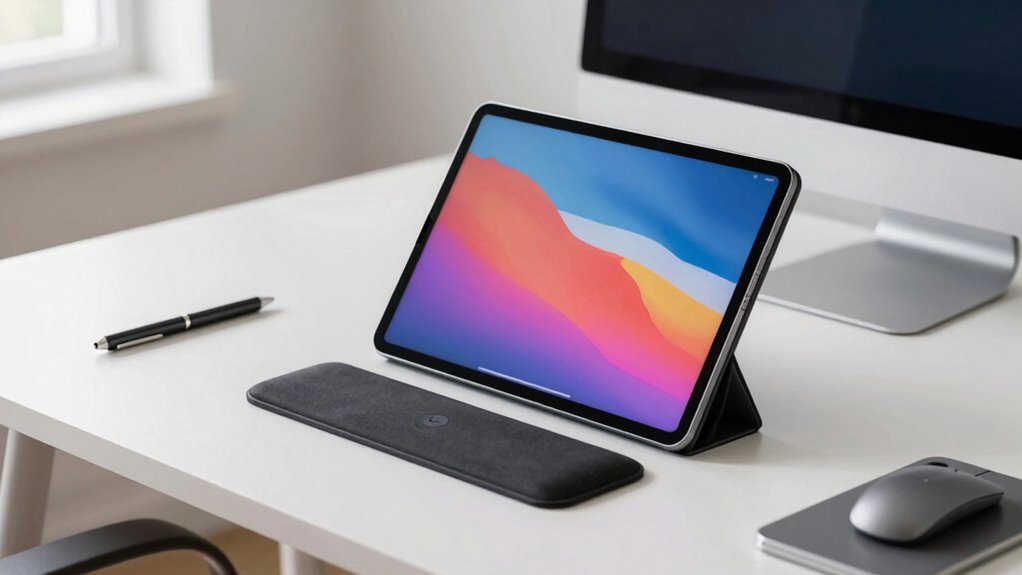
If you want to reduce strain and improve comfort when using a pen display, applying a simple setup rule can make a noticeable difference quickly. The key is to focus on your hand posture and screen height. When these elements are optimized, you’ll experience less fatigue and better control, making your creative sessions more enjoyable and sustainable.
Start by adjusting the height of your pen display so that the top of the screen is roughly at eye level. This positioning encourages you to sit upright, reducing the need to tilt your head forward or backward. A screen set too low or too high forces you into awkward neck angles, which can cause discomfort over time. By aligning the display with your natural line of sight, you maintain a neutral neck position, minimizing strain.
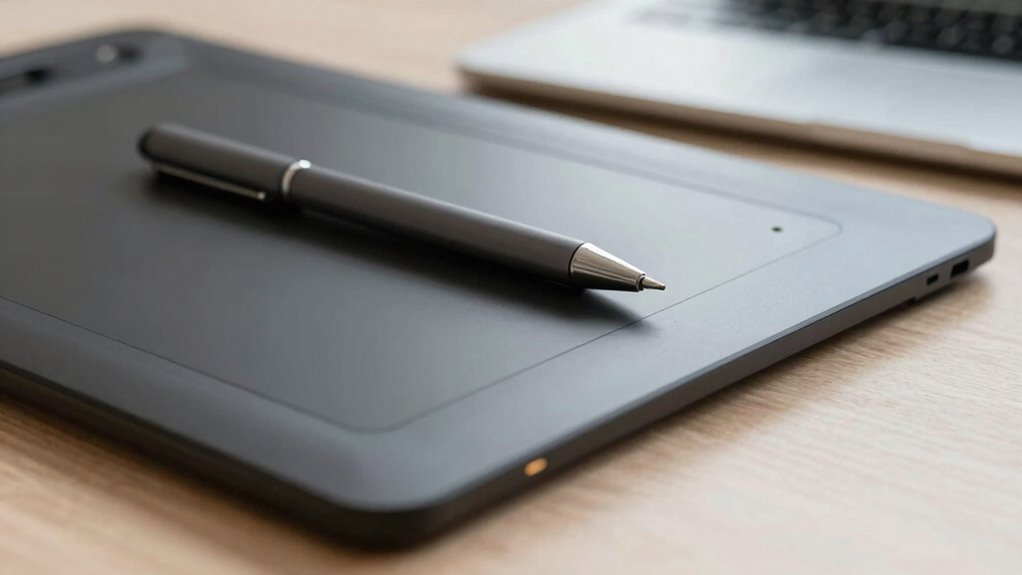
Adjust your pen display so the top is at eye level for comfortable, upright posture and reduced neck strain.
Next, pay attention to your hand posture. When drawing or sketching, your hand should be relaxed, with your wrist in a neutral position—not bent or strained. Keep your grip light on the stylus, avoiding unnecessary tension that can lead to fatigue. Your hand should move smoothly across the display, guided by your wrist and arm rather than your fingers gripping tightly or your wrist twisting unnaturally. This promotes better control and reduces the risk of repetitive strain injuries. Additionally, ergonomic principles suggest that maintaining proper hand posture can significantly decrease long-term discomfort. Incorporating regular breaks during long sessions can further help prevent fatigue and repetitive stress. Practicing proper workspace ergonomics can also support sustained comfort and productivity.
As an affiliate, we earn on qualifying purchases.
Frequently Asked Questions
How Long Does It Take to See Ergonomic Improvements?
You can start noticing ergonomic improvements within a few days to a week if you focus on adjusting your ergonomic posture and organizing your workspace properly. Consistently maintaining good posture and optimizing your workspace setup helps reduce strain and discomfort quickly. Keep practicing these adjustments daily, and you’ll likely see ongoing benefits, including better comfort, reduced fatigue, and improved overall ergonomics. Your body adapts faster when your workspace supports healthy habits.
Can the Setup Rule Be Applied to All Pen Display Brands?
Of course, you can tailor the setup rule to nearly any pen display brand. While some brands might have slight variations, the core principles of setup customization and ergonomic positioning generally remain compatible. This flexibility allows you to create a comfortable workspace, reducing strain and enhancing creativity. With a little adjustment, you’ll find that most brands welcome your personalized approach, making ergonomic improvements accessible no matter your device choice.
Is There Any Special Equipment Needed for the Setup?
You don’t need special equipment beyond your pen holder and adjusting your desk height. Make certain your pen holder is within easy reach, so you don’t strain your arm or wrist. Adjust your desk height so your elbows are at a comfortable 90-degree angle when using your pen display. This simple setup ensures ergonomic comfort, reduces fatigue, and enhances your drawing efficiency without requiring any complex gear.
What Are Common Mistakes to Avoid When Using This Rule?
When using this setup rule, avoid common mistakes like improper pen grip and incorrect screen height. Keep your pen grip relaxed to prevent fatigue and guarantee precise control. Adjust the screen height so your eyes are level with the top of the display, reducing neck strain. Don’t lean forward or hunch over, as this can cause discomfort. Maintaining proper ergonomics helps you work comfortably and efficiently for longer periods.
Does This Rule Help Prevent Long-Term Health Issues?
Some might think posture correction alone isn’t enough to prevent long-term health issues, but it greatly reduces eye strain and musculoskeletal problems. By maintaining proper positioning, you actively support better ergonomics, decreasing the risk of chronic pain and vision fatigue. This rule encourages consistent alignment, which helps you avoid long-term issues like repetitive strain injuries and poor posture, ensuring your health stays protected as you work or create for extended periods.
adjustable monitor riser for drawing tablets
As an affiliate, we earn on qualifying purchases.
As an affiliate, we earn on qualifying purchases.
Conclusion
By applying this setup rule, you’ll find your pen display becomes more comfortable in no time, akin to upgrading from a trusty steed to a sleek modern chariot. Remember, simplicity is key—adjust your screen angle and height for natural hand movement and better posture. Don’t be a digital caveman, stuck in old habits. Embrace these quick tweaks, and you’ll work smarter, not harder, making your creative sessions feel like a breeze—almost as effortless as a well-tuned automaton.
pen display height adjustment stand
As an affiliate, we earn on qualifying purchases.
As an affiliate, we earn on qualifying purchases.
As an affiliate, we earn on qualifying purchases.
Halloween Picks
halloween
As an affiliate, we earn on qualifying purchases.