
To choose the right monitor arm posture for your workflow, start by adjusting the height so the top of your screen is at or just below eye level to keep your neck neutral. Use tilt and swivel features to reduce glare and align the monitor with your line of sight. Move the monitor closer or farther for comfort and switch positions when switching tasks. If you keep fine-tuning your setup, you’ll create a workspace that supports comfort and productivity—more tips await.

Get art and craft supplies delivered free — and shop member deals
- Fast, free delivery on millions of items
- Access to Prime Big Deal Days deals on October 6–7
- Prime Video, Amazon Music and more included
Key Takeaways
- Adjust monitor height so the top of the screen is at or just below eye level for a neutral neck position.
- Use tilt and swivel features to minimize glare and align the monitor with your line of sight.
- Position the monitor close enough to prevent leaning forward or craning your neck.
- Fine-tune the arm’s adjustments when switching between tasks for ergonomic comfort.
- Regularly reassess and modify monitor positioning to maintain optimal workflow and reduce strain.
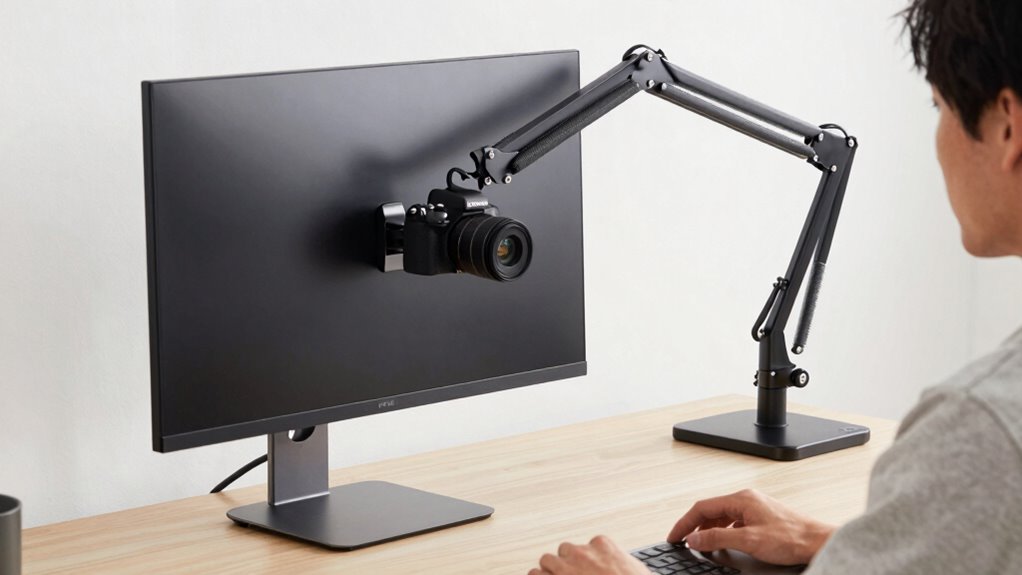
Selecting the right monitor arm posture is vital for maintaining comfort and preventing strain during long hours at your desk. When you focus on ergonomic adjustments, you guarantee that your workspace supports your health and productivity. Proper monitor positioning is key to reducing neck, shoulder, and eye strain, especially if you spend hours staring at a screen. The goal is to set your monitor at a height and angle that allows your eyes to look straight ahead without tilting your head up or down. Typically, the top of your screen should be at or just below eye level, which helps keep your neck in a neutral position. You want to avoid craning your neck or leaning forward, as these habits can cause discomfort over time.
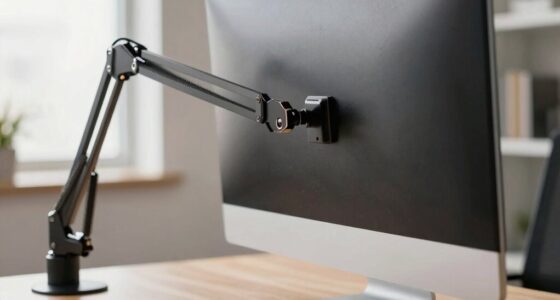
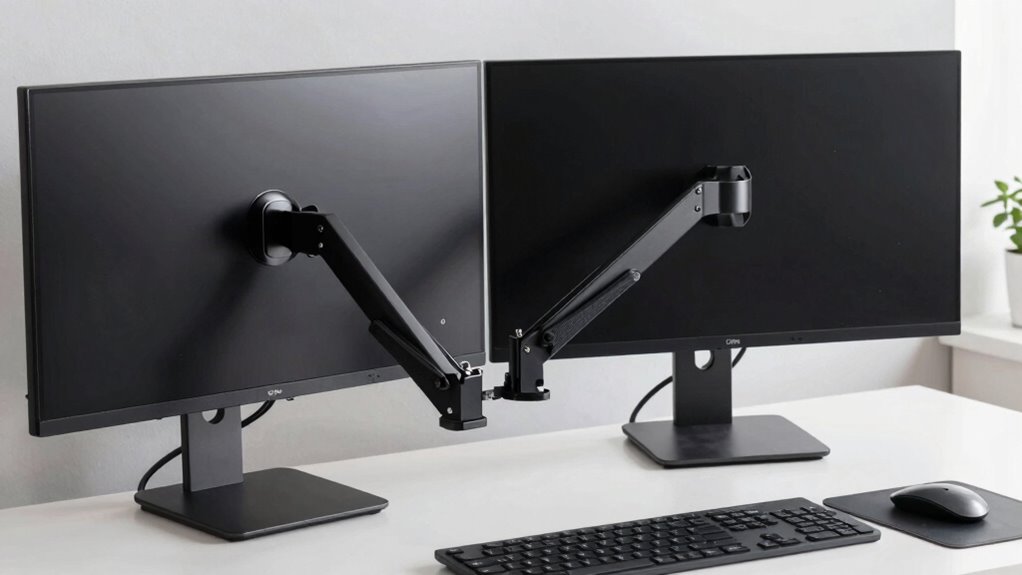
Your monitor arm should be adjustable enough to accommodate various ergonomic adjustments easily. An ideal setup allows you to move the monitor closer or farther away, rotate it side to side, and tilt it to reduce glare and reflections. When you position your monitor correctly, you minimize the need to lean forward or sideways, which can lead to musculoskeletal issues. A flexible monitor arm makes it simple to fine-tune your monitor’s position throughout the day, providing comfort during different tasks and preferences. Additionally, choosing a monitor arm with ergonomic adjustability features ensures that you can achieve the optimal setup for your unique needs. Regularly checking and readjusting your monitor position enhances ergonomic comfort and promotes better posture over time.
Pay attention to monitor height and tilt to maintain healthy posture. When your monitor is at the right height, your eyes naturally focus on the screen without straining. The tilt should allow you to view the screen comfortably without having to bend your neck or squint. If your monitor arm has a swivel feature, use it to align the monitor with your line of sight, promoting better monitor positioning. Keep in mind that your workspace setup should support a relaxed, upright posture. Your shoulders should be relaxed, and your elbows should rest comfortably at your sides, with wrists in a neutral position. Additionally, understanding the importance of ergonomic adjustments can help you optimize your workspace for long-term comfort. Incorporating proper monitor placement techniques further enhances your ergonomic setup, reducing potential discomfort.
Adjusting your monitor arm regularly is vital, especially if you switch between different tasks or work at different times of the day. Don’t settle for a static position that causes discomfort; instead, optimize your monitor’s placement for each activity. This proactive approach prevents fatigue and enhances your focus. Ultimately, choosing the right monitor arm posture isn’t just about convenience—it’s about protecting your health and creating an environment where you can work efficiently and comfortably for long periods. By paying close attention to ergonomic adjustments and monitor positioning, you set yourself up for a healthier, more productive workspace.
As an affiliate, we earn on qualifying purchases.
Frequently Asked Questions
Can Monitor Arm Posture Impact Neck Strain Over Time?
Yes, monitor arm posture can impact neck strain over time. When you adjust your monitor for ergonomic comfort, it helps maintain proper alignment and reduces tension. Being aware of your posture guarantees you don’t slouch or crane your neck, preventing strain. Regularly checking and adjusting your monitor arm promotes better posture awareness, which ultimately minimizes neck discomfort and supports long-term neck health.
How Often Should I Adjust My Monitor Arm Posture?
You should adjust your monitor arm posture whenever you notice discomfort or if your ergonomic desk setup shifts. Regularly check your monitor placement to confirm it’s at eye level and aligned with your line of sight. Making small, frequent adjustments helps prevent strain and maintains proper ergonomics. Aim to reevaluate your monitor position at least once a week, or whenever your workflow or posture changes, to keep your workspace comfortable and healthy.
Is There an Ideal Monitor Height for Different Tasks?
The ideal monitor height depends on your task and desk ergonomics. For tasks like typing, position the monitor so the top of the screen is at or just below eye level, ensuring your neck stays relaxed. For detailed work or design, a slightly higher position may be better. Adjust your monitor height to promote good posture, reduce strain, and improve comfort during different tasks.
Can Improper Posture Cause Long-Term Eye Issues?
Yes, improper posture can cause long-term eye issues. When you neglect ergonomic accessories and poor screen positioning, your eyes strain more, leading to discomfort and potential damage over time. You might experience dryness, blurred vision, or headaches. To prevent this, make certain your monitor is at eye level, use ergonomic accessories like monitor arms, and maintain a proper distance. Good screen positioning minimizes eye strain and promotes healthier long-term vision.
What Tools Help Measure Correct Monitor Arm Positioning?
Tools like ergonomic accessories, posture correction devices, and adjustable monitor arms help measure correct monitor arm positioning. You can use apps or physical tools such as a protractor or laser level to guarantee your monitor aligns properly with your eye level, distance, and angle. These tools promote consistent, ideal ergonomics, reducing strain and preventing long-term discomfort. By integrating them into your workspace, you support healthy posture correction and maintain productivity.
As an affiliate, we earn on qualifying purchases.
Conclusion
By adjusting your monitor arm posture, you’re setting the foundation for a workspace that works for you, not against you. Think of your monitor as the captain of your ship—steering your comfort and productivity through calm and stormy seas alike. When you find the perfect position, every task becomes a breeze rather than a storm. So, tweak those arms until your workspace feels just right—because a comfortable posture is the secret compass to a smoother workflow.
monitor arm with tilt and swivel
As an affiliate, we earn on qualifying purchases.
As an affiliate, we earn on qualifying purchases.
As an affiliate, we earn on qualifying purchases.
Halloween Picks
halloween
As an affiliate, we earn on qualifying purchases.