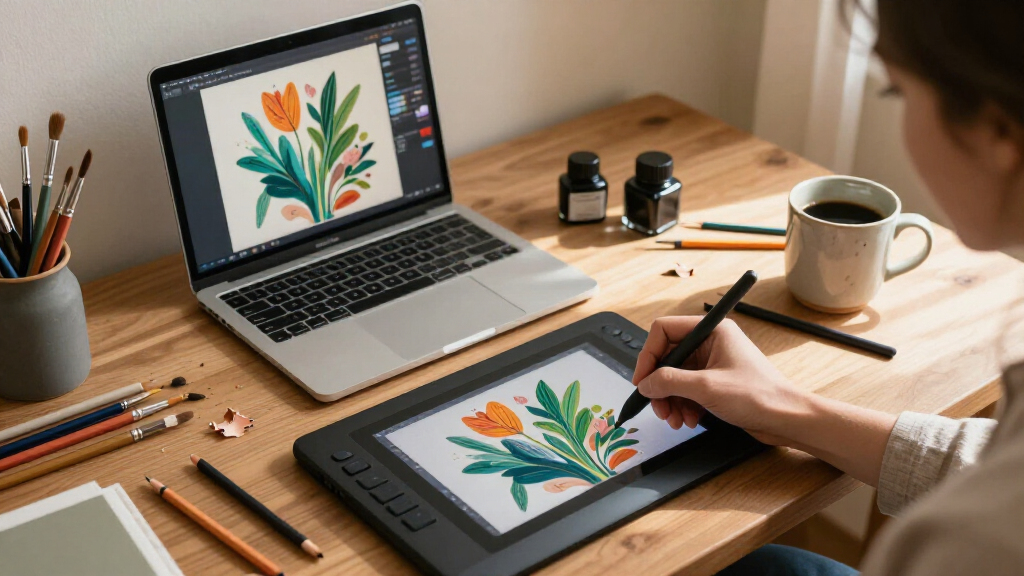

Digital art drawing tablets split into three camps: screenless pen tablets you plug into a computer, pen displays you draw on directly, and standalone tablets that need no PC at all — and the right pick depends entirely on your budget and workflow. For most artists, the HUION Kamvas 13 (Gen 3) is the strongest overall choice, pairing a sharp 13.3-inch display with a dual-dial design and a pen that feels responsive at fine detail work. If you want to ditch the computer entirely, the Frunsi RubensTab T11 Pro is the most capable standalone option here, while the HUION Inspiroy H1060P delivers the best value for beginners who don’t need a screen. The main tradeoff you’ll face: pen displays feel natural but cost more and require a computer, standalone tablets offer freedom but lag in raw performance, and screenless tablets are cheap and precise but demand practice to master the hand-eye disconnect. Keep reading for the full breakdown of all 15 tablets.
Key Takeaways
- Pen displays like the HUION Kamvas 13 (Gen 3) and XP-Pen Artist 13.3 Pro V2 dominated the top of this comparison because drawing directly on screen removes the learning curve that frustrates most beginners on screenless tablets.
- Standalone tablets (Frunsi RubensTab T11 Pro, PicassoTab X11, PicassoTab A10) traded raw drawing performance for portability — great for sketching anywhere, but weaker for professional illustration workloads.
- Under the budget tier, the HUION Inspiroy H1060P and XPPen Deco 01 V3 separated themselves from the UGEE M708 V3 through better driver stability and more usable shortcut keys, not raw specs.
- Small-format tablets like the XPPen StarG640 and HUION Inspiroy H640P proved best reserved for tight desks, note-taking, or photo retouching — full illustration on a 6×4 inch surface cramps long strokes.
- Battery-free styluses are now standard across the entire lineup, so pen tilt support, pressure curve consistency, and shortcut ergonomics became the real differentiators in this roundup.
| XP-Pen Artist 13.3 Pro V2 Drawing Tablet with Screen |  | Best Overall Pen Display | Display: 13.3-inch full-laminated FHD | Color gamut: 88% NTSC, ≥91% Adobe RGB, ≥123% sRGB | Stylus: Battery-free, 16,384 pressure levels, 60-degree tilt | VIEW LATEST PRICE | See Our Full Breakdown |
| Frunsi RubensTab T11 Pro Standalone Drawing Tablet |  | Best Computer-Free Option | Display: 10.1-inch Full HD IPS, 1920 × 1200 | Battery: 5800mAh; up to 5 hours | Pen: Battery-free pressure-sensitive pen | VIEW LATEST PRICE | See Our Full Breakdown |
| Wacom Intuos Small Wired Graphics Drawing Tablet with Pen and Software |  | Best Beginner Screenless Tablet | Brand: Wacom | Size: Small | Connectivity: Wired (USB) | VIEW LATEST PRICE | See Our Full Breakdown |
| HUION Inspiroy H1060P Graphics Drawing Tablet, 10 x 6.25 in |  | Best Value Screenless Tablet | Working area: 10 x 6.25 in | Stylus: PW100 battery-free | Tilt support: ±60° | VIEW LATEST PRICE | See Our Full Breakdown |
| HUION Kamvas 13 (Gen 3) 13.3-Inch Drawing Pen Display with Dual Dial, Black |  | Best Premium Pen Display | Screen size: 13.3 inches | Pressure sensitivity: 16,384 levels | Initial activation force: 2 g | VIEW LATEST PRICE | See Our Full Breakdown |
| PicassoTab A10 10-Inch Standalone Drawing Tablet |  | Best Portable Standalone Option | Screen size: 10 inches | Processor: Octa-core | RAM: 6GB | VIEW LATEST PRICE | See Our Full Breakdown |
| GAOMON PD1161 11.6-inch FHD Drawing Tablet with Screen, Tilt, and 8 Shortcut Keys |  | Best Value Pen Display | Screen: 11.6-inch FHD IPS | Color gamut: 72% NTSC (100% sRGB) | Display colors: 16.7 million | VIEW LATEST PRICE | See Our Full Breakdown |
| UGEE M708 V3 Drawing Tablet, 10 x 6 Inch |  | Best Screenless Workhorse | Active drawing area: 10 x 6 inches | Stylus: Passive, 16,384 pressure levels | Shortcut keys: 8 customizable | VIEW LATEST PRICE | See Our Full Breakdown |
| HUION Inspiroy H950P Drawing Tablet, 8 × 5 Inches, 8192 Pressure Levels |  | Best Compact Travel Tablet | Active area: 8 × 5 inches | Stylus: PW100, battery-free | Pen pressure sensitivity: 8192 levels | VIEW LATEST PRICE | See Our Full Breakdown |
| XP-PEN Artist12 11.6-Inch FHD Pen Display |  | Best for Creative Software Integration | Display size: 11.6 inches | Resolution: 1920 × 1080 | Display type: IPS | VIEW LATEST PRICE | See Our Full Breakdown |
| HUION Inspiroy H640P 6 x 4-Inch Drawing Tablet with 8192-Level Pressure Sensitivity |  | Best Budget Pick for Students | Active area: 6 x 4 inches | Pressure sensitivity: 8192 levels | Stylus: Battery-free PW100 | VIEW LATEST PRICE | See Our Full Breakdown |
| XPPen StarG640 Drawing Tablet, 6 x 4 Inch, with Battery-Free Stylus |  | Best Ultra-Slim Pick | Active area: 6 x 4 inches | Thickness: 2 mm | Stylus: Battery-free PN01 | VIEW LATEST PRICE | See Our Full Breakdown |
| PicassoTab X11 11″ Standalone Drawing Tablet – Portable, No Computer Needed |  | Best Standalone Tablet with Software Bundle | Screen: 11 inches, 2K laminated paper-like display | Pressure sensitivity: 4096 levels | Processor: Octa-core | VIEW LATEST PRICE | See Our Full Breakdown |
| HUION Inspiroy 2 Large Drawing Tablet |  | Best for Shortcut-Heavy Workflows | Active area: 10.5 x 6.56 inches | Stylus: PW110 battery-free (PenTech 3.0) | Controls: Scroll wheel + 3 groups of 8 shortcut keys | VIEW LATEST PRICE | See Our Full Breakdown |
| XPPen Deco 01 V3 10 x 6.25-Inch Drawing Tablet with Battery-Free Stylus and 8 Shortcut Keys |  | Best Value Pen Technology | Active area: 10 x 6.25 inches | Pressure sensitivity: 16,384 levels | Stylus tilt: Up to 60 degrees | VIEW LATEST PRICE | See Our Full Breakdown |
| digital art drawing tablet | Compatibility | Stylus |
|---|---|---|
| XP-Pen Artist 13.3 Pro V2 Draw | Windows 7+, macOS 10.10+, Chrome OS 88+, Linux | Battery-free, 16,384 pressure levels, 60-degree tilt |
| Frunsi RubensTab T11 Pro Stand | — | — |
| Wacom Intuos Small Wired Graph | — | — |
| HUION Inspiroy H1060P Graphics | Windows 7+, macOS 10.12+, Android 6.0+, Linux (Xorg) | PW100 battery-free |
| HUION Kamvas 13 | Windows 10+, macOS 10.12+, select Android devices, Linux (Ubuntu 20.04 LTS) | — |
| PicassoTab A10 10-Inch Standal | — | — |
| GAOMON PD1161 11.6-inch FHD Dr | Windows 7 or later; macOS 10.12 or later | Battery-free AP50 |
| UGEE M708 V3 Drawing Tablet | — | Passive, 16,384 pressure levels |
| HUION Inspiroy H950P Drawing T | Mac, Windows, Linux, Android 6.0 or later | PW100, battery-free |
| XP-PEN Artist12 11.6-Inch FHD | Windows 7/8/10/11, Mac 10.10 or later, Linux | Battery-free passive pen with digital eraser |
| HUION Inspiroy H640P 6 x 4-Inc | Mac, Windows, Linux, Android 6.0+ | Battery-free PW100 |
| XPPen StarG640 Drawing Tablet | Mac, Windows, Chromebook | Battery-free PN01 |
| PicassoTab X11 11" Standalone | — | — |
| HUION Inspiroy 2 Large Drawing | macOS 10.12+, Windows 7+, Ubuntu, select Android 6.0+ | PW110 battery-free (PenTech 3.0) |
| XPPen Deco 01 V3 10 x 6.25-Inc | Windows 7+, Android 10.0+, macOS 10.13+, ChromeOS 88+, Linux | — |
More Details on Our Top Picks
XP-Pen Artist 13.3 Pro V2 Drawing Tablet with Screen
Among the pen displays in this lineup, this model strikes the strongest balance between color performance and everyday usability. With coverage of ≥91% Adobe RGB and a full-laminated screen, it delivers the draw-where-you-see accuracy that non-laminated budget displays like the GAOMON PD1161 can’t match. The 16,384 pressure levels and 60-degree tilt put it on par with the HUION Kamvas 13 Gen 3, but the addition of a red dial plus eight shortcut keys gives it a slight workflow edge for artists who hate reaching for the keyboard.
The tradeoff is the same one shared by the Kamvas 13: it needs a computer, so anyone wanting untethered sketching should look at the Frunsi RubensTab instead. Some bundled software also requires registration, which adds friction.
Pros:- Full-laminated FHD display minimizes parallax
- Wide color coverage including ≥91% Adobe RGB
- Red dial and 8 shortcut keys speed up workflow
- Battery-free stylus with tilt and 16,384 pressure levels
Cons:- Requires a wired connection to a computer or laptop
- Bundled software offers require device registration
Best for: Intermediate digital artists who want an accurate screen tablet paired with a desktop or laptop
Not ideal for: Artists who want to draw away from a computer — this display has no standalone mode
- Display:13.3-inch full-laminated FHD
- Color gamut:88% NTSC, ≥91% Adobe RGB, ≥123% sRGB
- Stylus:Battery-free, 16,384 pressure levels, 60-degree tilt
- Report rate:220 RPS
- Controls:Red dial and 8 customizable shortcut keys
- Connectivity:USB-C and included 3-in-1 cable
- Compatibility:Windows 7+, macOS 10.10+, Chrome OS 88+, Linux
Our verdict“If you draw at a desk and color accuracy matters, this is the screen tablet to beat in this roundup.”
Frunsi RubensTab T11 Pro Standalone Drawing Tablet
This is the pick that answers the question most screen tablets here can’t: what if you don’t want a computer involved at all? Unlike the XP-Pen Artist 13.3 Pro or the HUION Kamvas 13 Gen 3, both of which are essentially monitors, the RubensTab runs drawing apps directly on the tablet, with Wi-Fi for downloads and a 10.1-inch Full HD IPS panel with multi-touch. It shares the no-PC ethos of the PicassoTab A10 but adds an adjustable stand case and pen accessories in the box, making it feel more like a complete starter kit.
The compromises are real: the screen is smaller than the 13.3-inch displays nearby, its pressure sensitivity isn’t in the same class as dedicated pen displays, and the 5-hour battery limits long sessions away from an outlet.
Pros:- Works fully standalone with no computer required
- Preinstalled drawing apps and included accessories
- Multi-touch Full HD IPS display
- Chargeable via USB-C or a power bank
Cons:- Battery limited to around 5 hours of use
- Smaller screen and lower-end pen performance than dedicated pen displays
Best for: Beginners, kids, and casual sketchers who want to draw anywhere without owning or carrying a computer
Not ideal for: Professional illustrators who need high pressure resolution and a large color-accurate canvas
- Display:10.1-inch Full HD IPS, 1920 × 1200
- Battery:5800mAh; up to 5 hours
- Pen:Battery-free pressure-sensitive pen
- Connectivity:Wi-Fi
- Included accessories:Pen, stylus, glove, cleaning cloth, adjustable stand case
- Warranty:12 months
Our verdict“A sensible grab-and-go sketchpad for anyone whose computer is the bottleneck, not the tool.”
Wacom Intuos Small Wired Graphics Drawing Tablet with Pen and Software
For a first drawing tablet, this compact Wacom gets the fundamentals right where it counts: the battery-free EMR pen tracks precisely and has a paper-like drag that cheaper no-name slates struggle to replicate. Unlike the HUION Inspiroy H1060P, which leans on a large button array, the Intuos Small keeps things simple — a small footprint, one cable, and software that just works, which matters when you’re still learning hand-eye coordination on a screenless surface.
The obvious limitation is the small working area; anyone beyond the beginner stage will feel cramped compared to the 10 x 6.25-inch H1060P. And while bundled creative software is a genuine perk, it sits behind a registration wall rather than arriving ready in the box.
Pros:- Refined battery-free EMR pen with a natural paper-like feel
- Broad compatibility with creative and productivity software
- Compact and easy to set up anywhere
- Bundled software and online training add value
Cons:- Small active area limits expressive, full-arm drawing
- Software and training require registration to access
Best for: First-time digital artists and students who want a dependable, low-maintenance entry tablet
Not ideal for: Artists with developed technique who need a larger active area for broad strokes
- Brand:Wacom
- Size:Small
- Connectivity:Wired (USB)
- Pen technology:Battery-free EMR
- Software compatibility:Works with all software programs
- Included benefits:Software and online training after registration
Our verdict“The least frustrating way to find out whether digital drawing is for you.”
HUION Inspiroy H1060P Graphics Drawing Tablet, 10 x 6.25 in
Where the Wacom Intuos Small trades screen space for polish, this HUION goes the opposite direction: a generous 10 x 6.25-inch working area, 12 press keys, 16 soft keys, and ±60° tilt support — features that usually cost more. The tilt recognition is a genuine differentiator at this tier, letting shading and angled strokes behave more naturally than on flatter-performing slates like the XPPen StarG640. Its symmetrical, rotatable design also makes it one of the friendlier options here for left-handed artists.
The catch is compatibility friction. Linux users must run the Xorg display server (Wayland isn’t supported), iPhone and iPad are off the table entirely, and Mac owners need a USB adapter. None of these are dealbreakers for a typical Windows setup, but they narrow the audience.
Pros:- Large 10 x 6.25-inch working area for the price
- 28 total programmable keys for deep shortcut customization
- Battery-free stylus with ±60° tilt
- Rotatable symmetrical design suits left-handed artists
Cons:- No iPhone or iPad support
- Linux requires Xorg; Wayland unsupported
- USB adapter needed for Mac connections
Best for: Budget-conscious hobbyists on Windows or Android who want a large drawing surface and tilt support without paying for a screen
Not ideal for: Apple mobile users and Linux users on Wayland — connectivity simply doesn’t work for them
- Working area:10 x 6.25 in
- Stylus:PW100 battery-free
- Tilt support:±60°
- Programmable keys:12 press keys, 16 soft keys
- Compatibility:Windows 7+, macOS 10.12+, Android 6.0+, Linux (Xorg)
- Design:Symmetrical; rotatable 180° for left-handed use
Our verdict“The most drawing real estate per dollar in the screenless category, provided your device ecosystem cooperates.”
HUION Kamvas 13 (Gen 3) 13.3-Inch Drawing Pen Display with Dual Dial, Black
This is the most refined drawing surface in this batch. The 2-gram initial activation force means the pen registers the faintest hairline — a nuance the XP-Pen Artist 13.3 Pro V2 doesn’t advertise — and the laminated anti-sparkle glass cuts glare in a way that makes long sessions less fatiguing. Color accuracy of avg. ΔE<1.5 across 99% sRGB makes it the safer choice over the Artist 13.3 Pro when your work will be printed or color-checked, since what you see closely matches what you export.
The dual dials and five programmable keys are a step up from single-dial rivals, though like all pen displays here it tethers to a computer, and Android phone connections demand USB 3.1 Gen 1 and DP 1.2 — older phones need not apply.
Pros:- Featherlight 2 g activation force captures the finest lines
- Laminated anti-sparkle glass reduces glare and fatigue
- Dual dials plus 5 programmable keys for dense shortcuts
- Single-cable USB-C connection keeps the desk clean
Cons:- No standalone use — requires a connected computer or device
- Android compatibility requires USB 3.1 Gen 1 and DP 1.2 support
Best for: Serious illustrators and design students who need precise line control and trustworthy color on a desk setup
Not ideal for: Mobile-first creators with older Android devices lacking USB 3.1 and DisplayPort support
- Screen size:13.3 inches
- Pressure sensitivity:16,384 levels
- Initial activation force:2 g
- Color gamut:99% sRGB, 16.7 million colors, avg. ΔE<1.5
- Controls:5 programmable keys, dual dials, 3 pen side buttons
- Connection:USB-C single-cable
- Compatibility:Windows 10+, macOS 10.12+, select Android devices, Linux (Ubuntu 20.04 LTS)
Our verdict“The pick when subtlety of line and color fidelity matter more than saving a few dollars.”
PicassoTab A10 10-Inch Standalone Drawing Tablet
This pick makes the most sense for artists who want to sketch anywhere without lugging a laptop. The Android-based standalone design means the PicassoTab A10 runs drawing apps on its own — something screenless options like the UGEE M708 V3 simply cannot do, since they need a host computer. The laminated 10-inch display reduces parallax compared with non-laminated budget screens, and the bundled case, glove, and tutorials make it a genuinely turnkey starter kit. Compared with the larger PicassoTab X11, the A10 trades screen real estate for portability. The tradeoffs are real, though: 6GB of RAM and an octa-core processor will chug on heavy brush-heavy files, and 4096 pressure levels sit below the 8192 standard on the GAOMON and XP-PEN displays here.
Pros:- Works fully standalone with no computer needed
- Laminated display reduces parallax for on-screen drawing
- Generous accessory bundle including case, glove, and tutorials
- Storage expandable up to 1TB for artwork libraries
Cons:- Only 4096 pressure levels, half the sensitivity of rival pen displays
- 10-inch screen feels cramped for detailed compositions
Best for: Beginners and hobbyists who want a draw-anywhere tablet with no computer required
Not ideal for: Professional illustrators — the modest processing power and small screen limit complex layered work
- Screen size:10 inches
- Processor:Octa-core
- RAM:6GB
- Storage:64GB, expandable up to 1TB
- Stylus pressure levels:4096
- Preloaded apps:5
- Included accessories:Tablet case, drawing glove, universal power adapter, pre-installed screen protector
Our verdict“Buy this if portability and zero-setup drawing matter more than raw performance; skip it if you need pro-grade sensitivity.”
GAOMON PD1161 11.6-inch FHD Drawing Tablet with Screen, Tilt, and 8 Shortcut Keys
Among the screen-equipped options in this roundup, the GAOMON PD1161 stands out for delivering professional drawing features at an entry-level price point. The 8192 pressure levels and tilt support on the battery-free AP50 stylus match what the XP-PEN Artist12 offers, but GAOMON adds two more shortcut keys and includes an AC adapter — useful because some laptops can’t power an 11.6-inch display over USB alone. The matte anti-glare film gives the surface a paper-like feel that many artists prefer over glossy screens. It’s a computer-tethered display rather than a standalone device like the PicassoTab A10, so budget for the fact that it occupies both an HDMI and a USB port. Still, compared with upgrading to the HUION Kamvas 13, this is the sensible middle path for a first pen display.
Pros:- Full HD IPS screen with 100% sRGB color coverage
- Battery-free stylus with tilt and 8192 pressure levels
- Eight customizable tablet keys plus two pen buttons
- Matte anti-glare film provides a paper-like drawing feel
Cons:- Requires a computer with both HDMI and USB ports
- May need the included AC adapter if the computer’s USB power is insufficient
Best for: Digital art students and hobbyists ready to move from screenless tablets to drawing directly on a display
Not ideal for: Artists who want to draw away from a desk — this display is useless without a connected computer
- Screen:11.6-inch FHD IPS
- Color gamut:72% NTSC (100% sRGB)
- Display colors:16.7 million
- Stylus:Battery-free AP50
- Pressure levels:8192
- Shortcut keys:8 tablet keys and 2 pen buttons
- Connectivity:HDMI and USB
- Compatibility:Windows 7 or later; macOS 10.12 or later
- Warranty:1 year
Our verdict“The smartest first pen display for tethered artists who want tilt support and pro pressure levels without paying for a premium brand.”
UGEE M708 V3 Drawing Tablet, 10 x 6 Inch
For artists who draw by looking at the monitor rather than the tablet itself, the M708 V3 is the strongest value in this batch. Its 16,384 pressure levels double the sensitivity of the HUION Inspiroy H950P and every pen display here, which translates to finer gradation in line weight — a genuine advantage for detailed linework. The 10 x 6 inch textured active area mirrors the size of the HUION H1060P while adding broader platform support, including Chrome OS and Linux alongside Windows, macOS, and Android. The ambidextrous layout deserves a mention, since many budget tablets quietly favor right-handers. The main compromise versus the GAOMON PD1161 is obvious: no screen means hand-eye coordination practice, and the wired-only USB connection tethers you to your machine even on Android devices.
Pros:- 16,384 pressure levels for exceptionally fine line control
- Large 10 x 6 inch textured drawing surface
- Broad OS support including Android, Chrome OS, and Linux
- Ambidextrous design suits left- and right-handed users
Cons:- Wired USB connection only — no wireless option
- No built-in screen requires adjusting to monitor-based drawing
Best for: Budget-conscious artists and note-takers who already draw while watching a larger monitor
Not ideal for: Beginners who need to see their hand while drawing — the screenless design has a real learning curve
- Active drawing area:10 x 6 inches
- Stylus:Passive, 16,384 pressure levels
- Shortcut keys:8 customizable
- Connectivity:USB to USB-C; adapters included
- Supported operating systems:Windows 11/10/8/7, macOS 10.10+, Android 10.0+, Chrome OS 88+, Linux
- Design:Ambidextrous
- Included items:Pen holder, USB cable, extra pen tips
Our verdict“The best screenless pick here for spec-driven buyers who want maximum pressure sensitivity per dollar and don’t mind a cable.”
HUION Inspiroy H950P Drawing Tablet, 8 × 5 Inches, 8192 Pressure Levels
At just 0.3 inches thick and 1.76 pounds, the Inspiroy H950P is the tablet to throw in a backpack next to a laptop. It slots below the HUION H1060P in size but keeps the same 8192 pressure levels and eight express keys, making it a travel-friendly sibling rather than a stripped-down compromise. Compared with the even smaller HUION H640P, the 8 x 5 inch active area gives detailed illustrations room to breathe without sacrificing desk-free portability. The battery-free PW100 pen means no charging routine before a sketching session — a small thing that matters daily. Android support broadens its appeal for phone-based artists, though Android 6.0 is the floor, so very old devices are out. Like the UGEE M708 V3, it’s screenless, so expect an adjustment period if you’re coming from paper.
Pros:- Ultra-slim 0.3-inch profile at under two pounds
- Battery-free stylus with 8192 pressure levels
- Eight customizable express keys rival larger tablets
- Works across Mac, Windows, Linux, and Android
Cons:- Smaller active area limits large-scale illustration work
- Android support requires version 6.0 or later
Best for: Students and commuting artists who need a slim, full-featured tablet that fits a laptop bag
Not ideal for: Artists wanting a large canvas feel — the 8 x 5 inch area feels restrictive for sweeping strokes
- Active area:8 × 5 inches
- Stylus:PW100, battery-free
- Pen pressure sensitivity:8192 levels
- Express keys:8 customizable keys
- Thickness:0.3 inches
- Weight:1.76 lbs
- Compatibility:Mac, Windows, Linux, Android 6.0 or later
Our verdict“The best pick for artists whose studio is a coffee shop table, as long as a compact drawing area suits their style.”
XP-PEN Artist12 11.6-Inch FHD Pen Display
The Artist12 earns its place through polish where cheaper pen displays cut corners. Its programmable touch bar — for zooming, scrolling, or brush size — is a control the similarly priced GAOMON PD1161 doesn’t offer, and it changes how quickly you can navigate large canvases. The battery-free stylus includes a digital eraser, a small hardware feature that feels far more natural than tapping an eraser tool, plus eight replacement nibs in the box. Color performance matches the PD1161 at 100% sRGB, and Linux support extends beyond GAOMON’s Windows/Mac lineup. The compromises mirror its rival: it must be tethered to a computer via HDMI and USB-A, so modern laptops may need dongles. If your priority is smooth workflow inside Photoshop or Krita rather than raw accessory count, this model edges ahead.
Pros:- Programmable touch bar for zoom, scroll, and brush adjustment
- Stylus includes a digital eraser plus 8 spare nibs
- Full HD IPS display with 100% sRGB color
- Linux support in addition to Windows and macOS
Cons:- Requires both HDMI and USB-A ports or converters
- Cannot function as a standalone device
Best for: Digital painters who live in desktop creative apps and value fast, physical workflow controls
Not ideal for: UltraBook owners — the dual-port HDMI plus USB-A requirement often demands a dock or adapters
- Display size:11.6 inches
- Resolution:1920 × 1080
- Display type:IPS
- Color gamut:72% NTSC (100% sRGB)
- Stylus:Battery-free passive pen with digital eraser
- Pressure sensitivity:8192 levels
- Controls:6 customizable shortcut keys and programmable touch bar
- Compatibility:Windows 7/8/10/11, Mac 10.10 or later, Linux
- Warranty:1 year
Our verdict“A polished tethered pen display for desktop-based artists who want workflow controls the GAOMON PD1161 doesn’t provide.”
HUION Inspiroy H640P 6 x 4-Inch Drawing Tablet with 8192-Level Pressure Sensitivity
The HUION Inspiroy H640P punches well above its weight for anyone buying their first pen tablet. Its battery-free stylus with 8192 pressure levels matches the sensitivity of larger tablets like the HUION H1060P, so line control feels just as nuanced — you simply get less drawing surface in exchange. Six customizable shortcut keys, including app-specific profiles, let students assign Undo and Brush Swap in Photoshop or note-taking apps without touching a keyboard, a feature the slimmer XPPen StarG640 omits entirely. At 0.61 lbs and 0.3 inches thick, it slips into a backpack alongside a laptop, and its Android support extends its usefulness to phone-based sketching. The tradeoff is obvious: a 6 x 4-inch active area forces broad, gestural strokes that artists may find restrictive for detailed illustration work.
Pros:- Battery-free stylus with 8192 pressure levels for nuanced line control
- Six shortcut keys with app-specific profiles for faster workflows
- Featherlight 0.61 lb build that travels easily
- Works across Mac, Windows, Linux, and Android
Cons:- No iPhone or iPad support
- 6 x 4-inch active area feels cramped for large compositions
Best for: Students and note-takers who want pressure-sensitive input for classwork and casual sketching on a tight budget
Not ideal for: Illustrators working on detailed, full-page artwork — the small active area demands lots of zooming and panning
- Active area:6 x 4 inches
- Pressure sensitivity:8192 levels
- Stylus:Battery-free PW100
- Shortcut keys:6 customizable
- Resolution:5080 LPI
- Thickness:0.3 inches
- Weight:0.61 lbs
- Compatibility:Mac, Windows, Linux, Android 6.0+
Our verdict“A dependable starter tablet for students and casual artists who value portability and shortcut keys over drawing space.”
XPPen StarG640 Drawing Tablet, 6 x 4 Inch, with Battery-Free Stylus
Simplicity is the whole point of the XPPen StarG640. At just 2 mm thick, it is dramatically thinner than the 0.3-inch HUION H640P, making it the most carry-friendly option in this lineup — closer to a rigid clipboard than a gadget. There are no shortcut keys to configure, which some buyers will see as a limitation compared with the Deco 01 V3 and its eight programmable buttons, but for e-signatures, online marking, and quick photo edits, a pen and surface are all you need. The battery-free PN01 stylus never needs charging, and Chromebook compatibility makes this a smart match for classroom deployments where Google-based devices dominate. The single meaningful tradeoff is the 6 x 4-inch active area, which is tight for anything beyond signatures, annotations, and small sketches.
Pros:- Remarkably thin 2 mm profile for maximum portability
- Battery-free stylus that never needs charging
- Chromebook support, rare among budget tablets
- Handles e-signatures, note-taking, and online teaching out of the box
Cons:- No shortcut keys at all, forcing frequent trips to the keyboard
- Small 6 x 4-inch drawing area limits creative work
Best for: Teachers, remote workers, and office users who need a feather-thin tablet for e-signatures, document annotation, and light editing
Not ideal for: Hobby illustrators who want shortcut customization and room to draw — the bare-bones design omits both
- Active area:6 x 4 inches
- Thickness:2 mm
- Stylus:Battery-free PN01
- Compatibility:Mac, Windows, Chromebook
Our verdict“The thinnest, simplest tablet here — ideal for signing and annotating, underpowered for serious art practice.”
PicassoTab X11 11″ Standalone Drawing Tablet – Portable, No Computer Needed
The PicassoTab X11 answers the question most budget tablets can’t: what if you don’t own a computer at all? Unlike the HUION Inspiroy 2 or Deco 01 V3, both of which are useless without a host machine, this 11-inch device runs five preloaded creative apps on its own octa-core processor with 6 GB of RAM. Its laminated 2K paper-like display puts it a step above the non-screen HUION options, and the included lifetime upgrades for Concepts Pro and Artixo VIP add genuine long-term value that the similarly standalone Frunsi RubensTab T11 Pro doesn’t match in software terms. Storage expands to 1 TB, so animation projects and school files fit comfortably. The catch: pressure sensitivity tops out at 4096 levels — a quarter of the Deco 01 V3’s — and the absence of any confirmed built-in battery means you may be tethered to an outlet during long sessions.
Pros:- Fully standalone operation with no computer required
- Laminated 2K paper-like display for natural drawing feel
- Octa-core CPU, 6 GB RAM, and expandable 1 TB storage
- Lifetime upgrades for Concepts Pro and Artixo VIP included
Cons:- 4096 pressure levels lag far behind comparable pen tablets
- No built-in battery mentioned, likely requiring constant power
Best for: Beginners, students, and casual creators who want a screen-based drawing experience without owning or carrying a computer
Not ideal for: Serious digital artists who need 8192+ pressure levels and professional software — the hardware and app ecosystem are entry-level
- Screen:11 inches, 2K laminated paper-like display
- Pressure sensitivity:4096 levels
- Processor:Octa-core
- RAM:6 GB
- Storage:128 GB, expandable to 1 TB
- Preloaded apps:5 creative apps
- Included extras:Case, drawing glove, power adapter, screen protector
Our verdict“The easiest all-in-one entry point for computer-free digital art, provided you accept entry-level pressure sensitivity.”
HUION Inspiroy 2 Large Drawing Tablet
Where most tablets in this price tier offer six or eight buttons, the HUION Inspiroy 2 goes further with a programmable scroll wheel plus three groups of eight customizable shortcut keys. That combination matters for anyone who lives inside Photoshop or Clip Studio Paint: zoom, brush resize, and layer navigation can all happen without reaching for a keyboard, a workflow advantage neither the Deco 01 V3 nor the H640P can replicate at this scale. The 10.5 x 6.56-inch active area finally gives long strokes and detailed linework the room the compact H640P denies you, and the PenTech 3.0 battery-free stylus keeps the experience modern. The tradeoffs are structural: this is a non-display tablet, so you draw while looking at a separate screen, and Android support only covers certain devices — check your phone before buying.
Pros:- Scroll wheel plus 24 customizable shortcut keys across three groups
- Generous 10.5 x 6.56-inch active area for detailed work
- Battery-free PenTech 3.0 stylus
- Broad OS support including Mac, Windows, Linux, and select Android
Cons:- Requires a wired connection to a computer or compatible mobile device
- Android compatibility limited to certain devices only
Best for: Photo editors and digital artists who want maximum programmable control at their fingertips on a full-size surface
Not ideal for: Artists who want to draw directly on their image — a pen display like the Kamvas 13 suits that workflow far better
- Active area:10.5 x 6.56 inches
- Stylus:PW110 battery-free (PenTech 3.0)
- Controls:Scroll wheel + 3 groups of 8 shortcut keys
- Connectivity:USB-C cable; Type-C OTG adapter included
- Compatibility:macOS 10.12+, Windows 7+, Ubuntu, select Android 6.0+
- Included accessories:Pen holder, 10 nibs, nib clip, cables
- Warranty:1 year
Our verdict“The shortcut powerhouse of the budget tier — best for workflow-driven artists who don’t need a built-in screen.”
XPPen Deco 01 V3 10 x 6.25-Inch Drawing Tablet with Battery-Free Stylus and 8 Shortcut Keys
On pure stylus specifications, the XPPen Deco 01 V3 outclasses everything else in this batch. Its battery-free pen delivers 16,384 pressure levels and up to 60 degrees of tilt, doubling the sensitivity of the HUION H640P and quadrupling the standalone PicassoTab X11. Tilt support alone changes how shading and brush dynamics feel, letting tapered strokes behave like a real pencil at an angle. The 10 x 6.25-inch active area matches the drawing space of HUION’s larger slates while keeping the body just 8 mm thin, and eight ambidextrous shortcut keys cover the basics the button-free StarG640 ignores. The bundle is unusually generous too — ten nibs, a glove, and a protective film come in the box. Two caveats: Android users need version 10.0 or later, and XPPen recommends fairly recent Windows and macOS releases for smooth performance.
Pros:- Class-leading 16,384 pressure levels with 60-degree tilt support
- Full 10 x 6.25-inch active area in an 8 mm-thin body
- Eight shortcut keys usable by left- and right-handed artists
- Rich accessory bundle including glove, film, and 10 spare nibs
Cons:- Android support requires version 10.0 or later
- Newer Windows 11 / macOS 12 versions recommended for best results
Best for: Aspiring digital artists who want professional-grade pressure and tilt response without paying for a pen display
Not ideal for: Owners of older Android phones or legacy computers — the version requirements may leave this tablet unusable
- Active area:10 x 6.25 inches
- Pressure sensitivity:16,384 levels
- Stylus tilt:Up to 60 degrees
- Shortcut keys:8 customizable
- Connectivity:USB-C to USB-C; USB-C to USB-A cable and adapter included
- Thickness:8 mm
- Compatibility:Windows 7+, Android 10.0+, macOS 10.13+, ChromeOS 88+, Linux
Our verdict“The best pen technology per dollar in this lineup — a serious tool for artists who prioritize stroke fidelity over standalone screens.”
How We Picked
I evaluated each tablet against the factors that actually shape daily drawing sessions: pen performance (pressure levels, initial activation force, tilt support), workspace size relative to intended use, driver stability across Windows, macOS, and drawing apps, and build quality including stand flexibility and cable management. For pen displays, color accuracy and anti-glare treatment mattered as much as latency. For standalone tablets, I weighed processing power and app compatibility against their portability advantage.
Ranking favored versatility and longevity over spec-sheet flash. A tablet that grows with an artist’s skill beat one with impressive numbers but shaky software support. That’s why the Kamvas 13 (Gen 3) leads — it balances display quality, pen feel, and dial-driven workflow at a mid-tier commitment — while ultra-budget options rank lower despite their accessibility, and compact models are placed according to how well they serve their niche rather than compared unfairly against full-size displays.
Factors to Consider When Choosing Digital Art Drawing Tablets
Before locking in a pick, it helps to understand the broader landscape of digital art drawing tablets — the mistakes that cost buyers money and the tradeoffs no spec sheet will explain.Screenless Tablet, Pen Display, or Standalone?
This is the single biggest decision, and it shapes everything else. Screenless tablets like the HUION Inspiroy line are affordable, durable, and precise, but they require weeks of practice to reconcile your hand moving below while your eyes track a monitor above — some artists never adjust. Pen displays solve that disconnect and feel intuitive from day one, but they add cost, cabling complexity, and dependence on a reasonably powerful computer. Standalone tablets offer true freedom to draw anywhere, yet most run mobile apps rather than full desktop software, which caps what professional workflows can achieve. My advice: if you already own a decent computer, a pen display or screenless tablet gives you more capability per dollar. Only choose standalone if portability genuinely outranks performance for you.
Active Area Size and Your Monitor Setup
A common mistake is buying a small tablet to save money, then discovering that every wrist movement maps to a huge sweep on a large monitor — fine linework becomes twitchy and exhausting. As a rough rule, your tablet’s active area should be proportional to your primary display; a 6×4 inch surface works fine with a laptop, but pairs poorly with a 27-inch monitor. Mid-size tablets around 10 x 6 inches hit the sweet spot for most home setups, letting you draw from the elbow for fluid long strokes. Display tablets follow different logic: a 13-inch screen suits compact desks, while larger displays demand more reach and a proper stand. Match the tool to your physical workspace before you match it to your budget.
Pressure Sensitivity, Tilt, and Pen Feel
Pressure levels get marketed heavily, but the jump from 8192 to 16,000+ levels is imperceptible to most human hands — what matters far more is the pressure curve consistency and initial activation force, meaning how lightly you can touch down before a mark registers. A pen that requires a firm press will flatten your line variation no matter the spec count. Tilt support, by contrast, is genuinely useful if you shade with the side of your pen or use brush engines that respond to angle; skip it if you mostly do line art. Also check whether the pen is battery-free (nearly universal now) and whether replacement nibs are cheap and easy to find — you will burn through them faster than you expect.
Driver Reliability: The Hidden Dealbreaker
The most overlooked factor in this category isn’t hardware at all — it’s software. A tablet with flaky drivers will randomly lose pressure sensitivity, conflict with other peripherals, or break after an OS update, and no amount of pen quality compensates for that. Wacom’s drivers remain the benchmark for long-term stability, while HUION and XPPen have closed the gap dramatically but still occasionally require reinstalling drivers after major Windows or macOS updates. Before buying any brand, check how frequently the manufacturer posts driver updates and whether users report ongoing conflicts with your specific drawing software. This is also why nearly-identical budget tablets can differ so much in practice: two companies can use similar hardware while one supports it for years and the other abandons it within months.
Shortcut Keys, Dials, and Workflow Ergonomics
Express keys and dial controls look like minor conveniences until you’ve spent a week reaching for your keyboard mid-stroke to undo. Well-placed shortcut keys keep your drawing hand on the tablet and your other hand on zoom, brush size, and undo — which compounds into hours saved and far less wrist strain over long sessions. Consider how many keys you realistically need: photo retouchers often want four to six, while illustrators using layered brushes may want eight or more plus a dial. Left-handed buyers should confirm the keys sit on both edges or can be remapped. If you buy a display tablet without keys, budget for a separate macro keypad or shortcut remote, because your keyboard will be out of easy reach.
When to Pay More — and When Not To
Paying more in this category buys you better displays, better pens, and better stands — not better fundamental capability. A disciplined beginner on a screenless mid-size tablet will out-draw someone with a premium display and no practice, so resist upgrading hardware to solve skill problems. Where spending more genuinely pays off: color-accurate displays if you do client work destined for print, larger active areas if you sell finished illustration, and standalone performance if art is your profession rather than a hobby. Where it doesn’t: pressure-level counts beyond 8192, bundled software you’ll never open, and extra keys you won’t remap. Buy the tier that matches your current output, then upgrade when you can name the specific limitation holding you back.
Frequently Asked Questions
Do I need a tablet with a screen if I’m a beginner?
Not necessarily, and this trips up a lot of first-time buyers. Screenless tablets like the HUION Inspiroy H1060P cost far less and force you to build the hand-eye coordination that most digital art actually requires, but expect a frustrating one-to-three-week adjustment period where your lines land slightly off from where you intend. Pen displays such as the XP-Pen Artist12 remove that learning curve entirely, which keeps motivation high, but they cost roughly double and still require a computer to function. If budget is tight or you’re unsure whether digital art will stick, start screenless — the skill transfers directly if you upgrade later. If you know you’ll draw regularly and can afford it, a small pen display spares you the early quitting risk that the adjustment period creates.
Can a standalone drawing tablet replace a computer-based setup?
It depends on what you create. Standalone tablets like the Frunsi RubensTab T11 Pro and PicassoTab X11 run mobile versions of popular apps, which now handle sketching, painting, and illustration surprisingly well — hobbyists and social-media artists can absolutely make them a primary device. The ceiling appears with professional workflows: heavy layered files, print-resolution canvas sizes, 3D paint tools, and certain plugin ecosystems either don’t exist on mobile or choke on standalone hardware. File management and backup also get clunkier without a full desktop operating system. Treat standalone tablets as excellent portable studios and capable primary devices for casual-to-intermediate work, but keep a computer in the loop if you deliver client files or work at high resolutions.
What size drawing tablet should I get for my desk and monitor?
Size should follow two things: your physical workspace and the resolution of the monitor you’ll look at. Pairing a tiny 6×4 inch tablet with a large high-resolution monitor forces hypersensitive mapping, where small hand movements translate to big cursor jumps — exhausting for detailed work. Mid-size tablets around 10 x 6 inches suit most desks and up to 27-inch monitors comfortably. For pen displays, the calculus changes: a 13-inch screen fits compact setups and travel bags, while anything larger really wants a dedicated stand and arm’s-length desk depth. Measure your desk and note your monitor size before buying, because the most common regret in this category isn’t a bad tablet — it’s a mismatched one.
Are HUION and XPPen as good as Wacom now?
On hardware, the gap has largely closed — pens, pressure response, and build quality from HUION and XPPen now compete directly with Wacom’s consumer lines, and their aggressive feature-per-dollar pricing is why Wacom’s cheaper options like the Intuos Small rank lower in this comparison. The remaining differences are in polish and support: Wacom’s drivers have a longer track record of stability across OS updates, their pens carry a reputation for longevity, and replacement parts are easier to source years down the line. HUION and XPPen both issue frequent driver updates, which cuts both ways — fixes arrive fast, but you may occasionally need to reinstall after a system update. For most buyers, the value math favors HUION and XPPen; choose Wacom if you want the most conservative, set-and-forget option.
How many pressure levels do I actually need?
Fewer than marketing suggests. 8192 levels — the baseline across most tablets in this roundup — already exceeds what human hands can consciously distinguish, and the jump to 16,000+ is mostly a numbers game rather than a felt difference. What actually shapes line quality is the pressure curve: how the tablet maps light, medium, and heavy strokes, and how little force triggers the first mark. A tablet with a soft initial activation force and a smooth, customizable curve will feel dramatically better than one with double the pressure levels and a stiff, linear response. Prioritize tablets that let you adjust the pressure curve in the driver, keep spare nibs on hand, and spend the money you save on practice time rather than spec count.
Conclusion
After comparing all fifteen tablets, the right choice comes down to who you are as a buyer. For best overall, the HUION Kamvas 13 (Gen 3) earns the top spot with its responsive dual-dial workflow, quality display, and pen feel that suits both developing and experienced artists — with the XP-Pen Artist 13.3 Pro V2 a close alternative if you prefer its shortcut layout. For best value, the HUION Inspiroy H1060P delivers the most usable drawing experience per dollar in the entire lineup, with the XPPen Deco 01 V3 as the pick if you want a near-equal alternative with a different key arrangement. For best for beginners, the Wacom Intuos Small offers the most forgiving software experience and bundled creative apps to learn on, though growing artists may outgrow its compact size. For best portable/standalone use, the Frunsi RubensTab T11 Pro leads the no-computer-needed category, with the PicassoTab X11 as the lighter, more travel-friendly option. And for best compact screenless pick, the HUION Inspiroy H640P handles small desks and on-the-go editing better than anything else its size. Match the pick to your budget, your desk, and your honesty about how much you’ll actually draw — that combination will serve you better than any spec sheet.