
To compare a trackball and a mouse, consider your workspace, comfort, and precision needs. A trackball stays stationary and reduces wrist strain, making it ideal for long sessions and limited space. A mouse offers quick, broad movements and is preferred for general use. Your choice depends on comfort and task detail, but exploring these differences further reveals which option suits your habits and setup best. Keep exploring to find the perfect fit for your workflow.

Get art and craft supplies delivered free with Prime
- Fast, free delivery on millions of items
- Prime Video, Amazon Music and more included
- Member-only deals all year
Key Takeaways
- Assess ergonomic benefits: trackballs reduce wrist strain, while mice offer quick, broad movements for efficiency.
- Compare precision control: trackballs excel in detailed tasks like graphic design, while high-end mice also provide high accuracy.
- Consider workspace setup: trackballs are space-saving and stationary, whereas mice need flat surfaces for smooth operation.
- Match device to usage habits: prefer trackballs for long-term comfort, mice for fast, frequent movements.
- Evaluate personal preferences: choose based on comfort, workflow, and specific task requirements for optimal productivity.
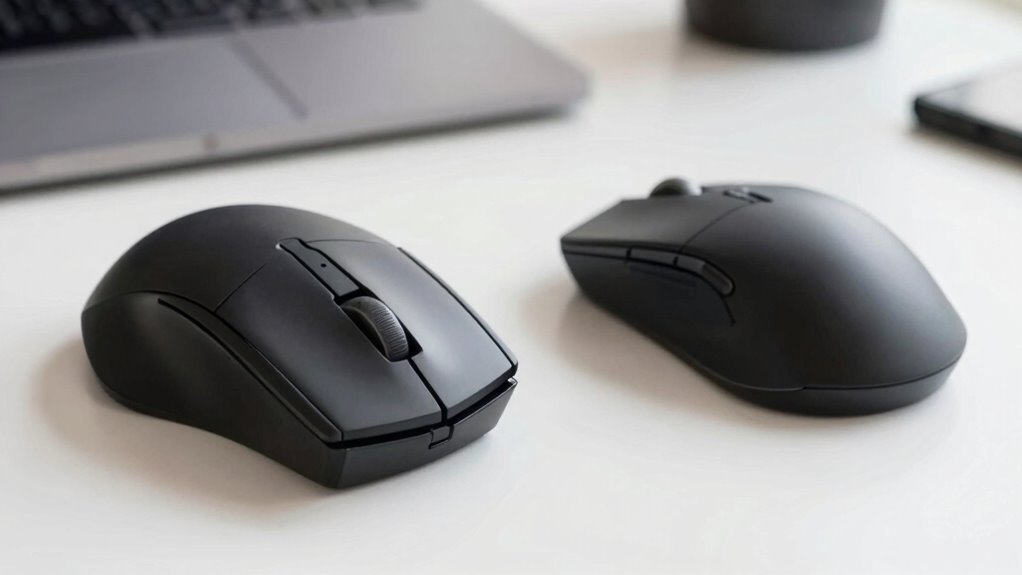
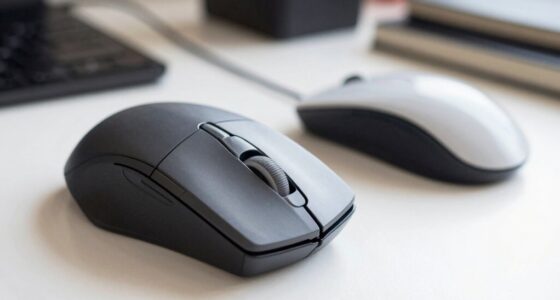
When choosing between a trackball and a mouse, understanding their differences can help you make an informed decision based on your needs. Both tools serve the same purpose—navigating your computer—but their design and functionality can significantly impact your comfort and efficiency. A trackball is a stationary device with a large ball you manipulate with your fingers or palm, while a mouse moves across a surface to control the cursor. Your choice depends on what features matter most to you.
One of the most notable advantages of a trackball is its ergonomic benefits. Because your hand stays in a relatively fixed position, it reduces wrist and arm strain, which is especially helpful if you spend hours at your computer. With a mouse, you often have to move your wrist and arm frequently, potentially leading to discomfort or repetitive strain injuries over time. If you prioritize comfort and want to minimize fatigue, a trackball offers a more natural hand position, making it easier to maintain over long periods.
Trackballs promote ergonomic comfort by keeping your hand stationary, reducing wrist and arm strain during long computer sessions.
Precision control is another vital aspect to consider. Many users find that a trackball allows for finer control, particularly in tasks requiring detailed movements, like graphic design or CAD work. The stationary nature of the device means you can make small, precise adjustments without the risk of slipping or losing control, which can happen with a traditional mouse if not handled carefully. Conversely, a mouse can also offer high precision, especially high-end models equipped with advanced sensors and customizable buttons, but it often requires a bit more effort to achieve the same level of detail. Additionally, ergonomic design can influence your overall comfort and prevent strain during extended use. Moreover, user preferences can greatly affect which device feels more intuitive for your specific workflow.
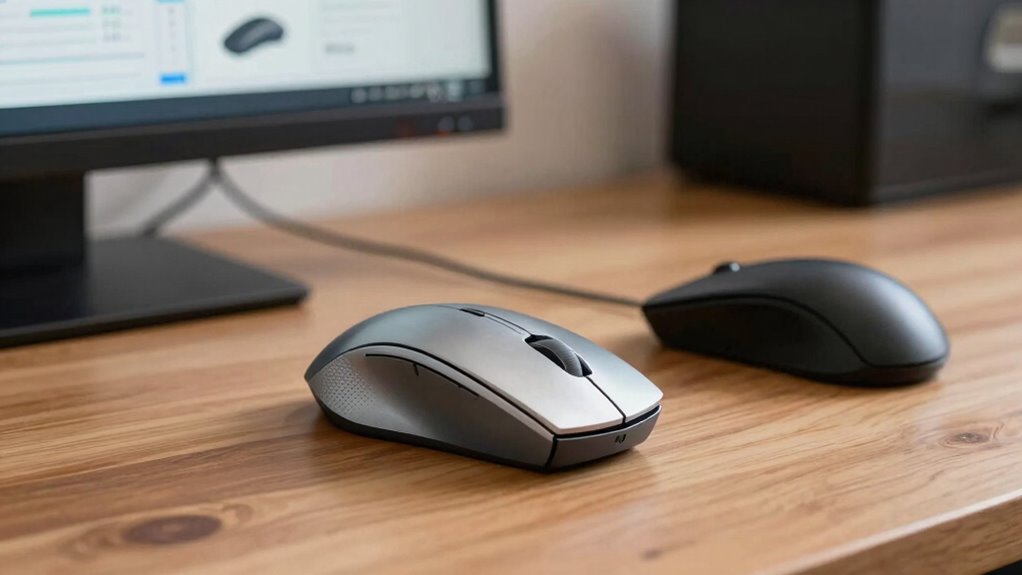
Your workspace setup plays a role too. If you have limited desk space, a trackball can be a smarter choice because it doesn’t need to be moved around as much—just the ball itself. It also tends to stay in one place, reducing clutter. Meanwhile, a mouse needs a clear, flat surface to operate smoothly, and its movement can be hindered on uneven or cluttered surfaces. Furthermore, workspace ergonomics is an important consideration that can impact your long-term health and comfort.
Ultimately, the decision hinges on your personal preferences and work habits. If you value ergonomics and long-term comfort, a trackball might serve you better. If you prefer quick, broad movements and a more traditional approach, a mouse could be the way to go. Both tools offer their own set of advantages, but understanding these core differences will help you choose the device that aligns with your needs and enhances your productivity.
As an affiliate, we earn on qualifying purchases.
Frequently Asked Questions
Which Device Is Better for Gaming Performance?
For gaming performance, a mouse usually outperforms a trackball because it offers faster, more precise movements, especially with high DPI settings. Wireless connectivity guarantees you stay untethered, while customizable buttons allow you to set shortcuts for quick actions, improving your gameplay. While trackballs can offer comfort and control, mice generally provide better responsiveness and speed, making them the preferred choice for most gamers aiming for peak performance.
Can a Trackball Reduce Wrist Strain Long-Term?
Yes, a trackball can reduce wrist strain long-term. Because you don’t need to move your hand as much, it minimizes wrist fatigue and supports better hand mobility. This ergonomic advantage helps prevent repetitive strain injuries over time. By keeping your wrist in a more neutral position, a trackball allows you to work comfortably longer, making it a smart choice if you’re concerned about long-term wrist health and maintaining mobility.
Are Trackballs More Portable Than Mice?
Trackballs are generally more portable than mice because of their compact size and stationary design. You can easily pack a trackball into a laptop bag or backpack without worrying about extra space or fragile parts. Design variations, such as wireless models or smaller, ergonomic options, enhance portability further. Unlike traditional mice, which require space to move around, trackballs stay put, making them ideal for on-the-go use in various settings.
How Do Trackballs Impact Workspace Ergonomics?
You might find that trackballs substantially improve workspace ergonomics by reducing wrist strain and promoting natural hand positions. This can lead to ergonomic benefits like decreased discomfort and long-term injury risk. Additionally, their compact design enhances workspace efficiency, freeing up desk space and allowing for more flexible setups. As a result, you can work more comfortably and productively, making trackballs a smart choice for optimizing your ergonomic environment.
Is There a Significant Cost Difference Between Them?
Yes, there’s often a notable cost difference between trackballs and mice. Trackballs tend to be more expensive upfront, but their cost efficiency over time can be better since they reduce wrist strain and increase productivity. When doing a budget comparison, consider long-term benefits like ergonomic advantages and durability. If you prioritize comfort and long-term savings, investing in a quality trackball might be more economical despite the higher initial price.
As an affiliate, we earn on qualifying purchases.
Conclusion
In the end, choosing between a trackball and a mouse boils down to what suits your style best. Both tools have their perks, but it’s your comfort and efficiency that truly matter. Remember, it’s not about putting all your eggs in one basket—try them out and see which feels like second nature. Sometimes, a change of pace can turn your workflow from a rough ride into smooth sailing. Trust your instincts and pick what works for you.
As an affiliate, we earn on qualifying purchases.
ergonomic computer mouse for long use
As an affiliate, we earn on qualifying purchases.
As an affiliate, we earn on qualifying purchases.
Fall Picks
fall essentials
As an affiliate, we earn on qualifying purchases.