
To compare monitor calibration smarter, focus on the methods’ precision and ease of use. Automated software calibration offers quick fixes, but hardware tools like colorimeters deliver higher accuracy for professional work. Consider your needs—if color accuracy and brightness uniformity matter most, investing in hardware calibration makes sense. Balancing convenience and precision helps you choose the right approach. Keep exploring how different techniques affect your display’s quality, and you’ll discover ways to optimize your setup more effectively.
Key Takeaways
- Use standardized calibration targets and test patterns to objectively evaluate color accuracy and brightness uniformity.
- Compare calibration methods based on precision, ease of use, and suitability for your specific professional or casual needs.
- Incorporate hardware tools like colorimeters for more accurate, consistent results across different monitors.
- Review calibration reports and measurements to assess improvements and identify hardware limitations.
- Consider long-term benefits, such as consistency over time and monitor lifespan, when selecting calibration techniques.
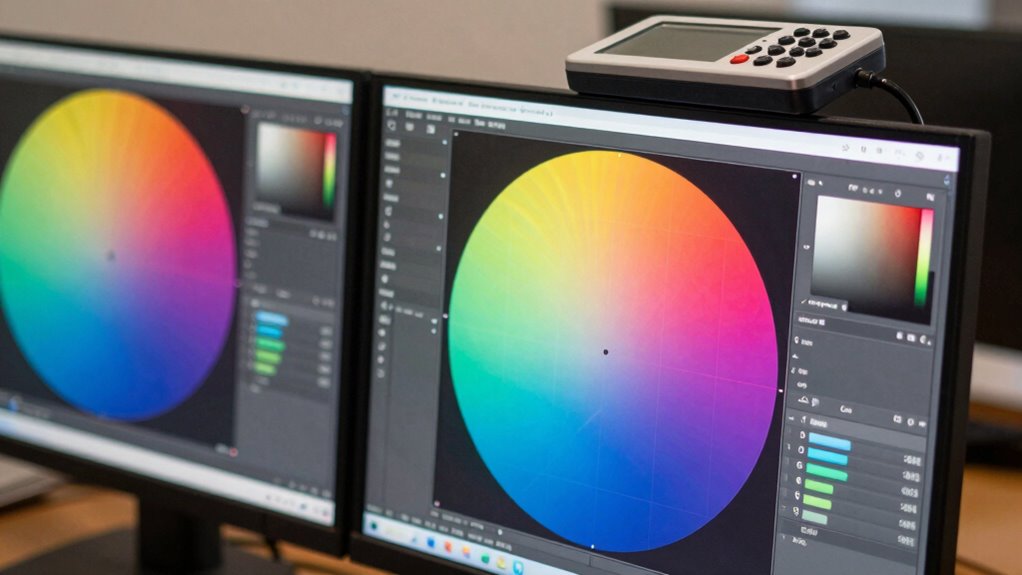
Have you ever wondered how different monitor calibration methods compare in accuracy and ease of use? When you’re aiming for the best display quality, understanding these differences can make a significant impact. Calibration techniques vary widely, but the two main factors to consider are color accuracy and brightness uniformity. These elements are vital whether you’re a professional photographer, a graphic designer, or just someone who wants a true-to-life viewing experience.
Color accuracy measures how well your monitor reproduces colors without distortion. A highly accurate calibration ensures that the colors you see on screen match those in real life or in the final output, which is essential for tasks that demand precision. Some calibration methods use built-in tools or software to adjust color profiles automatically, making it easier for you to achieve consistent results. Others rely on physical calibration devices, known as colorimeters or spectrophotometers, which provide more precise adjustments by measuring the display’s output directly. These tools tend to be more accurate but may require a bit of a learning curve, and their effectiveness depends on proper use.
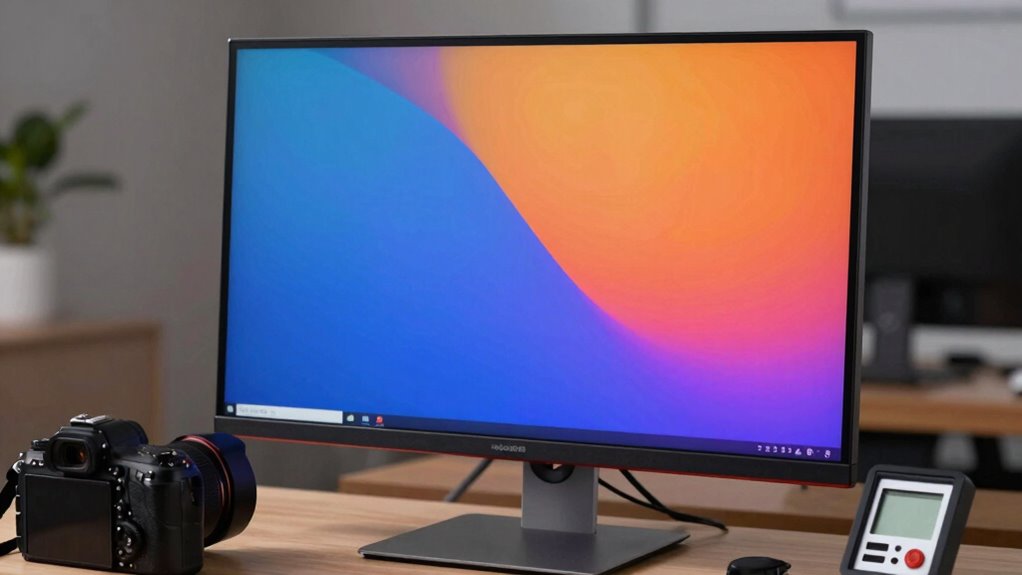
Calibration methods vary from automatic software adjustments to precise hardware tools like colorimeters, each affecting color accuracy differently.
Additionally, understanding the calibration process involved can help you better select the most suitable method for your needs and ensure long-term display consistency. Proper calibration can also help you identify and correct any hardware limitations of your monitor, leading to better overall image quality. Brightness uniformity, on the other hand, guarantees that your monitor displays consistent brightness levels across the entire screen. Uneven brightness can cause eye strain and distort your perception of images, especially when working on detailed tasks. Calibration techniques that focus on brightness uniformity often involve adjusting backlight settings or software profiles to compensate for any inconsistencies. High-quality calibration devices can detect variations in brightness across different areas of your screen and help you fine-tune the display for uniformity. Achieving good brightness uniformity is often a matter of using the right tools combined with an understanding of your monitor’s characteristics. Furthermore, proper calibration can extend the lifespan of your display by maintaining optimal settings and reducing unnecessary strain on its components. Incorporating regular calibration routines can also help you maintain consistent quality over time, especially as monitors age or change with use.
In terms of ease of use, some calibration methods are more user-friendly than others. For example, automatic calibration via software is quick and straightforward but might not reach the same level of precision as manual adjustments with professional hardware. Conversely, manual calibration demands more time and technical knowledge but can yield superior results, especially in professional settings. The key is balancing your needs for accuracy with the practical aspects of setup and ongoing maintenance.
Ultimately, a smarter way to compare monitor calibration methods involves recognizing the specific demands of your work and choosing tools that prioritize both color accuracy and brightness uniformity. Whether you opt for simple software solutions or invest in professional calibration hardware, understanding these core factors helps you make better decisions, ensuring your display remains reliable, consistent, and true to life.
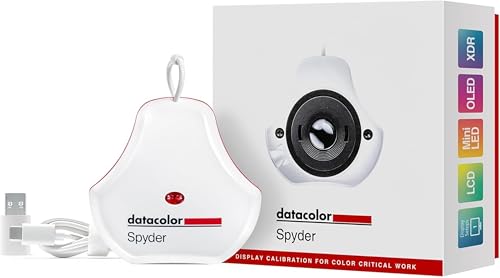
datacolor Spyder – Monitor Calibrator for Graphic Designers, Photographers, and Content Creators, Shows You True Colors, Works on OLED Monitors & LED Screens, Easy-to-Use Color Calibration Tool
Color “Surprises” Are a Thing of the Past: Datacolor’s exclusive DevicePreview TM Beta feature simulates what your photos…
As an affiliate, we earn on qualifying purchases.
As an affiliate, we earn on qualifying purchases.
Frequently Asked Questions
How Often Should I Recalibrate My Monitor for Optimal Accuracy?
You should recalibrate your monitor at least once a month to maintain ideal color accuracy and screen uniformity. If you notice colors look off or your display’s brightness and contrast seem inconsistent, recalibrate sooner. Regular calibration ensures your colors stay true, especially for professional work. Environmental factors like lighting changes can affect calibration, so periodic adjustments keep your monitor performing accurately and consistently.
Can Calibration Affect My Monitor’s Hardware Performance?
Calibration is like tuning a musical instrument—it can influence your monitor’s hardware impact and performance effects. While it mainly adjusts display accuracy, over-calibrating or improper settings might strain internal components, subtly affecting hardware performance over time. However, proper calibration usually enhances visual clarity without harming hardware. Keep calibration balanced, and you’ll enjoy improved image quality without risking unnecessary hardware impact or performance issues.
Are There Specific Calibration Tools for Different Monitor Types?
Yes, there are specific calibration tools tailored for different monitor types, like IPS, TN, or OLED displays. You should choose calibration tools designed for your monitor type to guarantee accurate color and brightness adjustments. For example, some calibration devices work better with OLED screens, while others are optimized for LCDs. Using the right calibration tools for your monitor type assures precise calibration, enhancing your visual experience and maintaining color consistency.
How Do Ambient Lighting Conditions Influence Calibration Results?
Ambient lighting, especially ambient light, greatly impacts your monitor calibration results. When ambient light is too bright or uneven, it skews your perception of color temperature, making your display appear warmer or cooler than it truly is. To get accurate calibration, you should control ambient light levels, ideally using consistent, neutral lighting conditions. This helps guarantee your monitor’s color temperature remains true, giving you more reliable and consistent color accuracy.
Is Professional Calibration Worth the Investment for Casual Users?
Professional calibration is worth it if you care about color accuracy, even as a casual user. Using high-quality calibration tools guarantees your monitor displays true colors, which is especially important for photo editing or design work. While it might seem unnecessary initially, investing in calibration can improve your viewing experience and help you avoid frustration from inaccurate colors. Overall, it’s a smart choice if you want reliable, consistent results from your monitor.
datacolor Spyder – Monitor Calibrator for Graphic Designers, Photographers, and Content Creators, Shows You True Colors, Works on OLED Monitors & LED Screens, Easy-to-Use Color Calibration Tool
Color “Surprises” Are a Thing of the Past: Datacolor’s exclusive DevicePreview TM Beta feature simulates what your photos…
As an affiliate, we earn on qualifying purchases.
As an affiliate, we earn on qualifying purchases.
Conclusion
Now that you’ve explored a smarter way to compare monitor calibration, think of it as steering a vast ocean with a clear, steady compass. Instead of drifting aimlessly, you can confidently steer your way to perfect color accuracy and consistency. With these tools and methods, you’re not just adjusting settings—you’re charting a course toward visual excellence. So, set sail with precision in mind, and let your monitor be your trustworthy guide in every creative voyage.
Anpviz 5 Inch 4 in 1 CCTV Monitor Tester, AHD/TVI/CVI/CVBS Coaxial Analog Video CCTV Tester, UTP/PTZ Cable Test for 1080P/3MP/4MP/5MP/8MP Analog Security Camera, VGA DC12V Output Camera
Support up to HD TVI video surveillance testing: Support 2MP, 3MP, 4MP, 5MP 8MP. When TVI signal input,…
As an affiliate, we earn on qualifying purchases.
As an affiliate, we earn on qualifying purchases.

Calibrite Display Pro HL Monitor Calibration Colorimeter for LCD Mini LED and OLED Displays, Measure up to 3000 Nits, PROFILER Software, USB C with Adapter, Validation/Color Uniformity Tools
SPECIFICATIONS: HL high luminance sensor colorimeter measures up to 3000 nits, calibrates and profiles LCD mini LED OLED…
As an affiliate, we earn on qualifying purchases.
As an affiliate, we earn on qualifying purchases.