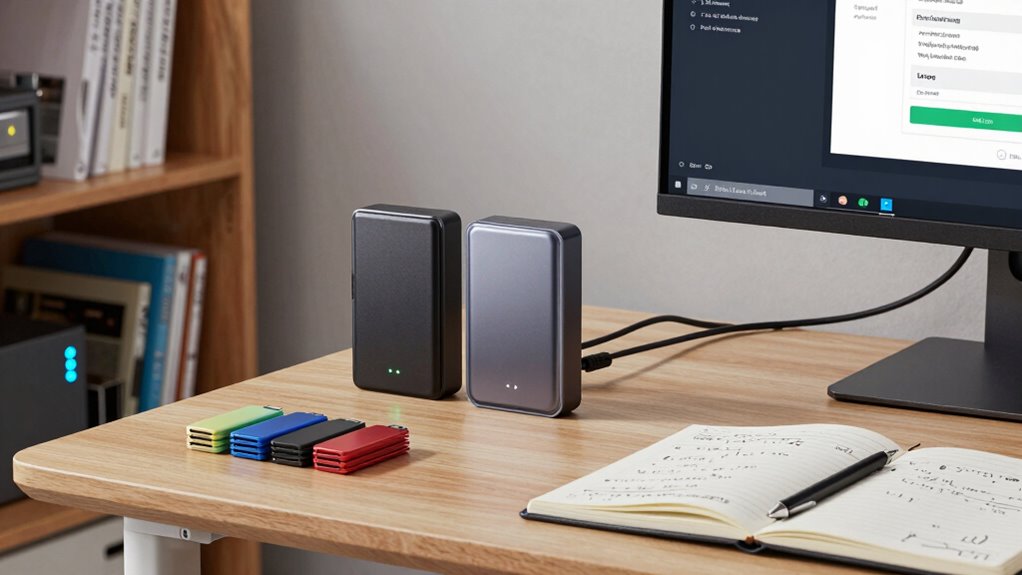
Before upgrading your creative file backups, make certain your chosen cloud provider is reliable, secure, and supports end-to-end encryption. Test compatibility with your current workflow and backup software to avoid disruptions. Develop clear policies for backup frequency, storage, and encryption key management, and verify that backups are automated and consistent. Regularly test restore procedures to confirm file integrity and security. Keep these considerations in mind, and you’ll be better prepared for a seamless shift.
Key Takeaways
- Assess cloud provider security, reliability, and encryption standards before transitioning backups.
- Ensure compatibility of cloud storage with existing backup tools and creative workflows.
- Implement strong encryption practices, including local encryption and secure key management.
- Develop clear backup policies covering frequency, storage locations, and restoration procedures.
- Regularly test backup restores to verify data integrity and security effectiveness post-upgrade.
Upgrading your creative file backups might seem straightforward, but it’s essential to understand the potential pitfalls and best practices before making changes. One of the most common updates involves shifting your backups to cloud storage, which offers convenience and scalability. However, before you make the switch, evaluate the reliability and security measures of the cloud service. Look for providers that offer strong backup encryption, ensuring your files remain protected during transfer and storage. Encryption is vital because it prevents unauthorized access, even if data breaches occur at the provider level. When upgrading, confirm that your new cloud storage supports end-to-end encryption, giving you peace of mind that your creative assets are safe.
Another aspect to contemplate is compatibility. Not all cloud storage solutions integrate seamlessly with your existing workflow or backup software. You want a setup that allows smooth automation, so backups happen regularly without manual intervention. Before upgrading, test the compatibility of your chosen cloud service with your current tools. Also, check whether the provider offers version control features, which are critical for creative files that undergo frequent edits. Being able to revert to previous versions can save you from the headache of accidental overwrites or corrupted files.
Ensure your cloud storage integrates seamlessly with your workflow and offers version control for frequent creative edits.
While cloud storage offers many benefits, it’s also important to review your current backup encryption practices. If you’re upgrading from local backups to cloud-based ones, ensure your encryption protocols are robust enough to handle this change. Ideally, you should encrypt files locally before uploading them to the cloud, adding an extra layer of security. This way, even if the cloud provider’s encryption were compromised, your files would still be protected. Keep in mind that some cloud services handle encryption automatically, but verifying their security standards is always a wise step.
As you plan your upgrade, don’t overlook the importance of creating a detailed backup strategy. Have clear policies on how frequently you back up, where the backups are stored, and how encryption keys are managed. Remember, the goal is to protect your creative works from loss, theft, or corruption without complicating your workflow. Regularly testing your backups after upgrading is equally important. Make sure you can restore files quickly and completely, confirming that your new system functions as intended. By doing thorough research and implementing best practices around cloud storage, backup encryption, and cloud security measures, you’ll guarantee a smooth transition that enhances your data security and workflow efficiency.

NTI Backup Now EZ 7.5 (for 1 Computer) | Full-System Image Backup | Cloud Backup | File-Folder Backup | Scheduled Backup | Available in Download and CD | Lifetime License (Not 1-Year Subscription)
[4-in-1 Total Backup Solution] Scheduled Backup, Cloud Backup, PC Backup (i.e. Image Backup), File & Folder Backup. Available…
As an affiliate, we earn on qualifying purchases.
As an affiliate, we earn on qualifying purchases.
Frequently Asked Questions
How Long Does the Backup Upgrade Process Typically Take?
The backup upgrade process usually takes anywhere from a few minutes to several hours, depending on your data size and system speed. During this time, backup encryption settings are updated, and storage scalability options are optimized to handle increased data loads. To guarantee a smooth upgrade, make sure your system has enough space and that you’re patient, especially if you’re working with large files or complex backup configurations.
Will Upgrading Affect My Existing Backup Schedules?
Upgrading won’t hit pause on your backup schedules, but it’s like changing the engine while the car’s running—make sure your backup compatibility is solid and you meet all upgrade prerequisites. You may need to tweak settings or reschedule some tasks, but your backups should continue smoothly. Double-check compatibility and prerequisites beforehand, so the upgrade feels more like a upgrade than a detour.
Can I Revert to a Previous Backup Version After Upgrading?
Yes, you can revert to a previous backup version after upgrading, but it depends on version compatibility and your backup system’s rollback procedures. Make sure your backup software supports version history and has clear rollback steps. Before upgrading, verify that your backups include multiple versions. If needed, follow the rollback procedures carefully to restore a previous version, ensuring your data remains protected and accessible.
What Are the Hardware Requirements for the New Backup System?
You need to make sure your hardware is compatible with the new backup system, so check if your device meets the minimum hardware requirements. Confirm that your storage capacity can handle increased data, as backups often require more space. Upgrading might also demand a faster processor or more RAM for seamless performance. Verifying hardware compatibility and sufficient storage capacity helps prevent issues and guarantees your backup system runs smoothly.
Is There a Risk of Data Loss During the Upgrade?
Yes, there’s a risk of data loss during the upgrade due to potential data corruption or compatibility issues. To minimize this, make sure you back up all your files thoroughly before starting. Double-check that your hardware and software are compatible with the new system. Follow upgrade instructions carefully, and consider testing the backup process first to catch any issues early. Staying vigilant helps protect your data throughout the upgrade.

Nero BackItUp – Data Backup Software | Automatic Backup, Data Recovery, Cloud Backup, Fully Automated | Lifetime License | 1 PC | Windows 11/10/8/7
✔️ One-time Payment, Lifetime Use: Unlike subscription-based services, pay once and enjoy lifetime use without recurring costs.
As an affiliate, we earn on qualifying purchases.
As an affiliate, we earn on qualifying purchases.
Conclusion
So, before you hit that upgrade button, remember: all those backups you’ve diligently created aren’t just safety nets—they’re your insurance against chaos. Ironically, the very act of upgrading might put your precious files at risk if you’re not careful. So, take a breath, double-check your backups, and don’t assume new is always better. Sometimes, sticking with what works is the smartest move—you never know when your old system might save your creative life.

LightBurn User Guide: The Complete Practical Guide to Mastering LightBurn, Avoiding Costly Mistakes, and Creating Professional Laser Engravings
As an affiliate, we earn on qualifying purchases.
As an affiliate, we earn on qualifying purchases.
Nero BackItUp – Data Backup Software | Automatic Backup, Data Recovery, Cloud Backup, Fully Automated | Lifetime License | 1 PC | Windows 11/10/8/7
✔️ One-time Payment, Lifetime Use: Unlike subscription-based services, pay once and enjoy lifetime use without recurring costs.
As an affiliate, we earn on qualifying purchases.
As an affiliate, we earn on qualifying purchases.