To instantly improve your dual monitor setup, align both screens at eye level and arrange them symmetrically. Position your primary monitor directly in front and angle the secondary slightly inward. Keep monitors at the same height to reduce neck strain and guarantee smooth visual flow. Organize cables neatly for a clean workspace. Following these simple rules boosts comfort, productivity, and helps prevent posture issues. Continue to explore even more tips for a perfect dual monitor workspace.
Key Takeaways
- Position the primary monitor directly in front at eye level for optimal focus and comfort.
- Arrange secondary monitors at slight angles inward to create a seamless, balanced workspace.
- Keep monitors horizontally aligned to minimize eye and neck movement.
- Use cable management tools to keep the setup tidy and prevent distractions.
- Ensure keyboard, mouse, and monitors are ergonomically positioned to reduce strain during extended use.
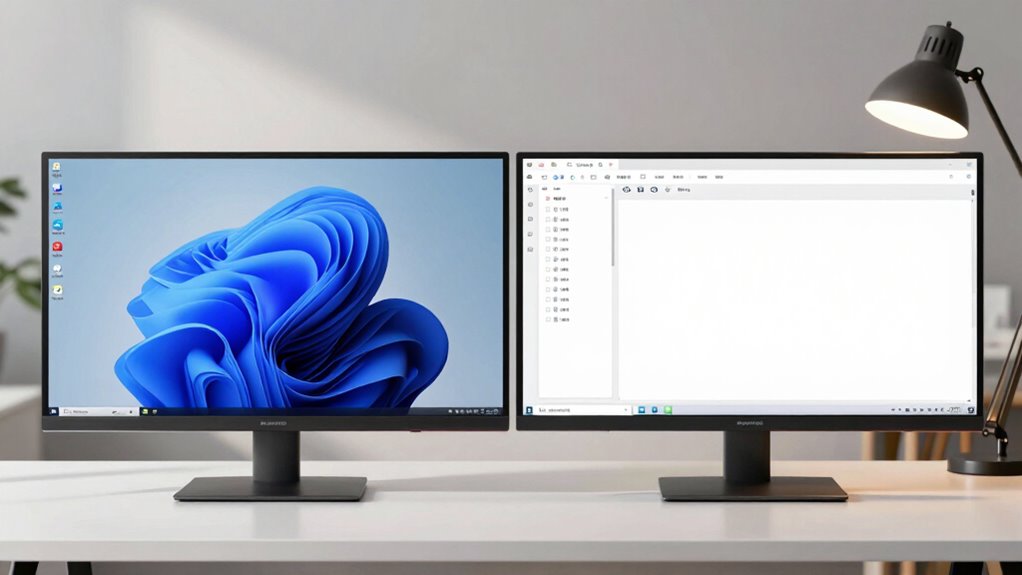
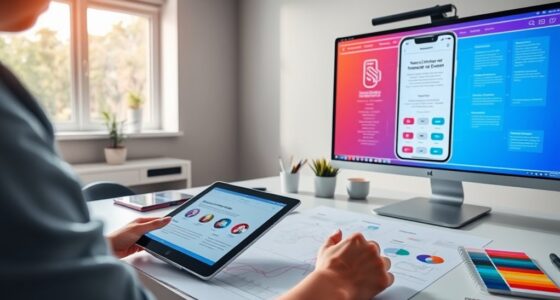
Setting up dual monitors can boost your productivity and streamline your workflow, but only if you follow the right setup rule. The key to an effective dual monitor layout is ensuring each screen is positioned correctly, which hinges on ergonomic positioning. You want your monitors at eye level, so you don’t strain your neck or eyes over extended periods. Adjust the height of your monitors so that the top of each screen aligns with your eye line. This prevents you from looking down or up constantly, reducing fatigue. Keep a slight angle inward so both monitors are within your natural line of sight, minimizing head movement and promoting a comfortable viewing experience. When your monitors are ergonomically positioned, you work more efficiently because your body remains relaxed, and you avoid unnecessary strain. Proper ergonomic positioning also helps prevent long-term health issues caused by poor posture. Cable management also plays a crucial role in optimizing your dual monitor setup. Tangled, cluttered cables can distract you and create a chaotic workspace, which hampers focus and productivity. Use cable clips, sleeves, or ties to organize and secure your cables neatly behind your desks or along the edges. Proper cable management not only makes your workspace look cleaner but also prevents accidental disconnections or damage to your cables. When your cables are well-managed, you can easily switch between devices, troubleshoot issues, and maintain a tidy environment that promotes focus. Additionally, optimal monitor placement ensures an even distribution of visual weight, reducing eye strain during long work sessions. Positioning your monitors at the correct height and angle is essential for visual ergonomics, which helps you avoid discomfort during extended use. The setup rule emphasizes aligning your monitors to create a seamless workspace. Position your primary monitor directly in front of you, with your secondary monitor placed to the side at a slight angle. This arrangement reduces neck rotation and allows quick glances between screens without disrupting your workflow. Keep the screens aligned horizontally so that your eyes don’t need to adjust vertically or horizontally excessively. This setup encourages ergonomic positioning naturally, reducing discomfort and fatigue over long work sessions. In addition, consider the placement of your keyboard and mouse in relation to your monitors. They should be positioned so your wrists remain straight, and your elbows are close to your body, further supporting ergonomic health. Good workspace organization can also help prevent distractions that may arise from cluttered or poorly arranged setups, ultimately boosting your focus and productivity. When you combine ergonomic positioning with good cable management, you create a dual monitor environment that’s both efficient and comfortable. Focusing on these elements will help you work longer hours without discomfort and maintain a clean, organized workspace that enhances your overall productivity.

HUANUO FlowLift™ Dual Monitor Stand, Fully Adjustable Gaming Monitor Desk Mount for 13–32″ Computer Screens, Full Motion VESA 75×75/100×100 with C-Clamp & Grommet Base, Each Arm Holds 4.4 to 19.8 lbs
Compatible with Wide Screens – To ensure compatibility with the dual monitor mount, your each monitor must meet…
As an affiliate, we earn on qualifying purchases.
As an affiliate, we earn on qualifying purchases.
Frequently Asked Questions
How Do I Customize Monitor Angles for Optimal Comfort?
To customize monitor angles for ideal comfort, start by adjusting your monitors with ergonomic posture in mind. Use adjustable stands to set each screen at eye level, ensuring your neck stays neutral. Tilt the monitors slightly inward to reduce strain and create a seamless viewing experience. Regularly check and tweak the angles to maintain comfort during long work sessions, promoting better posture and reducing fatigue.
What Are the Best Cable Management Tips for Dual Setups?
To improve your dual monitor setup, use cable organizers to keep cords tidy and prevent tangles. Secure cables along your desk edges or behind monitors for a cleaner look. Incorporate power strips to consolidate power sources, reducing clutter and making unplugging easier. Label cords for quick identification, and consider using velcro straps or clips to hold excess length. These tips keep your workspace organized and enhance overall efficiency.
How Can I Prevent Glare on Dual Monitors?
To prevent glare on dual monitors, you should adjust the monitor brightness to match your room’s lighting. Position your screens to avoid direct sunlight or harsh light sources, and consider using anti-glare screens or matte filters. You can also angle your monitors slightly or reposition your desk to minimize reflections. Regularly tweak the brightness and angle until you find a setup that reduces screen glare and reduces eye strain.
Which Mounting Options Are Most Flexible for Dual Monitors?
You should opt for adjustable monitor arms or mounts, as they offer the most flexibility for dual monitors. These options allow you to customize height, tilt, and swivel, promoting ergonomic posture and reducing strain. Plus, they free up desk space by mounting monitors on the wall or desk edge. This setup enhances your workspace, making it easier to position screens for comfort and efficiency without cluttering your desk.
How Do I Troubleshoot Display Alignment Issues?
Ever notice your monitors seem out of sync? You can troubleshoot display alignment issues by first checking color calibration to ensure uniformity. Next, adjust resolution settings on each monitor to match, making sure they’re both set to ideal levels. Sometimes, simply reconnecting the cables or updating your graphics driver helps. These steps keep your workspace seamless, making dual monitor use smooth and visually consistent.

Magnetic Cable Organizer – Desktop Multipurpose Cord Keeper & Cable Management Clip for Home & Office
Strong Magnetic Hold – Each organizer has high-strength neodymium magnets embedded in its four feet, ensuring a secure…
As an affiliate, we earn on qualifying purchases.
As an affiliate, we earn on qualifying purchases.
Conclusion
Mastering the setup rule transforms your dual monitor experience from cluttered chaos to seamless productivity. With a simple tweak, you’ll feel like you’ve unlocked a new level of efficiency—your workspace becomes a well-oiled machine. Say goodbye to endless window juggling and hello to crystal-clear workflows. This trick isn’t just a tip; it’s the secret weapon that can elevate your entire digital life, making your setup feel as effortless as breathing.

WALI Computer Monitor Stand for Desk, Adjustable Laptop Riser, Desk Monitor Stand Underneath Storage for Office, Home, School Supplies (STT003), 1 Pack, Black
Design: The monitor stand for the desk has a large 14.6 x 9.3 inches metal shelf that fits…
As an affiliate, we earn on qualifying purchases.
As an affiliate, we earn on qualifying purchases.

HUANUO Dual Monitor Stand for 13″–40″, Premium Dual Monitor Mount with USB, Height Adjustable Monitor Stand for 2 Monitors, VESA Mount with Clamp/Grommet Base, Holds 26.4lbs per Arm, HNDS7
Improved Stability for Ultrawide Monitors: The upgraded dual monitor stand combines solid aluminum arms, a larger base, and…
As an affiliate, we earn on qualifying purchases.
As an affiliate, we earn on qualifying purchases.